


Blog, Online Meeting Software
Best Online Meeting Software for Small Businesses: 20 Tools + 14 Expert Tips
- By Vinod Kumar VR
- No Comments


- Published on
- 15 min read
The current global pandemic has proliferated online meeting software. In these times of remote working, businesses are relying on virtual meeting platforms (also known as web conferencing, virtual communication, virtual meeting, virtual conferencing etc) to keep their remote teams connected, motivated, engaged and keep projects on track.
These virtual meeting platforms are helping companies to run their operations smoothly and consistently during these uncertain times. A Boston Consulting Group survey Found that 75% of respondents felt like they had maintained or increased their productivity after going remote. This trend is in part due to the convenience and efficiency of the virtual conference.
Virtual meeting platforms reduce the need for business travel and carbon footprint due to less usage of planes, trains, and cars. A study conducted by students at George Mason University found that driving to a meeting one hour away uses the equivalent electrical power of 1,000 hours of web conferencing.
These online meeting platforms are also very efficient because employees don’t need to send an email and wait for a reply to wasting time. Instead, they can jump on to a call and find a quick solution, which results in quick decision making, higher employee satisfaction and retention, and improved productivity.
Online meeting software helps teams communicate through video, voice, screen sharing, and collaboration tools from anywhere. In this guide, we compare the top 20 online meeting platforms for small businesses and share practical tips to run smoother, more productive virtual meetings that improve communication and teamwork.
Top 20 Online Meeting Software
1. Clariti
Clariti is one of the best free online meeting software that lets you make and receive unlimited direct and group audio calls to other Clariti users. While you are on audio call, you can also do screen sharing with other Clariti users. You don’t have to install additional apps. You can call other Clariti users without generating any meeting id or passcode. You don’t have to dial in any number, and you can use your desktop speaker and mic for the calls. You will be notified of any missed calls through the ‘Missed Call’ indicator.
Besides audio calling, Clariti supports all communication forms including emails, chats, social feeds, to-dos and cloud-based shared documents in one app. Clariti automatically links all related information in a hybrid conversation. This eliminates the need to search for information across information silos.
Pros
- Contextual meetings that automatically link chats, emails, files, and calendar events.
- Built-in screen sharing, voice, and video calling for real-time collaboration.
- Meeting discussions stay organized under subject-based conversations for easy reference.
Cons
- Primarily designed as a collaboration platform, so meeting-only users may find extra features unnecessary.
- Participants unfamiliar with contextual conversations may need a short learning period.
Why we chose this tool
- Meetings don’t happen in isolation—Clariti connects meeting discussions with emails, files, and chats for full context.
- Allows teams to schedule meetings directly from conversations and access the full background before joining.
- Screen sharing, voice calls, and chat are integrated within the same workspace, reducing the need for multiple tools.
Pricing Info
- Premium pricing is available on request.
2. GoToMeeting
GoToMeeting is one of the free top online meeting platforms that allows users to host an online meeting with up to 250 participants. Users can share any application on their computer in real time. GoToMeeting offers high-definition video conferencing and unlimited meetings with remote colleagues. Users can start a meeting instantly by clicking “Meet Now”, schedule a meeting in advance, or create a recurring meeting that is ready to use at any time.
Pros
- Reliable HD video conferencing.
- Easy meeting scheduling and joining.
- Good mobile support.
Cons
- Limited features in lower-tier plans.
- Slightly higher pricing compared to competitors.
Why we chose this tool
- Well-known enterprise meeting solution.
- Strong reliability for professional meetings.
- Good for webinars and team collaboration.
Pricing Info
- Basic: Around $12/month (Professional plan).
- Premium: Around $16/month (Business plan).
3. Zoho Meeting
Zoho Meeting is one of the best top virtual meeting platforms using which you can host online meetings, share screens, and join conferences with video collaboration in browser. The Zoho Meeting Chrome extension lets you host webinars and online meetings right from your Chrome browser without any downloads.
Pros
- Simple browser-based meetings.
- Strong integration with Zoho ecosystem.
- Affordable pricing.
Cons
- Fewer advanced features than large competitors.
- Interface can feel basic.
Why we chose this tool
- Ideal for businesses using Zoho products.
- Cost-effective meeting platform.
- Works directly from the browser without installation.
Pricing Info
- Basic: Free plan available.
- Premium: Starts around $3–$5 per host/month.
4. ClickMeeting
ClickMeeting is one of the browser-based top online meeting software which brings the power of webinars to organizations of any size, from one-person firms to multinational enterprises. The web-based solution is easy to use and covers the entire webinar process from preparation to presentation, and from interaction to follow-up. With fresh, intuitive UX design and stunning audio-video quality, the ClickMeeting video conferencing app is a good choice for sharing knowledge and collaboration on the go.
The software requires no installation and works on all devices and operating systems.
Pros
- Strong webinar capabilities.
- Custom branding options.
- Built-in analytics and attendee tracking.
Cons
- Interface may feel complex for beginners.
- Pricing depends on attendee limits.
Why we chose this tool
- Great for webinars and training sessions.
- Useful marketing automation features.
- Good audience engagement tools.
Pricing Info
- Basic: Around $25/month.
- Premium: Around $40–$45/month.
5. AnyMeeting
Intermedia is one of the top browser-based online meeting platforms that provides screen sharing, integrated audio and video options, meeting transcription and more—all with a few clicks. Using Intermedia, you can host and join meetings wherever you go with their convenient desktop and mobile apps. Intermedia browser-based app means no downloading, so meetings start super quick and get productive fast!
Pros
- Reliable video conferencing.
- Good meeting recording features.
- Strong security controls.
Cons
- Interface not as modern as competitors.
- Limited free plan.
Why we chose this tool
- Enterprise-grade reliability.
- Good for internal company meetings.
- Offers webinar capabilities.
Pricing Info
- Basic: Around $10/month.
- Premium: Around $13–$15/month.
6. FaceTime
FaceTime is a proprietary virtual meeting platform that was developed by Apple Inc. FaceTime is available on supported iOS mobile devices running iOS 4 and later and Mac computers. FaceTime might soon be available on Android and windows, which means you will be able to join FaceTime calls through web browsers the way you do on Zoom, Microsoft Teams, WebEx and other video collaboration tools right now.
Pros
- Excellent video quality.
- Easy to use for Apple users.
- Built-in on Apple devices.
Cons
- Limited to the Apple ecosystem.
- Not designed for business meetings.
Why we chose this tool
- Simple one-on-one video communication.
- Popular among Apple users.
- Reliable for small meetings.
Pricing Info
- Basic: Free.
- Premium: Not applicable.
7. Adobe Connect
Adobe Connect is an online meeting software solution used for conducting team meetings, webinars, and training sessions. The solution is for ad-hoc collaboration as well as planned online meetings. The online meeting software enables online audio and video collaboration across devices (including mobile platforms). Participants using desktops can join meetings without installing any software.
Pros
- Powerful webinar features.
- Advanced customization options.
- Persistent virtual rooms.
Cons
- Expensive compared to alternatives.
- Learning curves for new users.
Why we chose this tool
- Ideal for webinars and training.
- Advanced meeting management tools.
- Strong engagement features.
Pricing Info
- Basic: Around $50/month.
- Premium: $130+/month.
8. Zoho Cliq Meetings
Zoho Cliq Meetings allows teams using Zoho Cliq to start instant voice or video meetings directly from their team chat workspace. It helps teams collaborate quickly without switching between multiple applications.
Pros
- Seamless integration with Zoho Cliq chat.
- Quick meeting creation from conversations.
- Simple interface for team collaboration.
Cons
- Best suited for teams already using Zoho tools.
- Limited features compared to standalone meeting platforms.
Why we chose this tool
- Integrates meetings directly with team chat.
- Useful for quick internal collaboration.
- Part of the broader Zoho ecosystem.
Pricing Info
- Basic: Included with Zoho Cliq free plan (limited features).
- Premium: Zoho Cliq paid plans start around $3–$5 per user/month.
9. Lifesize
Lifesize has been at the forefront of video conferencing delivering high-quality technology designed to bring people together. Lifesize’s online conferencing solutions deliver unparalleled ease-to-use and superior quality for every audio, web and video conferencing use case. Lifesize combines an integrated, best-in-class cloud-based conferencing experience, with award-winning, cloud-ready meeting room systems so that you can connect to anyone, anywhere and from any device.
Pros
- High-quality video conferencing.
- Enterprise-grade meeting rooms.
- Strong integration with hardware systems.
Cons
- Higher pricing.
- More suitable for large organizations.
Why we chose this tool
- Excellent video quality.
- Strong meeting room integration.
- Good for enterprise collaboration.
Pricing Info
- Basic: Around $12/month.
- Premium: $23+/month.
10. Microsoft Teams Meetings
Microsoft Teams Meetings is a video conferencing and collaboration platform that allows teams to host online meetings, share screens, chat, and collaborate on documents in real time. It integrates closely with Microsoft 365 apps like Outlook, Word, Excel, and PowerPoint, making it a popular choice for businesses already using the Microsoft ecosystem.
Pros
- Seamless integration with Microsoft 365 tools.
- Supports large meetings, webinars, and screen sharing.
- Strong security and enterprise-grade compliance.
Cons
- Interface can feel complex for new users.
- Some features require Microsoft 365 subscription.
Why we chose this tool
- One of the most widely used business meeting platforms.
- Combines video meetings with team collaboration tools.
- Ideal for organizations already using Microsoft products.
Pricing info
- Basic: Free plan available with limited meeting features.
- Premium: Microsoft 365 plans start around $6–$12 per user/month, depending on the plan.
11. Zoom Meetings
Zoom Meetings is a cloud-based online meeting software that allows organizations to conduct virtual meetings and collaborate in real-time using integrated communication tools. Users can utilize HD video and audio to virtually communicate with meeting participants in any video call. Features include unlimited voice and video conferencing, screen sharing, messaging, video webinars, virtual workspaces, and more. Zoom makes it easier for users to schedule and kick off any online meeting by syncing a Zoom account with Outlook, Gmail, or iCal calendars. Zoom app, Zoom Cloud Meetings, is available for any iOS and Android mobile device.
Pros
- Very easy to use.
- Large participant capacity.
- Extensive integration.
Cons
- Security concerns in the past.
- Free plans have time limits.
Why we chose this tool
- Industry-leading meeting platform.
- Reliable video conferencing.
- Strong feature set for teams.
Pricing Info
- Basic: Free plan available.
- Premium: Around $14.99/month.
12. Slack Huddles
Slack Huddles is a lightweight audio-first meeting feature inside Slack that allows teams to quickly jump into spontaneous conversations directly from chat channels or direct messages.
Pros
- Instant voice meetings from Slack channels.
- Lightweight and easy to start.
- Supports screen sharing and messaging.
Cons
- Limited advanced meeting features.
- Best suited for internal team communication.
Why we chose this tool
- Enables quick real-time discussions within Slack.
- Reduces the need for scheduled meetings.
- Integrates naturally with team messaging.
Pricing
- Basic: Available in Slack free plan (limited features).
- Premium: Slack paid plans start around $7–$12 per user/month.
13. Google Meet
Google Meet is an online meeting solution that enables users to make video calls with up to 30 users per high-definition video meeting. The app allows users to join pre-scheduled meetings from calendar events,choose a link, enter meeting code and even dial in from their phones if the invitation includes a phone number. Google Meet integrates with G Suite versions of Google Calendar and Gmail and shows the complete list of participants and scheduled meetings. It shows a “join” button for users to connect to the meeting and provides options to mute and turn off the video during the meeting.
Google Meet allows users to dial phone numbers to access meetings, thus enabling users with slow or no internet connection to call in.
Pros
- Integrated with Google Workspace.
- Browser-based meetings.
- Strong security.
Cons
- Limited features in free plan.
- Requires Google account.
Why we chose this tool
- Ideal for Google Workspace users.
- Easy meeting access.
- Reliable video conferencing.
Pricing Info
- Basic: Free plan available.
- Premium: $6+/user/month (Workspace plans).
14. Webex
Webex Meetings offers secure, integrated audio, video, and content sharing from any device, anywhere. Intelligent features such as noise removal, Webex Assistant, with real-time translations, and People Insights automate meeting tasks to help you work smarter. Using Webex, you can schedule and start web meetings from your browser, desktop/mobile app, or video device. Webex provides exceptional audio, video, and content sharing, including digital whiteboards. No downloads or plug-ins. Just one big green button to push to easily start your meeting.
Pros
- Enterprise-grade security.
- Advanced collaboration features.
- Large meeting capacity.
Cons
- Interface can feel complex.
- Higher pricing tiers.
Why we chose this tool
- Trusted enterprise meeting platform.
- Strong security and reliability.
- Suitable for large organizations.
Pricing Info
- Basic: Free plan available.
- Premium: Around $14.50/month.
15. Cisco Jabber
Cisco Jabber is a unified communication software solution designed to facilitate the collaboration and communication needs of any business. With Jabber, users can utilize video and voice conferencing, messaging, and screen sharing capabilities on any mobile device such as iPhone or iPad to work anytime, anywhere. Jabber includes instant messaging, voice calls, video calls, voice messaging, desktop sharing, an XMPP client, and more.
Jabber offers additional features such as multilingual support, an integrated Cisco phone line and Cisco unified communications manager for integration for manageable call control and session management. Jabber is available as a mobile app for any iOS or Android device.
Pros
- Strong enterprise communication tools.
- Secure messaging and calling.
- Good integration with Cisco products.
Cons
- Complex setup.
- Not ideal for small teams.
Why we chose this tool
- Enterprise collaboration solution.
- Secure corporate communication.
- Integration with Cisco infrastructure.
Pricing Info
- Basic: Included with Cisco services.
- Premium: Enterprise pricing varies.
16. RingCentral Video
RingCentral Video is a cloud-based video conferencing solution designed to help businesses conduct meetings and enable team members to share documents, collaborate, edit files, and manage multiple users in a centralized platform. Features include device switching, session recording, voicemail-to-text conversion, screen sharing, and call handling. The application’s analytics portal enables administrators to track usage, monitor service quality, calls or meetings and receive real-time notifications about issues. Hosts can create recurring meetings, prepare agendas or content, send automated reminders to late attendees and assign tasks in a messaging group. Users can also adjust screen sizes, view other participants and chat with an individual member or entire group.
RingCentral Video offers integration with various third-party platforms such as Slack, G Suite, Zendesk, Canvas and more. It comes with mobile applications for iOS and Android.
Pros
- Reliable video conferencing.
- Strong team messaging integration.
- Good mobile apps.
Cons
- Pricing slightly higher.
- Some features require higher plans.
Why we chose this tool
- Unified communication platform.
- Reliable meetings and messaging.
- Good business collaboration tools.
Pricing Info
- Basic: Free plan available.
- Premium: Around $20+/user/month.
17. FreeConferenceCall.com
FreeConferenceCall.com is online meeting platform with over 800,000 business users, catering to users around the globe, offering screen sharing, high-definition audio conferencing and video conferencing for up to 1,000 members.
This free collaboration and conferencing tool lets you securely connect and take your business to the next level. Every account includes free services like audio and video recordings, calendar integrations, international dial-in numbers from over 60 countries, call management tools, security features, mobile applications, and 24/7 live client support.
Users can record conference calls and listen to them later by dialing a dedicated number and entering a reference number. Managing conference calls is easy with keypad commands on the phone. Users can search for significant sessions of recorded conference calls with specific keywords. Users will only need a headset, mic and laptop, or mobile to join a VoIP conference call.
Pros
- Completely free conferencing.
- Large participant capacity.
- Screen sharing support.
Cons
- Basic interface.
- Limited advanced features.
Why we chose this tool
- Cost-effective meeting solution.
- Suitable for large conference calls.
- Easy meeting setup.
Pricing Info
- Basic: Free.
- Premium: Optional paid upgrades.
18. Whereby
Whereby is a browser-based video meeting platform designed for simple and secure online meetings without requiring downloads or complex setup. It is popular among small teams and remote workers for its ease of use and lightweight interface.
Pros
- No downloads required (browser-based).
- Simple and clean meeting interface.
- Customizable meeting rooms.
Cons
- Limited advanced collaboration features.
- Free plan has participant limits.
Why we chose this tool
- Extremely easy for guests to join meetings.
- Ideal for small teams and quick calls.
- Secure browser-based meeting environment.
Pricing Info
- Basic: Free plan (limited participants and features).
- Premium: Paid plans start around $8–$10 per host/month.
19. Callbridge
Callbridge is an online meeting software where its meeting transcriptions are powered by AI. Callbridge can automatically record your meetings and create transcriptions. Its complex algorithms identify different speakers and can give a sentiment analysis for your entire meeting. There are zero downloads. Simply copy and paste your meeting URL into your internet browser. No downloads for any parties, not even the host.
Pros
- HD audio conferencing.
- Secure meeting environment.
- Good recording features.
Cons
- Limited brand awareness.
- Fewer integrations.
Why we chose this tool
- Reliable conference call.
- Strong security features.
- Suitable for professional meetings.
Pricing Info
- Basic: Around $10/month.
- Premium: Around $20/month.
20. Jitsi Meet
Jitsi Meet is an open-source online meeting software solution that helps businesses of all sizes create virtual rooms to conduct meetings remotely. Presenters can mute participants, send private messages, remove specific individuals and record sessions.
Jitsi Meet’s screen sharing functionality allows team members to share external applications with coworkers, facilitating quick collaboration. Administrators can set up password-protected virtual rooms and lock rooms to restrict late attendees from joining sessions. The telephony module enables team members to invite participants and join meetings via audio phone calls. Jitsi Meet comes with an API, which allows businesses to integrate the system with multiple third-party applications. It provides Android and iOS mobile applications, which allow users to join video conferences remotely.
Pros
- Open-source and free.
- No account required.
- Strong privacy focus.
Cons
- Limited enterprise features.
- Performance may vary on large meetings.
Why we chose this tool
- Completely free solution.
- Privacy-focused platform.
- Easy browser-based meetings.
Pricing Info
- Basic: Free.
- Premium: Paid hosting options available.
Online Meeting Software: Features, Pricing & Performance Compared
|
Tool
|
Best For
|
Free Plan
|
Key Feature
|
|---|---|---|---|
|
Clariti
|
Contextual collaboration
|
Yes
|
Conversations linking chat, email & meetings
|
|
Zoom
|
Large meetings
|
Yes
|
Breakout rooms & HD video
|
|
Google Meet
|
Google Workspace users
|
Yes
|
Browser-based meetings
|
|
Webex
|
Enterprise security
|
Yes
|
Advanced meeting controls
|
|
Zoho Meeting
|
Small businesses
|
Yes
|
Affordable webinar tools
|
|
Microsoft
Teams
|
Office users
|
Yes
|
Microsoft 365 integration
|
14 Key Tips for Running Successful Online Meetings
1. Ensure Easy Access
People should be able to join meetings fast. A single click is the best. Avoid long sign-ups, downloads, or login steps. When access is simple, meetings start on time and people stay focused.
2. Support Voice and Video
The tool should easily switch between input and output devices so that you can troubleshoot camera issues even in the middle of the call.
- Video helps build better connection.
- Voice works well on low internet or mobile.
This gives users the freedom to choose what works best.
3. Share Context Before the Meeting
Send all key details before the meeting. This includes:
- Agenda.
- Files and links.
- Notes or background.
When people have context, they come prepared and save time.
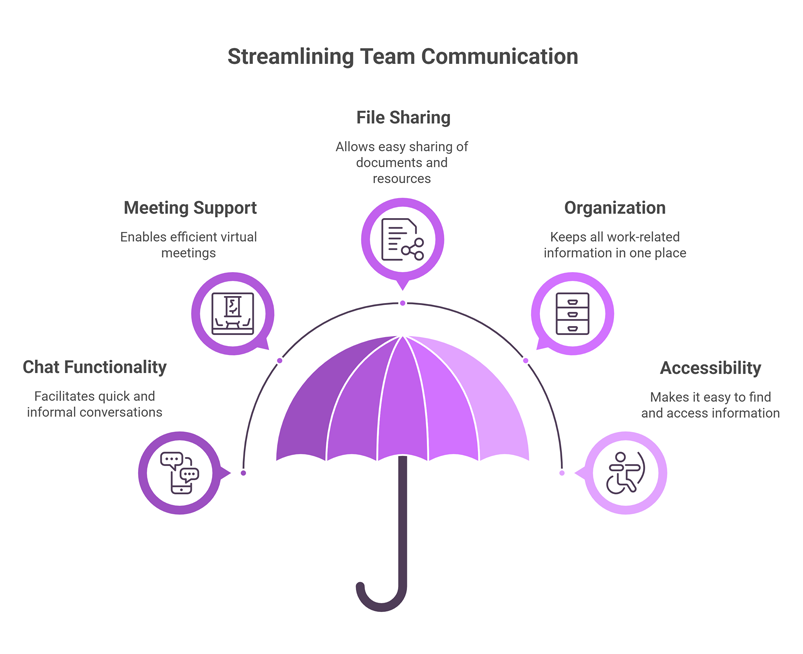
4. Use One Platform for Communication
Using many tools can confuse teams. A single platform like Clariti is better.
It should support chat, meetings, and file sharing in one place. This keeps all work organized and easy to find.
5. Record Meetings for Later
Nowadays many invitees are called for meetings. It may not be possible for all of them to join the discussion simultaneously due to their busy schedules. But if one of the team members wants to catch up with the meeting or has any clarification or doubt, they can still listen to the recorded version.
- Once the session is recorded, it is available for all the stakeholders.
- To make the content accessible to multilingual teams, a video translator can be used to add subtitles or voiceovers in different languages, ensuring everyone understands the key points.
6. Ensure Good Audio and Video Quality
Clear sound and video are very important. Poor quality can break the flow of a meeting. Low delay (latency) helps people talk smoothly without interruptions.
7. Use Screen Sharing
Screen sharing helps explain ideas better. You can show:
- Slides.
- Documents.
- Apps or dashboards.
This makes complex topics easier to understand.
8. Use Visual Aids and Simple Markups
Visuals help people learn faster. Use:
- Charts
- Diagrams
- Slides
You can also highlight or mark key points to guide attention.
9. Keep Screen Sharing Focused
Do not show too many things at once. This can confuse people. Only share what is needed for the discussion. This keeps everyone focused.
10. Keep Meetings Secure
Security is very important, especially for business meetings. Use simple safety features like:
- Password protection.
- Waiting rooms.
- Host controls.
This keeps your meeting safe and private.
11. Support All Devices and Browsers
- People join meetings from many devices like phones, tablets, and laptops.
- Make sure your meeting tool works well on all of them. This helps everyone join without issues.
12. Use Calendar Integration
Connect your meetings with calendar tools. This helps:
- Easy scheduling.
- Auto reminders.
- Less back-and-forth.
It makes planning meetings simple and smooth.
13. Encourage Participation
A good meeting is not one-sided. Let everyone take part. Ask questions and invite ideas. When people speak up, meetings become more useful and engaging.
14. Track Decisions and Next Steps
Always write down what was decided. Include:
- Action items.
- Task owners.
- Deadlines.
Share these notes after the meeting so everyone knows what to do next.
How Clariti Supports Online Meetings
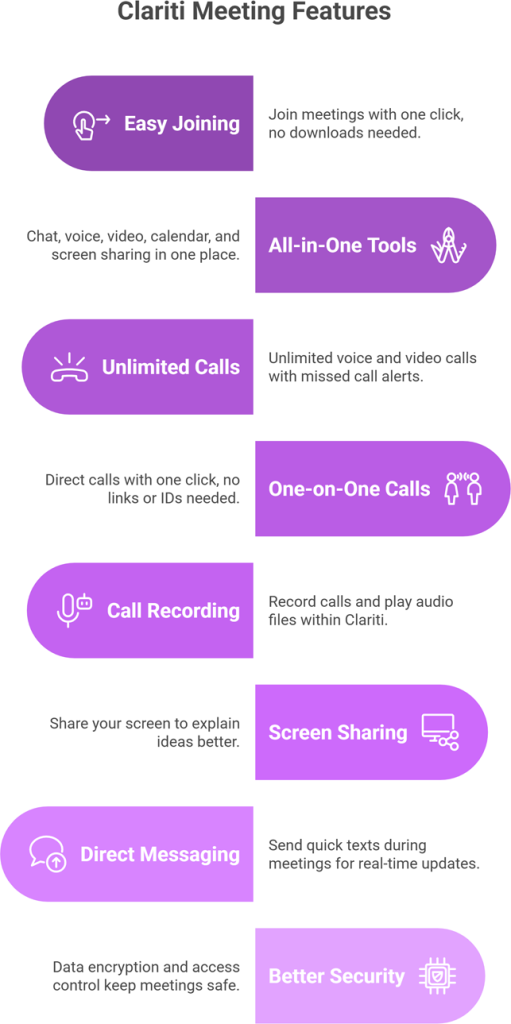
Clariti is a simple online meeting tool. It lets users join meetings with one click. There is no need to download apps or follow long steps. This helps meetings start on time.
It supports both one-on-one and group meetings. Users do not need meeting IDs or passcodes. The clean design makes it easy for anyone to join and use.
Clariti also brings many tools into one place. Users can access:
- Chat
- Voice and video calls
- Calendar
- Screen sharing
This removes the need to switch between apps. It keeps work simple and organized.
It also supports unlimited voice and video calls. Users can see missed call alerts and get reminders for meetings. This helps teams stay connected and not miss important talks.
One-on-One Voice and Video Calls
Clariti makes direct calls very easy. Users can start a call with one click. There is no need for links, IDs, or passwords.
This is useful for quick talks and daily work. Audio quality is clear, so users can hear each other well.
Call Recording
Clariti allows users to record calls. The host can start recording anytime.
- Recordings are shared after the call ends.
- Audio files can be played inside Clariti.
- No need to download files.
This helps teams review and keep records.
Screen Sharing
Users can share their screen during meetings. This helps explain ideas better.
- Show files, slides, or apps.
- Switch presenters easily.
- Adjust screen view as needed.
This makes teamwork smooth and clear.
Direct and Group Messaging
Clariti supports messaging during meetings. Users can send quick texts without stopping the call.
This helps share notes and updates in real time.
Better Security
Clariti keeps meetings safe with strong security.
- Data encryption.
- Access control.
This protects user data and keeps communication private.
Conclusion
Mastering virtual collaboration is important for modern teams. It helps people work together from anywhere with ease. Free online meeting tools have made this simple and open to all.
Tools like Clariti help teams stay connected and organized. With features like screen sharing, messaging, and file sharing, teams can run clear and smooth meetings from any place.
As remote work grows, strong communication becomes more important. Teams need simple tools and clear steps to work well. Setting clear goals, sharing plans, and keeping everyone involved can make a big difference.
With the right tools and habits, teams can overcome challenges, work better together, and reach their goals faster.
Frequently Asked Questions
What is online meeting software?
Online meeting software allows teams to communicate through video calls, voice calls, screen sharing, and collaboration tools over the internet. It helps remote teams conduct meetings, presentations, and discussions without being physically present.
What features should small businesses look for in online meeting software?
Small businesses should look for features such as screen sharing, meeting recording, chat messaging, calendar integration, participant management, and strong security to ensure smooth and productive virtual meetings.
What is the best free online meeting software?
Some of the best free online meeting tools include Zoom, Google Meet, and Jitsi Meet. These platforms offer basic video conferencing features suitable for small teams and occasional meetings.
How many participants can join online meetings?
Participant limits vary by platform. Free plans typically support 25–100 participants, while paid plans may allow hundreds or even thousands of participants in webinars or large meetings.
Is online meeting software secure for business use?
Most modern platforms offer encryption, waiting rooms, password protection, and access controls. Choosing a trusted provider and enabling security settings helps ensure safe and private meetings.
Can online meeting tools integrate with calendars and email?
Yes, many meeting platforms integrate with calendars like Google Calendar and Outlook. This makes it easier to schedule meetings, send invites, and manage reminders.
What internet speed is required for smooth virtual meetings?
For HD video meetings, a stable internet connection with at least 3–5 Mbps upload and download speed is recommended to avoid lag or interruptions.
What are the benefits of using online meeting software for small businesses?
Online meeting software reduces travel costs, improves remote collaboration, enables faster communication, and allows teams to connect instantly from anywhere.
Can online meetings be recorded for later reference?
Most platforms provide meeting recording features so participants can review discussions later or share recordings with team members who could not attend the meeting.
How can teams make virtual meetings more productive?
Teams can improve productivity by setting clear agendas, sharing documents beforehand, limiting meeting duration, encouraging participation, and documenting key decisions and action items.




Start for FREE with Personal CRM
We too hate spam! Your email is secure with us.

Spot secured. You're in.
You’re officially on the list for early access to Clariti.


No more switching tools.

No more lost context.

Just Clarity.
You’ll be among the first to experience it when we launch. We’ll let you know the moment it’s ready.

Keep an eye out for emails from @clariti.app.
(and check your spam folder just in case—whitelisting us helps ensure you don’t miss a thing).

