


Uncategorized
How to Organize and Optimize Your Gmail Inbox for Maximum Productivity
- By Vinod Kumar VR
- No Comments

- Published on
- 10 min read
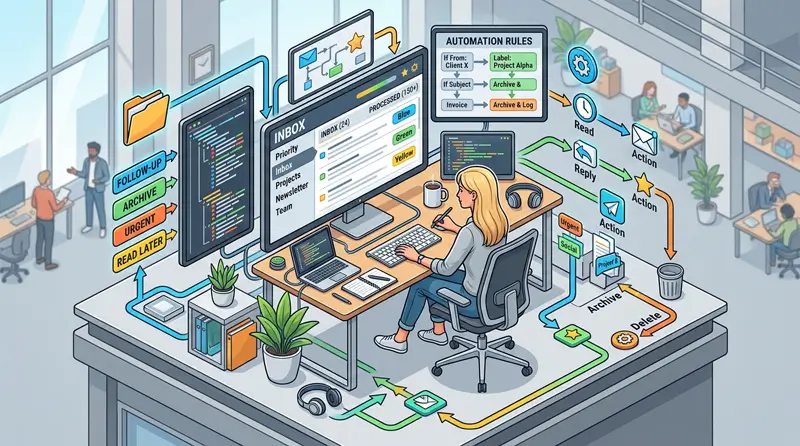
Organizing and optimizing your Gmail inbox means using labels, filters, Priority Inbox, shortcuts, and smart automation features to reduce clutter, save time, and improve productivity. With the right setup, Gmail becomes a streamlined communication hub instead of a daily distraction.
According to Statista, Gmail boasts over 1.8 billion active users, making it an essential tool for professionals and businesses worldwide.
However, managing a cluttered mail inbox can quickly become overwhelming, affecting both productivity and efficiency. Research from McKinsey & Company show that the average worker spends 28% of their workweek managing emails, highlighting the need for a well-organized Gmail login inbox.
Additionally, a report by Adobe found that professionals spend over 5 hours per day checking work email, reinforcing the importance of efficient inbox management.
Gmail is much more than a simple email service—it offers a range of features designed to streamline communication, improve workflow, and enhance email management. From labels and filters that categorize emails automatically to Priority Inbox that ensures you never miss critical messages, mastering these tools can significantly optimize daily operations. According to Google Workspace, AI-powered spam filters block 99.9% of phishing and malware emails, highlighting the platform’s intelligent automation capabilities.
This comprehensive guide will explore everything you need to know about effectively managing your Gmail inbox. We’ll discuss key features that enhance email efficiency, storage management tips, security measures to protect against threats, and Gmail shortcuts to save time.
Whether you’re looking to integrate Gmail with productivity tools, customize your inbox layout, or recover deleted emails, this guide will equip you with the best strategies to keep your Gmail inbox clean, secure, and optimized for peak productivity.
What are the Key Features of Gmail Inbox and How to Streamline Your Email Experience

Gmail offers a suite of powerful features that go beyond basic email management, helping users optimize their workflow, stay organized, and boost productivity. Whether you’re handling hundreds of emails daily or just a few, mastering these features can significantly improve your email experience.
1. Labels and Filters: Automate Email Organization
Instead of traditional folders, Gmail uses labels, allowing users to categorize emails with multiple tags. Combined with filters, Gmail can automatically sort incoming emails based on sender, subject, or keywords, keeping your mail inbox organized and clutter-free.
2. Priority Inbox: Focus on Important Emails First
Gmail’s Priority Inbox automatically sorts emails into sections like Important, Starred, and Everything Else, ensuring you never miss critical messages. This AI-driven feature learns from your email habits, prioritizing messages that matter most.
3. Gmail Tabs: Efficient Email Segmentation
Gmail divides incoming emails into tabs like Primary, Social, Promotions, Updates, and Forums, reducing distractions, and making it easier to focus on essential communications. This automated categorization keeps your inbox structured.
4. Advanced Search and Smart Compose
Gmail’s powerful search operators help you find emails instantly, while Smart Compose leverages AI to suggest relevant phrases, speeding up email writing and improving efficiency.
5. Integration with Google Workspace and Extensions
Gmail seamlessly integrates with Google Drive, Calendar, and third-party extensions, enhancing collaboration and workflow automation. From scheduling meetings to attaching files directly from Drive, these integrations streamline daily tasks.
By leveraging these key features, users can transform their Gmail login inbox into an efficient, well-organized workspace, reducing time spent on email management, and improving overall productivity.
How to Organize Emails Using Gmail Labels and Filters

Managing an overflowing mail inbox can be challenging, but Gmail’s labels and filters provide an effective way to categorize and automate email organization. Unlike traditional folders, labels allow users to tag emails with multiple categories, making it easier to retrieve and manage messages efficiently.

1. Creating and Applying Labels
Labels function like customizable tags that can be assigned to emails manually or automatically. To create a new label:
- Click on “More” in the left sidebar and select “Create new label.”
- Name the label (e.g., “Work,” “Invoices,” “Newsletters”).
- Assign colors for easy identification.
Once created, labels can be applied to incoming and existing emails, allowing quick filtering and retrieval.
2. Automating Email Sorting with Filters
Filters streamline email management by applying actions to incoming messages based on specific conditions. To set up a filter:
- Click on the search bar and enter keywords, email addresses, or subject lines.
- Select “Create filter” and choose actions like applying a label, marking as important, archiving, or deleting.
- Click “Create filter” to save your preferences.
For example, if you receive frequent reports from a specific sender, a filter can automatically assign them to a “Reports” label and archive them for later review.
3. Nesting Labels for Better Organization
Gmail allows nested labels, creating a hierarchy for better categorization. For instance, a main label like “Projects” can have sub-labels like “Project A” and “Project B”, ensuring a structured inbox.
By effectively using labels and filters, users can reduce inbox clutter, quickly find important emails, and ensure their Gmail login inbox remains well-organized for maximum productivity.
How to Achieve Inbox Zero in Gmail
Inbox Zero means keeping your inbox empty or near empty by processing emails daily. Use the 4D method: Delete, Delegate, Do, or Defer. Archive completed emails, use filters to automate sorting, and schedule 2–3 dedicated email-checking times per day to avoid constant distractions.
How to Automatically Unsubscribe from Promotional Emails
Open a promotional email and click Gmail’s built-in “Unsubscribe” link near the sender’s name. For bulk cleanup, search category: promotions and unsubscribe in batches. You can also create a filter to auto-archive marketing emails or use trusted tools to manage subscriptions.
How to Use Gmail Search Operators Like a Pro
Gmail search operators help you find emails instantly. Use:
- from:john@example.com (specific sender)
- has: attachment (emails with files)
- before:2025/01/01 (older emails)
- size:5MB (large emails)
Combine operators (e.g., from:client has:attachment) for precise results.
How to Set Up Multiple Gmail Inboxes
Go to Settings → Inbox → Inbox Type and select Multiple Inboxes. Create custom sections using search queries like label:Work or is: starred. This allows you to view priority emails, tasks, or client conversations in separate panels within one inbox.
How to Create Email Rules for Business Accounts
Use Gmail Filters to automate email handling. Go to Settings → Filters and Blocked Addresses → Create New Filter. Set conditions (sender, keywords, subject), then choose actions like applying labels, forwarding to a team member, marking important, or archiving automatically.
How to Use Gmail’s Priority Inbox for Enhanced Productivity
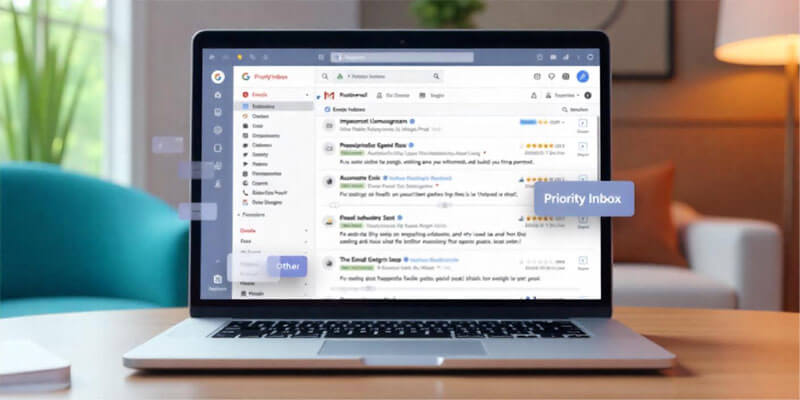
With the average professional receiving over 120 emails per day, managing a cluttered mail inbox can become overwhelming. Gmail’s Priority Inbox helps users focus on essential emails by intelligently sorting messages based on importance. This AI-powered feature learns from your email behavior, ensuring that high-priority emails are always visible first.
1. Enabling Priority Inbox
To activate Priority Inbox in your Gmail login inbox, follow these steps:
- Click the gear icon in the top-right corner and select “See all settings.”
- Navigate to the “Inbox” tab.
- Under the Inbox type, select “Priority Inbox.”
- Customize the sections (e.g., Important, Starred, Unread) based on your workflow.
2. Understanding Priority Inbox Sections
Priority Inbox divides emails into four sections for better organization:
- Important and Unread – Displays urgent emails first, based on Gmail’s AI analysis.
- Starred – Keeps emails that you manually mark as important.
- Everything Else – Stores lower-priority emails that do not require immediate attention.
- Custom Sections – Allows further customization, such as emails from specific senders or labels.
3. Training Gmail for Better Email Sorting
Gmail improves its sorting over time, but you can manually adjust it:
- If an email is incorrectly marked as important, click the yellow tag to remove the label.
- To mark an email as important, click the yellow tag or use the “More” menu to adjust importance settings.
4. Combining with Filters and Labels for Maximum Efficiency
Using filters and labels alongside Priority Inbox further refines the organization. For example, you can create a filter that applies to a “High Priority” label to specific clients or team members.
By leveraging Priority Inbox, users can reduce email overload, focus on critical messages, and ensure their Gmail inbox remains optimized for peak productivity.
How Gmail Tabs Reduce Inbox Clutter

Gmail’s tabbed inbox is a powerful feature that automatically categorizes emails into different sections, helping users declutter their mail inbox and focus on what matters most. With five predefined tabs—Primary, Social, Promotions, Updates, and Forums—Gmail intelligently sorts incoming messages, reducing distractions and improving efficiency.

1. Understanding Gmail Tabs
- Primary – Contains personal and important emails, including messages from contacts and conversations that require attention.
- Social – Collects notifications from social media platforms like Facebook, LinkedIn, and Twitter.
- Promotions – Stores marketing emails, newsletters, and promotional offers, keeping them separate from essential communication.
- Updates – Includes transactional emails, such as bills, receipts, and confirmations.
- Forums – Groups emails from discussion boards, mailing lists, and online communities.
2. Enabling or Disabling Gmail Tabs
To customize Gmail tabs in your Gmail login inbox:
- Click the gear icon and select “See all settings.”
- Go to the Inbox tab and click “Categories.”
- Check or uncheck tabs based on your preferences.
- Click Save Changes to update your settings.
3. Moving Emails Between Tabs
If Gmail misplaces an email, simply drag and drop it into the correct tab. Gmail will remember your preference and apply it to similar future emails.
4. How Gmail Tabs Improve Productivity
According to a Google study, users who enable tabs experience 15% less email overload, as important messages remain in the Primary tab while non-essential emails stay organized in other categories.
By effectively utilizing Gmail tabs, users can maintain a clutter-free Gmail inbox, reduce distractions, and streamline their email management for maximum efficiency.
Managing Storage in Gmail Inbox: Tips to Avoid Running Out of Space
|
Feature
|
Archive
|
Delete
|
|---|---|---|
|
Removes from Inbox
|
Yes
|
Yes
|
|
Stored in All Mail
|
Yes
|
No
|
|
Permanently Deleted
|
No
|
After 30 days
|
|
Searchable
|
Yes
|
Only in Trash
|
|
Best For
|
Decluttering
|
Removing unwanted emails
|
With Gmail offering 15GB of free storage shared across Google Drive, Photos, and Gmail, running out of space can disrupt email functionality. When your mail inbox reaches its limit, you may stop receiving new emails, making efficient storage management essential. Here are the best ways to free up space and optimize your Gmail login inbox.
1. Check Your Storage Usage
To see how much storage is left:
- Go to Google One Storage (one.google.com/storage).
- Check the breakdown of space used by Gmail, Drive, and Photos.
2. Delete Large Emails and Attachments
Use Gmail’s advanced search to find large emails:
- Type size:10MB in the search bar to find emails over 10MB.
- Review and delete unnecessary emails with attachments.
- Empty the Trash folder to free up space permanently.
3. Clear Spam and Trash Regularly
Spam and Trash folders automatically delete emails after 30 days, but you can manually clear them sooner to free up space instantly.
4. Manage Google Drive and Photos Storage
- Delete large or duplicate files from Google Drive.
- Compress or remove high-resolution images stored in Google Photos.
- Use Google Storage Manager to identify and delete unnecessary files.
5. Archive Emails Instead of Deleting
If you want to declutter without losing important emails, use Gmail’s Archive feature. Archived emails stay searchable but no longer clutter your inbox.
6. Upgrade to Google One for More Storage
If you consistently need more space, consider upgrading to Google One, which offers 100GB, 200GB, or 2TB plans at affordable rates.
By proactively managing storage, users can ensure their Gmail inbox remains functional, preventing email disruptions while maintaining a clutter-free workspace.
Gmail Shortcuts: How to Save Time with Efficient Navigation
Managing emails efficiently requires more than just organization—it also demands speed and precision. Gmail offers keyboard shortcuts that help users navigate their mail inbox, compose emails, and execute actions instantly, saving valuable time. With over 50 Gmail shortcuts available, mastering a few key ones can significantly enhance productivity.
1. Enabling Gmail Shortcuts
Before using shortcuts, make sure they are enabled:
- Click the gear icon and select “See all settings.”
- Navigate to the “Advanced” tab.
- Scroll to “Keyboard Shortcuts” and ensure they are turned on.
- Save changes and start using shortcuts.
2. Essential Gmail Keyboard Shortcuts
Here are some of the most useful Gmail shortcuts for quick navigation:

3. Customizing Shortcuts
For users who prefer custom shortcuts:
- Go to Settings > Advanced > Keyboard Shortcuts.
- Enable Custom Shortcuts and modify keys as needed.
4. Why Use Gmail Shortcuts?
Studies show that using keyboard shortcuts can save users 8 days per year in productivity time. Instead of clicking through menus, mastering these shortcuts can make your Gmail login inbox experience faster and more efficient.
By integrating Gmail shortcuts into daily use, users can speed up email management, reduce repetitive actions, and enhance overall workflow efficiency.
Customizing Gmail Inbox: Themes, Layouts, and Settings
Gmail offers a variety of customization options to enhance the look and functionality of your mail inbox, making it more visually appealing and tailored to your workflow. Whether you want to change themes, adjust layouts, or modify settings, Gmail allows users to personalize their experience for better efficiency and organization.
1. Changing Gmail Themes
Adding a theme can make your Gmail login inbox more visually engaging. To change the theme:
- Click the gear icon in the top-right corner.
- Select “See all settings” and go to the “Themes” section.
- Choose from default themes, custom images, or solid colors.
- Click “Save” to apply the selected theme.
2. Adjusting Inbox Layouts
Gmail offers different layouts to organize emails based on user preferences:
- Default Layout – Shows email previews with attachments and sender images.
- Comfortable Layout – Reduces spacing but keeps visual elements.
- Compact Layout – Displays emails in a denser view for better readability on small screens.
- Priority Inbox – Automatically sorts important emails at the top.
- Unread First / Starred First – Prioritizes unread or starred messages.
To change the layout:
- Click the gear icon and select “Inbox type.”
- Choose the preferred inbox style and adjust settings.
3. Customizing Gmail Settings for Better Workflow
Gmail provides several settings to streamline email management:
- Undo Send – Extend the time (up to 30 seconds) to recall sent emails.
- Smart Compose & Smart Reply – Enable AI-powered writing suggestions.
- Email Signature – Add a custom signature for professional communication.
- Desktop Notifications – Get real-time alerts for new emails.
By customizing themes, layouts, and settings, users can create a Gmail experience that is visually appealing, highly efficient, and suited to their unique needs.
Pro Tips for Maintaining a Clutter-Free Gmail Inbox
- Unsubscribing from newsletters
- Snoozing emails
- Regular cleanups
- Reviewing filters
How to Archive and Unarchive Emails in Gmail Inbox

Archiving emails in Gmail is an excellent way to declutter your inbox without losing important information. By archiving emails, they are moved out of your main inbox but are still easily accessible and searchable. Here’s how to use the archive and unarchive features to keep your Gmail login inbox organized.
1. Archiving Emails
To archive an email:
- On Desktop:
- Open the email you want to archive.
- Click the Archive button (the box with a downward arrow) at the top of the email.
- Alternatively, you can select multiple emails from your inbox and click Archive to move them in bulk.
- On Mobile:
- Open the email you wish to archive.
- Tap the three vertical dots (menu icon) in the top-right corner.
- Select Archive.
- Alternatively, swipe left or right on the email to archive it instantly (this feature can be customized in settings).
Archiving emails removes them from your inbox while keeping them stored in the All Mail folder, allowing you to search for them later if needed.
2. Unarchiving Emails
To bring an archived email back to your inbox:
- On Desktop:
- Go to All Mail (located on the left sidebar) or use the search bar to find the archived email.
- Open the email and click the Move to Inbox button at the top of the email.
- On Mobile:
- Go to All Mail in the Gmail app.
- Find the email you want to unarchive.
- Open the email and tap the Move to Inbox icon (the folder with an upward arrow).
3. Using Filters to Auto-Archive
You can also set up filters to automatically archive specific emails, such as newsletters or promotional messages, without cluttering your inbox. To do this:
- In the Gmail settings, go to Filters and Blocked Addresses.
- Create a new filter based on specific criteria (e.g., sender or keywords).
- Select “Skip the Inbox (Archive it)” to automatically move matching emails to the archive.
By archiving and unarchiving emails effectively, you can keep your Gmail inbox tidy, prioritize important messages, and ensure that unnecessary emails don’t take up valuable space.
Recovering Deleted Emails: What to Do When You Lose Important Messages
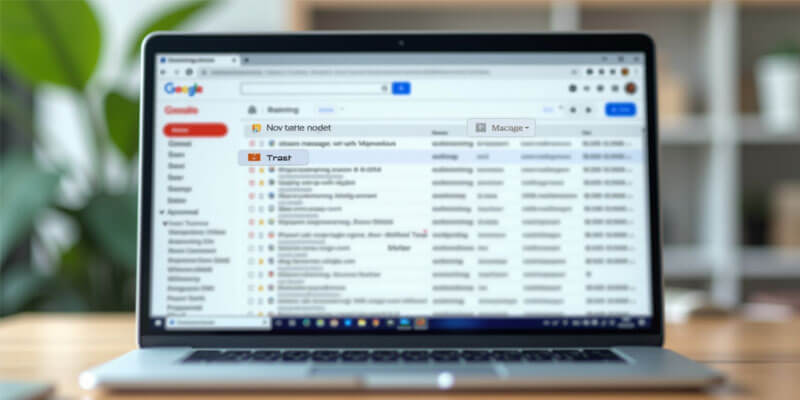
Accidentally deleting an email can be frustrating, but Gmail provides several ways to recover deleted emails as long as they are still within the retention period. Here’s how to restore lost messages from your Gmail inbox and ensure you don’t lose important communications.
1. Check the Trash Folder
When you delete an email, it’s not permanently erased right away. Instead, Gmail moves it to the Trash folder, where it stays for 30 days before being automatically deleted. To recover emails from the Trash:
- On Desktop:
- On the left sidebar, click More to reveal the Trash folder.
- Open the Trash folder and look for the deleted email.
- Select the email and click Move to Inbox or Other folder to restore it.
- On Mobile:
- Open the Gmail app and tap the three horizontal lines (menu) in the top-left corner.
- Scroll down and select Trash.
- Locate the deleted email, tap on it, and select Move to Inbox.
2. Use Gmail’s Search Function
If you can’t find the deleted email in the Trash folder, use Gmail’s powerful search feature.
- Simply type keywords, sender’s email address, or a date range in the search bar to locate the message.
- If you don’t see the email in your Trash or inbox, it might have been archived, so try searching through All Mail instead.
3. Recover Deleted Emails from Google Workspace
For users on Google Workspace (formerly G Suite), Gmail administrators may be able to recover deleted emails within 25 days after they’ve been removed from Trash. If you are using a business or enterprise account, contact your administrator for assistance in restoring deleted emails.
4. Contact Gmail Support
If the email has been permanently deleted from both Trash and All Mail, and you haven’t backed it up using Google Takeout or other means, you may need to contact Google Support for help. They may be able to recover the email in some rare cases, though it’s not guaranteed.
5. Set Up Email Backups and Filters
To avoid future email loss, consider:
- Enabling email forwarding to another email account for backups.
- Using filters to categorize and archive important emails, so they don’t get accidentally deleted.
By following these steps, you can maximize your chances of recovering deleted emails and safeguard your important information.
Conclusion
Mastering your Gmail inbox is key to boosting productivity and managing your communication more effectively. By implementing strategies such as organizing emails with labels and filters, using Gmail’s Priority Inbox for smarter email categorization, and integrating productivity tools, you can transform your inbox into a well-structured, efficient workspace.
The ability to leverage Gmail login inbox features like email search, archiving, and shortcuts will save you time and reduce unnecessary distractions. With a few simple adjustments and the right organizational techniques, you can maintain a clutter-free and focused inbox.
By taking control of your Gmail experience, you ensure that important messages are easily accessible, and communication flows smoothly, ultimately enhancing your overall productivity. Embrace these Gmail features to optimize your workflow and stay on top of your email management like a pro.
Frequently Asked Questions
How do I organize my Gmail inbox quickly?
Use labels, filters, and Priority Inbox to automatically sort emails. Archive non-essential messages and unsubscribe from promotional emails to reduce clutter instantly.
What is the fastest way to clean up Gmail storage?
Search for large attachments using “size:10MB,” delete unnecessary emails, clear Trash and Spam, and remove unused files from Google Drive.
How does Gmail Priority Inbox work?
Priority Inbox uses AI to analyze your behavior and automatically categorizes important emails, starred messages, and lower-priority conversations.
Can I automate email sorting in Gmail?
Yes. Gmail filters allow you to automatically label, archive, delete, or mark emails as important based on sender, keywords, or subject lines.
What are Gmail search operators?
Search operators like “from:”, “has:attachment”, and “before:” help you quickly locate specific emails without manually browsing folders.
Is archiving better than deleting emails?
Archiving removes emails from your inbox without permanently deleting them, keeping them searchable in All Mail for future reference.
How can I reduce email overload in Gmail?
Enable tabs, use Priority Inbox, unsubscribe from newsletters, and schedule regular inbox cleanups to minimize distractions.
How do Gmail keyboard shortcuts improve productivity?
Keyboard shortcuts reduce repetitive clicking, allowing faster navigation, composing, archiving, and deleting emails.
Can Gmail improve remote work productivity?
Yes. Gmail integrates with Google Workspace apps like Drive and Calendar, enabling collaboration, scheduling, and document sharing within email workflows.
What is the Inbox Zero method in Gmail?
Inbox Zero is a productivity strategy where you archive, delete, or delegate emails daily to maintain an empty or near-empty inbox.




Start for FREE with Personal CRM
We too hate spam! Your email is secure with us.

Spot secured. You're in.
You’re officially on the list for early access to Clariti.


No more switching tools.

No more lost context.

Just Clarity.
You’ll be among the first to experience it when we launch. We’ll let you know the moment it’s ready.

Keep an eye out for emails from @clariti.app.
(and check your spam folder just in case—whitelisting us helps ensure you don’t miss a thing).

