

Blog
How to Secure, Troubleshoot, and Enhance Gmail for Business and Remote Work
- By Vinod Kumar VR
- No Comments

- Published on
- 10 min read
In today’s hybrid work environment, the Gmail inbox has become a central communication hub for businesses worldwide. According to Statista, Gmail has over 1.8 billion active users globally, making it one of the most widely used email platforms. However, with increasing usage comes rising security risks.
A report by IBM found that the average cost of a data breach reached $4.45 million in 2023, highlighting the financial impact of cyber threats. Additionally, Verizon’s Data Breach Investigations Report reveals that over 74% of breaches involve human error, often through phishing emails. Securing and optimizing your Gmail inbox is no longer optional—it’s essential. This guide explains how to strengthen security, troubleshoot common issues, enhance mobile productivity, and integrate business tools for seamless remote collaboration.
How to Secure and Optimize Your Gmail Inbox for Business and Remote Work
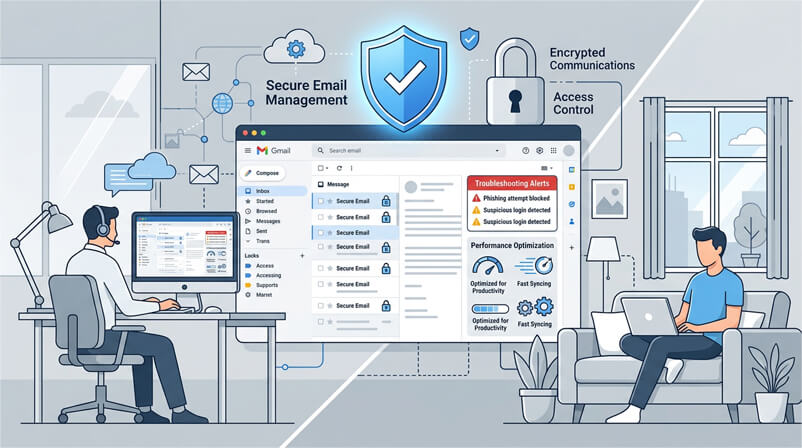
Your Gmail inbox can be transformed into a secure, high-performance business communication hub. By enabling advanced security settings, fixing common issues, optimizing mobile use, and integrating productivity tools, you can protect sensitive data while improving remote collaboration and workflow efficiency.
How to Protect Your Gmail Inbox from Cyber Threats
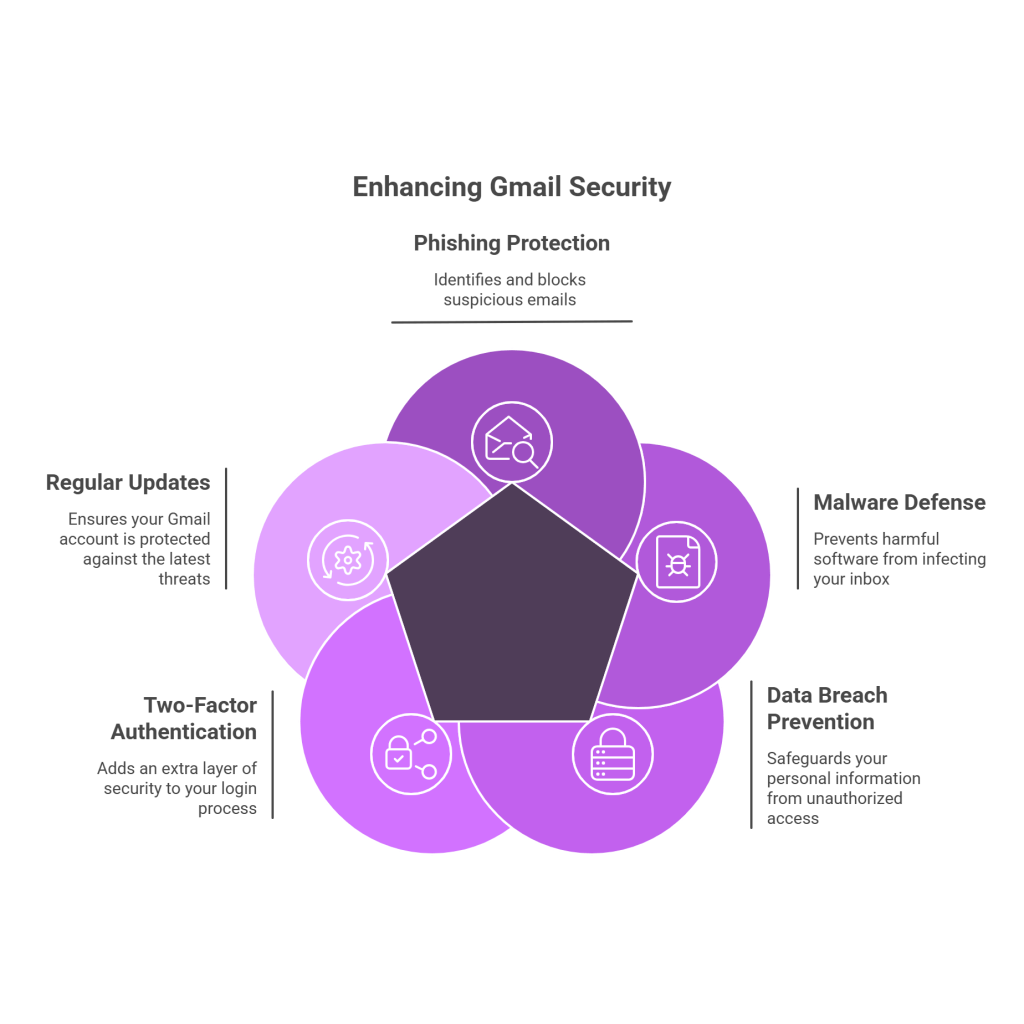
With cyber threats like phishing, malware, and data breaches on the rise, securing your mail inbox is more important than ever. Gmail offers advanced security features that help protect your Gmail login inbox from unauthorized access, malicious emails, and potential cyberattacks.
1. How Two-Step Verification (2FA) works
Gmail’s Two-Step Verification adds an extra layer of security by requiring a second authentication step, such as:
- A one-time code sent via SMS or Google Authenticator.
- A security prompt on a trusted device.
- A physical security key (e.g., YubiKey).
2. Gmail Blocks Phishing and Malware Automatically
Gmail blocks over 100 million phishing emails daily using AI-based detection. It automatically:
- Flags suspicious emails with “Potential phishing attempt” warnings.
- Scans attachments for malware and prevent downloads if threats are detected.
- Blocks impersonation attempts with Brand Indicators for Message Identification (BIMI).
3. Gmail Confidential Mode
Users can send emails with an expiration date and prevent recipients from forwarding, copying, or downloading messages. For extra security, emails can require SMS passcodes to open.
4. Gmail’s Spam Filter Protects Your Inbox
Gmail’s AI-driven spam filters block 99.9% of unwanted emails, ensuring that junk mail, scams, and harmful links don’t clutter your inbox.
5. Monitor Suspicious Gmail Activity
- Gmail notifies users of suspicious login attempts from unknown devices.
- Users can review their account activity in Google’s Security Checkup.(myaccount.google.com/security-checkup)
6. Email Encryption in Gmail
Gmail uses TLS (Transport Layer Security) encryption to protect emails in transit. For businesses, Google Workspace users can enable S/MIME (Secure/Multipurpose Internet Mail Extensions) for enhanced encryption.
By leveraging these security features, users can safeguard their Gmail inbox against cyber threats and ensure their email communications remain private and protected.
How to Fix Common Gmail Inbox Problems Quickly
While Gmail is one of the most reliable email platforms, users can sometimes encounter issues that disrupt their workflow. From slow loading times to missing emails, here’s a guide to troubleshooting and fixing some of the most common Gmail inbox issues.
1. How to Fix Gmail Inbox Not Syncing
If your Gmail inbox isn’t syncing properly across devices, follow these steps:
- Check your internet connection: A weak or unstable connection can hinder syncing.
- Re-sync Gmail:
- On mobile, go to Settings > Accounts > Gmail and toggle the sync option off and back on.
- On desktop, try refreshing the page or clearing the browser cache.
- Update your Gmail app: Ensure that the app is up to date, as updates often resolve syncing issues.
2. How to Recover Missing Gmail Emails
If important emails aren’t appearing in your inbox, they might have been filtered, archived, or marked as spam:
- Check the Spam folder: Sometimes legitimate emails get mistakenly marked as spam.
- Check the All Mail folder: If an email is archived, it won’t appear in the inbox but will be in the All Mail folder.
- Review filters: In Gmail’s settings, make sure that no filters are inadvertently archiving or deleting incoming emails.
3. How to Fix Slow Gmail Loading Issues
If Gmail is slow to load or experiences delays, try the following:
- Clear your browser cache and cookies: Over time, these can accumulate and slow down performance.
- Disable unnecessary extensions: Some browser extensions can interfere with Gmail’s performance. Try disabling them or using Incognito mode to see if it resolves the issue.
- Use the Gmail app: If the issue persists on a browser, consider using the Gmail app for mobile devices, which may offer a smoother experience.
4. How to Resolve Gmail Storage Full Errors
When your Gmail storage reaches its limit (15GB for free users), you may not be able to receive new emails:
- Free up space:
- Delete unnecessary emails or attachments.
- Use Google One to manage your storage or upgrade your plan for more space.
- Delete large attachments: Use the search bar with the term “has: attachment” to locate and remove large emails.
5. How to Fix Gmail Sending Errors
If you can’t send emails, consider these troubleshooting steps:
- Check your internet connection: Ensure that your device is connected to the internet.
- Check your Gmail quota: If you’ve exceeded the daily sending limit (500 emails for regular accounts, 2,000 for business accounts), you won’t be able to send more emails until the next day.
- Review SMTP settings: You can use a SMTP checker to test if your settings are correct or not.
6. How to Resolve Gmail Login Problems
Sometimes users experience issues logging into their Gmail accounts. Try these fixes:
- Check Google’s status: Visit the Google Workspace Status Dashboard to see if Gmail is experiencing widespread outages.
- Clear cookies and cache: Clearing your browser’s cache and cookies can often resolve login problems.
- Try a different browser or device: Sometimes, switching browsers or using the Gmail mobile app can bypass login issues.
7. How to Fix Gmail Notification Issues
If you’re not receiving notifications for new emails:
- Enable notifications:
- On desktop, check the notification settings under Settings > General > Desktop Notifications.
- On mobile, ensure that push notifications are enabled in the app’s settings.
- Check for Do Not Disturb: Ensure that your device or Gmail settings aren’t preventing notifications.
8. How to Stop Duplicate Emails in Gmail
This issue typically occurs due to synchronization problems:
- Turn off and on email sync: Go to your Gmail app settings and toggle sync off, then back on.
- Delete duplicate emails manually: If duplicates persist, you may need to remove them manually or use a third-party tool to clean up your inbox.
By understanding these common issues and knowing how to address them, you can maintain a smooth and efficient experience in your Gmail inbox.
How to Use Gmail on Mobile for Remote Work
With an increasing reliance on smartphones for professional and personal communication, managing your mail inbox efficiently through the Gmail mobile app has become essential. The mobile app brings the full power of Gmail to your fingertips, allowing you to stay on top of emails, collaborate with teams, and maintain productivity no matter where you are.
1. Gmail Offline Mode
The Gmail mobile app allows users to access their Gmail login inbox on the go, ensuring that important messages are always within reach. You can:
- Read, reply, and compose emails in a streamlined interface.
- Use voice typing to dictate messages hands-free.
- Organize emails using labels, starring, and archiving.
2. Enable Push Notifications
Enable push notifications to stay updated on new emails without constantly checking your inbox. Customize notification settings for specific labels or categories, ensuring you’re only alerted for important messages. This feature helps users prioritize their time and remain responsive when needed.
3. Offline Access for Uninterrupted Workflow
The Gmail app supports offline mode, allowing you to read, compose, and send emails even when you’re not connected to the internet. When reconnected, your messages are automatically sent, ensuring that you never lose important communications.
4. Search Emails Faster on Mobile
The mobile app comes with a powerful search function that allows you to find any email quickly. You can search by keywords, sender, date, or labels, making it easier to locate specific messages even when you’re on the move.
5. Integrating with Other Mobile Productivity Tools
The Gmail app integrates seamlessly with other Google Workspace apps like Google Drive, Calendar, and Meet, allowing you to:
- Schedule meetings directly from emails.
- Attach documents from Google Drive.
- Start video calls via Google Meet.
6. Customizing Gmail for Mobile Use
Customize your Gmail mobile app experience by:
- Changing themes or selecting a light/dark mode for better readability.
- Adjusting settings for swipe actions (e.g., archive, delete, or mark as read) for quicker management.
By leveraging the full range of features in the Gmail mobile app, users can manage their Gmail inbox effectively, keep up with their communication, and maintain productivity, whether they are in the office or on the go.
How to Integrate Gmail with Business Productivity Tools
Gmail is more than just an email service—it becomes a powerful productivity hub when integrated with the right tools and extensions. By connecting Gmail to various apps, users can streamline their workflow, automate repetitive tasks, and enhance email efficiency without switching between multiple platforms.
1. Connect Gmail with Google Workspace
Gmail seamlessly integrates with Google Drive, Calendar, Meet, and Keep, allowing users to:
- Schedule meetings directly from emails using Google Calendar.
- Attach files from Google Drive without leaving the Gmail interface.
- Take notes with Google Keep while composing emails.
- Start a Google Meet call directly from an email conversation.
2. Gmail Extensions for Productivity
Google Chrome’s Gmail extensions can further improve workflow:
- Boomerang – Schedules emails to be sent later and reminds users to follow up.
- Grammarly – Ensures professional and error-free emails with AI-powered grammar checks.
- Trello for Gmail – Converts emails into Trello tasks for better project management.
- Clearbit Connect – Provides contact insights for better email personalization.
3. Automate Gmail with Zapier
With Zapier, users can connect Gmail to over 5,000 apps, automating tasks like:
- Saving email attachments to Google Drive.
- Sending Slack notifications for important emails.
- Logging email interactions in CRM tools like HubSpot or Salesforce.
4. Smart Reply and Smart Compose
Gmail’s built-in AI features, Smart Reply and Smart Compose, help users respond faster by suggesting contextual responses and completing sentences.
By integrating their mail inbox with productivity tools, users can significantly reduce manual work, automate essential tasks, and enhance efficiency in their Gmail login inbox for a seamless workflow.
Clariti vs. Gmail: A Comprehensive Comparison
|
Feature
|
Gmail
|
Clariti
|
|---|---|---|
|
Multiple Email Integration
|
Manual setup
|
Integrated in one account
|
|
Contextual Conversations
|
Thread-based
|
Conversation-based
|
|
Email to Task Conversion
|
Manual
|
Built-in scheduling
|
|
Email Pinning
|
Star only
|
Pin with action
|
|
AI Organization
|
Filters & tabs
|
Context-driven AI grouping
|
Both Clariti and Gmail are essential tools for communication, but they cater to different user needs, especially in terms of collaboration and email management. In this comparison, we’ll explore how Clariti enhances the email experience by integrating multiple email IDs, maintaining contextual conversations, and offering smart features for team collaboration, while Gmail provides robust email management capabilities but lacks the same level of integrated collaboration.
1. Email Integration and Contextual Conversations
- Clariti: One of the standout features of Clariti is its ability to integrate multiple email IDs under a single account. This makes it easy to manage different email addresses without constantly switching between accounts. Clariti goes a step further by allowing users to embed emails into ongoing conversations, ensuring that the context is preserved.
- Gmail: While Gmail supports multiple email accounts, they need to be manually configured and switched between. Gmail does offer organization through labels, categories, and filters, but emails remain isolated in their individual threads, making it harder to maintain the context of a conversation across various communication channels.
2. Composing Emails and Sharing Within Conversations
- Clariti: Clariti allows users to compose emails directly from any conversation. This ensures that the context of the conversation is always intact, which is especially useful when responding to team discussions or tasks. Additionally, users can share an email within a group conversation without the need to forward it to all participants. This reduces the number of redundant emails and ensures everyone in the conversation has the same context without additional clutter.
- Gmail: In Gmail, emails are typically composed within the email interface, and while you can forward emails to share them, this process often leads to an overload of redundant messages in the inbox. It also lacks the ability to directly integrate emails into ongoing conversations.
3. Actionable Emails with Scheduling and To-Do Integration
- Clariti: Clariti takes email interaction to the next level by enabling users to schedule a to-do or call directly from an email. When you schedule a to-do or call, the email subject automatically becomes the context for the action, and the participants marked in the email are automatically added as participants in the scheduled call or to-do. This seamless integration between emails and tasks ensures that important actions are never missed and are tied directly to the relevant communication.
- Gmail: While Gmail does offer basic calendar integration for scheduling, it does not inherently link emails to calls or to-dos in the same way that Clariti does. Scheduling in Gmail is a manual process, and participants from emails are not automatically linked to calendar events or reminders.
4. Email Pinning for Further Action
- Clariti: In Clariti, users can pin emails for further action, ensuring that important emails are easily accessible for follow-up. Pinning emails helps users stay on top of tasks or conversations that require attention, without worrying about them getting buried under new messages.
- Gmail: Gmail offers a star feature, allowing you to highlight important emails, but it doesn’t provide the same level of organization for follow-up actions. Emails are either starred or not, with no additional functionality tied to scheduling tasks or reminders.
5. AI-Powered Organization
- Clariti: The Clariti AI enhances productivity by automatically categorizing emails into the relevant conversations. This AI-powered feature ensures that even as new emails arrive, they are organized in the context of ongoing discussions, making it easier to stay focused and informed without sifting through irrelevant messages.
- Gmail: Gmail uses filters and categories to organize incoming emails, but this process requires manual configuration, and emails are often left ungrouped unless the user sets up specific rules.
How to manage a Clutter-Free Gmail Inbox
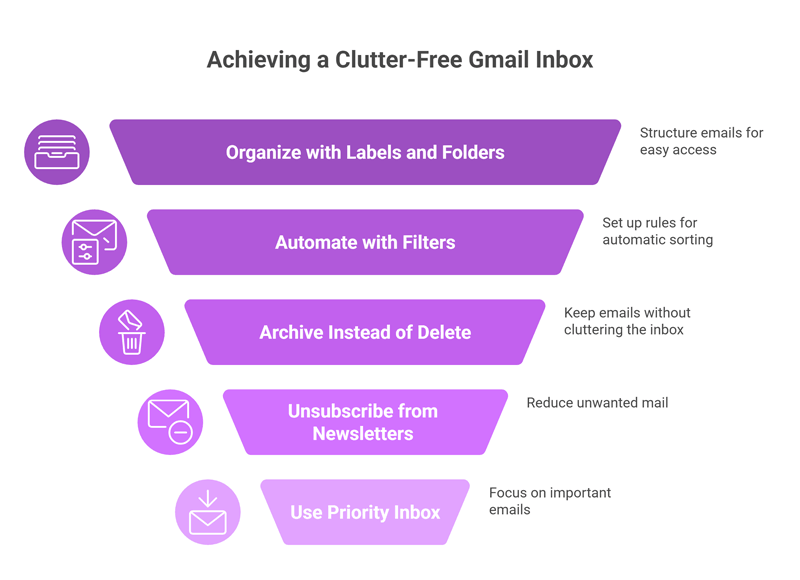
A cluttered Gmail inbox can lead to missed emails, unnecessary distractions, and reduced productivity. Managing an organized inbox is crucial for maintaining focus and efficiency. Here are some pro tips for keeping your inbox clean and clutter-free.
1. Use Labels and Folders for Organization
Gmail’s labels function like folders but offer more flexibility. You can categorize emails by project, priority, or sender and easily find them later.
- Create custom labels for different areas (e.g., Work, Personal, Receipts).
- Apply multiple labels to emails as needed to keep them organized without over-complicating your inbox.
- Use nested labels (sub-labels) to group related emails together.
2. Implement Filters for Automated Organization
Set up filters to automatically sort incoming emails, reducing manual effort. Filters can:
- Move emails from specific senders to labeled folders or archive them.
- Automatically delete or mark emails as spam based on specific keywords or criteria.
- Apply labels, star, or mark emails as important, keeping your inbox organized without manual intervention.
To create filters:
- Click on the gear icon, go to Settings > Filters and Blocked Addresses, and set up your preferred filter conditions.
3. Archive Emails Instead of Deleting
Rather than keeping emails in the inbox after reading them, consider archiving them. Archiving moves the email to All Mail, where it’s still accessible via search but out of your primary inbox view.
- Use the Archive button to quickly remove emails from the inbox.
- Archived emails remain searchable, so you’ll always be able to find them when necessary.
4. Unsubscribe from Unwanted Newsletters
Unnecessary subscriptions often contribute to inbox clutter. Use Gmail’s built-in unsubscribe feature to quickly opt out of unwanted newsletters:
- Gmail will usually display an Unsubscribe link next to email senders if they send bulk emails.
- Additionally, use services like Unroll.Me to manage and consolidate subscriptions.
5. Use the Priority Inbox Feature
Enable Priority Inbox to automatically categorize emails into Important and Unread, Starred, and Everything Else.
- This system helps Gmail prioritize emails that require immediate attention while organizing less important emails.
- You can customize how Priority Inbox categorizes emails, ensuring that your inbox stays focused on what’s most urgent.
6. Clean Up Old Emails Regularly
Schedule periodic inbox clean-ups to remove unnecessary or outdated emails.
- Use the Search bar to locate old emails (e.g., search by date or specific keywords) and delete or archive them.
- Set aside time every month or two to review your inbox and delete any old messages that no longer serve a purpose.
7. Leverage Gmail's Search Operators
Use Gmail’s powerful search operators to quickly find and organize emails. Some useful operators include:
- “from:” to filter emails from a specific sender (e.g., from:john@example.com).
- “has:attachment” to find emails with attachments.
- “before:” and “after:” to locate emails from specific time periods (e.g., before:2025/01/01).
This allows for more granular control over inbox organization and reduces time spent searching for emails.
8. Regularly Review and Update Filters
As your needs evolve, it’s essential to keep your filters up to date. Regularly review and tweak your filters to ensure they’re still working as expected, and adjust them to address new types of incoming emails.
9. Use the Snooze Feature for Less Urgent Emails
If you receive an email that doesn’t require immediate attention but shouldn’t be forgotten, use the Snooze feature.
- Snooze emails to reappear in your inbox at a later time or date.
- This keeps your inbox less cluttered by deferring non-urgent messages until you’re ready to handle them.
By following these pro tips, you can create a clutter-free Gmail inbox that promotes productivity, reduces distractions, and ensures that important emails are always within reach.
How to Configure Gmail Admin Controls in Google Workspace
For businesses using Google Workspace, Gmail admin controls allow centralized management of email security and user access. Administrators can enforce two-factor authentication (2FA), set password policies, restrict third-party app access, and monitor login activity through audit logs. Admins can also configure data loss prevention (DLP) rules to prevent sensitive information from being shared externally. By proactively managing these settings in the Google Admin Console, organizations reduce security risks and maintain compliance across teams.
Email Authentication (SPF, DKIM, DMARC) for Gmail
Email authentication protocols help protect your domain from spoofing and phishing attacks.
- SPF (Sender Policy Framework) verifies that only authorized servers can send emails on your behalf.
- DKIM (DomainKeys Identified Mail) adds a digital signature to emails to confirm authenticity.
- DMARC (Domain-based Message Authentication, Reporting & Conformance) builds on SPF and DKIM to instruct receiving servers how to handle suspicious emails.
These records are configured in your domain’s DNS settings and significantly improve email deliverability and brand protection.
Gmail Backup and Data Recovery Strategies for Businesses
Relying solely on Gmail’s Trash folder is not enough for business continuity. Organizations should implement structured backup strategies such as:
- Using Google Vault for email retention and eDiscovery.
- Setting automated data retention policies.
- Deploying third-party Gmail backup solutions.
- Regularly exporting critical data via Google Takeout.
A solid backup and recovery strategy protects against accidental deletion, insider threats, ransomware, and compliance violations.
Gmail Automation Workflows for Business Efficiency
Gmail automation reduces repetitive manual tasks and increases team productivity. Businesses can:
- Create auto-forwarding rules for shared inboxes.
- Set up autoresponders for remote teams.
- Use filters to auto-label and archive emails.
- Connect Gmail to CRM tools like HubSpot or Salesforce.
- Automate workflows using Zapier integrations.
Automation ensures important emails are routed correctly, follow-ups are not missed, and administrative overhead is minimized.
Gmail Best Practices for Hybrid and Remote Teams
In hybrid work environments, structured email management is essential. Best practices include:
- Establishing shared inbox protocols.
- Defining internal email response SLAs.
- Using standardized label naming conventions.
- Minimizing unnecessary CCs and reply-alls.
- Encouraging use of chat or collaboration tools for quick discussions.
By implementing these strategies, teams reduce inbox overload, improve clarity, and maintain smoother communication across remote and in-office employees.
Conclusion
Securing and optimizing your Gmail inbox is critical for modern businesses and remote teams. As cyber threats increase and communication demands grow, relying on default settings is no longer sufficient. By enabling advanced security features such as two-factor authentication, encryption, and phishing protection, you significantly reduce the risk of data breaches.
At the same time, troubleshooting common Gmail issues ensures uninterrupted communication and operational continuity. Integrating Gmail with productivity tools and mobile workflows further enhances efficiency, making it a powerful business communication hub. Whether you’re managing a small remote team or a large enterprise, proactive Gmail inbox management improves security, collaboration, and productivity. By implementing the strategies outlined in this guide, you can transform your Gmail inbox into a secure, reliable, and high-performing workspace that supports long-term business growth.
Frequently Asked Questions
How do I secure my Gmail inbox from hackers?
Enable two-factor authentication, review account activity regularly, use strong passwords, and activate spam filtering and phishing detection features.
Why is my Gmail inbox not syncing across devices?
Sync issues often result from poor internet connection, outdated apps, or disabled sync settings. Re-enable sync in account settings or update the app.
How can businesses protect Gmail from phishing attacks?
Use 2FA, enable advanced phishing protection, educate employees about suspicious links, and implement email authentication protocols like DKIM and SPF.
What should I do if my Gmail storage is full?
Delete large attachments using search operators, clear Spam and Trash, and manage Google Drive storage or upgrade to Google One.
Can Gmail be used securely for remote work?
Yes. With TLS encryption, 2FA, activity monitoring, and Google Workspace controls, Gmail can securely support remote collaboration.
How do I troubleshoot Gmail login problems?
Clear browser cache, check Google Workspace status, reset your password, or try logging in from another device.
How does Gmail encryption work?
Gmail uses TLS encryption for emails in transit. Google Workspace users can enable S/MIME for enhanced encryption security.
What are the best Gmail extensions for productivity?
Boomerang, Grammarly, Trello, and Zapier help automate scheduling, improve writing, manage tasks, and connect Gmail with business tools.
How can I stop duplicate emails in Gmail?
Turn off and on sync settings, remove duplicate POP/IMAP accounts, and check filters that may be forwarding emails multiple times.
Is Gmail safe for business communication?
Yes, when configured properly. Enable advanced security settings, monitor account activity, and follow best practices for password and access management.



Start for FREE with Personal CRM
We too hate spam! Your email is secure with us.

Spot secured. You're in.
You’re officially on the list for early access to Clariti.


No more switching tools.

No more lost context.

Just Clarity.
You’ll be among the first to experience it when we launch. We’ll let you know the moment it’s ready.

Keep an eye out for emails from @clariti.app.
(and check your spam folder just in case—whitelisting us helps ensure you don’t miss a thing).

