
Bring In Any Email

Bring Gmail, Outlook, or Company Mail — Clariti Unites Them All!

add mails BI

Bring It All In — Gmail or Company Mail, Clariti Handles It!

Universal Integration

Connect Gmail, Microsoft 365, Outlook, or company mail servers without multiple logins.

Open button Close button

Contextual Import

Add any email directly into an active chat or conversation.

Open button Close button

Email-to-Chat

Start real-time discussions from imported emails instead of forwarding.

Open button Close button

Shared Visibility

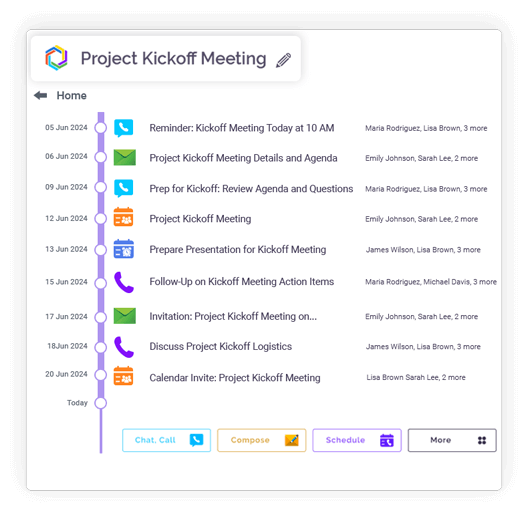
Imported emails appear in the same hybrid conversation for all participants.

Open button Close button

Simplified Flow

Reduce email chains by keeping messages, chats, and attachments connected.
Open button Close button
Feature slide img

Integration

Connect your apps. Get more done.

Microsoft 365

Microsoft 365

Office productivity suite

Google Workplace

Google Workspace

Cloud-based productivity suite

Onedrive

OneDrive

Cloud file storage

Google Drive

Google Drive

Cloud file storage and sharing

Dropbox

Cloud file storage and sharing

PCloude

pCloud

Secure cloud file storage

Github

GitHub

Source code hosting

Hot Spot

HubSpot

Marketing automation platform

Team

Microsoft Teams

Team collaboration platform
More Useful Features

Universal Compatibility 

Add any mail source.

Chat from Email 

Discuss emails directly.

Context Tagging 

Link emails to topics.

Shared Email Access 

Collaborate on imported mail.

One Workspace View 

No tab switching.

Email Retention 

Preserve complete history.

Connect Any Email Provider Seamlessly

Clariti allows you to integrate with any standard email provider that supports IMAP, including Gmail, Outlook, Yahoo, and others. There is no need to change your existing email service or habits. The platform acts as a universal hub, bringing all your different email accounts into one centralized workspace without compatibility issues.

Add mails blog_img

Import Emails Directly into Conversations

You can directly drag and drop any email from your inbox into any relevant Clariti conversation. This action moves the email out of the isolated inbox and makes it a central part of a collaborative discussion. It ensures the email’s content becomes an active element in the team’s workflow rather than remaining a static message.

Chat in Real Time from Imported Emails

Once an email is imported into a Clariti conversation, team members can start chatting about it in real-time. The chat happens directly alongside the email, allowing for immediate questions, clarifications, and decisions. This turns a one-way communication into an interactive, collaborative discussion.

Shared Context for Teams and Collaboration

By combining emails, chats, and files into single topic threads, Clariti creates a shared context for everyone involved. Every team member sees the same information, understands the history, and can contribute effectively. This eliminates confusion and ensures alignment across the entire team.

Unified Workspace for All Your Mail

Clariti provides a single, unified workspace where all your emails from different accounts are accessible. You no longer need to switch

between multiple tabs or apps to check different inboxes. All your communication is consolidated into one clean, organized interface.

Automatic Context and Topic Tagging

Clariti automatically analyzes the content of all your existing emails and chats to suggest relevant topics and tags. This intelligent organization groups related items together without manual effort. It helps in maintaining order and makes finding past conversations quick and easy. This feature does not apply to the emails that you are trying to add in the chats through “Add email from any source” feature.

Preserve Complete Email History

When you import an email into Clariti, the entire email history is preserved. This includes the original sender, all recipients, timestamps, and the full body of the message with its formatting. No contextual information is lost, maintaining the complete record for future reference.

Add Your Email Accounts in Seconds

Setting up your email in Clariti is designed for instant integration. You simply enter your email address and password in the settings menu. The platform verifies the credentials and connects your account within seconds, requiring no technical expertise or lengthy configuration.

Blog Links

Frequently Asked Questions?

Can I connect Gmail, Outlook, and company mail to Clariti?

Yes, Clariti seamlessly connects with Gmail, Outlook, and any company email supporting IMAP. You can integrate multiple accounts simultaneously into one workspace. This eliminates the need to switch between different email clients. All your communications consolidate into a single, organized platform for easy access and management.

No, you don’t need separate logins for each email account. Clariti uses a unified login system where you add all your email accounts once. After the initial setup, you access all connected emails through your single Clariti login. This streamlined approach simplifies account management and daily access.

Absolutely. Once you import an email into Clariti, you can instantly start chatting about it. The platform creates a dedicated conversation thread around the email where team members can discuss its content. This transforms static emails into dynamic, collaborative discussions while maintaining full context.

Clariti enables teams to collaborate by creating shared conversation threads around imported emails. Team members can ask questions, share insights, and make decisions directly linked to the original email. This shared context ensures everyone understands the complete background and can contribute effectively to the discussion.

Yes, Clariti preserves all conversation context when importing emails. The platform maintains the complete email thread, including previous replies and forward history. This ensures no contextual information is lost during the import process, providing teams with full visibility into the communication history.

Clariti fully preserves both email history and attachments when importing messages. All original attachments remain accessible and viewable within the conversation threads. The complete email chronology and embedded files are maintained, ensuring nothing gets lost during the transition to collaborative discussions.