


Blog
Microsoft Outlook: The Complete Guide to Productivity, Automation and Collaboration (2026)
- By Vinod Kumar VR
- No Comments


- Published on
- 10 min read
Microsoft Outlook is one of the most used email tools in the world. It helps people send emails, manage meetings, and stay organized. Today, according to Microsoft over 400 million users rely on Outlook for daily work. This shows how important it is in modern workplaces.
Email is still a key part of work. A report by Statista shows that over 347 billion emails are sent daily worldwide. Many of these emails are managed through tools like Outlook. This makes it important to use Outlook in a smart way.
At the same time, workers spend a lot of time checking emails. According to Mckinsey, people spend nearly 28% of their work time on email. That is a lot of time. If you do not manage your inbox well, it can slow you down.
This guide will help you use Outlook better. You will learn simple ways to save time, stay organized, and work with your team. We will cover email tips, automation, calendar use, and collaboration. By the end, you will be able to use Outlook in a simple and smart way.
What is Microsoft Outlook
Microsoft Outlook is a popular email and productivity tool used by people and businesses around the world. It helps users send and receive emails, manage calendars, schedule meetings, and organize daily tasks in one place.
Outlook is more than just an email app. It also includes contacts, reminders, and task management features. This makes it easier to stay organized and keep track of important work.
Many professionals use Outlook to manage communication with teams, clients, and customers. It works on desktop, web, and mobile devices, so users can stay connected from anywhere.
Microsoft Outlook features overview
Outlook offers many useful features:
- Email management.
- Calendar scheduling.
- Contact storage.
- Task tracking.
- Integration with Microsoft tools.
Outlook web vs desktop vs mobile: Which version suits you?
- Web: Easy to access from any browser.
- Desktop: Best for full features and offline work.
- Mobile: Good for quick checks and replies.
Mastering Microsoft Outlook: Essential tips for productivity
How to set up Outlook rules to auto-sort emails
Outlook rules help you manage your inbox automatically. Instead of sorting emails by hand, Outlook can do it for you. This saves time and keeps your inbox clean.
You can create rules to move emails into folders, mark important messages, flag emails, or delete spam. For example, emails from your manager can go to one folder, while newsletters can go to another.
Setting up rules is simple. Go to your settings, choose the email you want to manage, and create a rule based on sender, subject, or keywords.
Outlook keyboard shortcuts every professional should know
Shortcuts help you work faster:
- Ctrl + R → Reply
- Ctrl + Shift + M → New email
- Ctrl + Enter → Send email
How to use Outlook categories and flags effectively
Outlook categories and flags help you stay organized and focused. Categories allow you to group emails by type, project, or priority using color labels. This makes it easy to find related messages quickly.
Flags are useful for marking emails that need action. You can flag messages for follow-up, deadlines, or reminders.
For example:
- Use red for urgent emails.
- Use blue for project updates.
- Flag emails that need replies.
- Mark tasks with deadlines.
How to automate your workflow in Microsoft Outlook
Microsoft Outlook offers many automation tools that help reduce manual work. Automation can handle repetitive tasks like sorting emails, sending replies, scheduling reminders, and managing tasks.
By using features like rules, Quick Steps, templates, and calendar automation, users can complete work faster and stay organized.
Setting up Quick Steps and macros in Outlook
Quick Steps let you do many actions in one click. For example, move an email and mark it as read at once.
How to use Outlook with Power Automate
Power Automate helps you create workflows. You can auto-save attachments or send alerts when emails arrive.
Microsoft Outlook calendar: Hacks to stay organized and efficient
Microsoft Outlook Calendar is a powerful tool that helps you manage your time better. It allows you to schedule meetings, set reminders, and plan your day in a clear way. When used well, it can improve productivity and reduce missed deadlines.
You can create recurring meetings, color-code events, and share calendars with coworkers. Setting reminders for important tasks also helps you stay on track.
Helpful Outlook calendar tips:
- Schedule recurring meetings easily.
- Set reminders for tasks and events.
- Color-code meetings by category.
- Share calendars with team members.
- Block focus time for important work.
How to share your Outlook calendar with colleagues
You can share your calendar so others can see your schedule. This helps avoid meeting conflicts.
Setting up recurring meetings and reminders in Outlook
Set repeating meetings and reminders so you never miss important events.
How to declutter and manage your Outlook inbox like a pro
A messy inbox can slow down your work. Outlook offers many tools to help keep your inbox clean and organized.
Features like folders, rules, Focused Inbox, and categories can sort emails automatically. This helps you find important messages faster and reduces distractions.
Inbox Zero strategy using Outlook folders and rules
Create folders and rules to keep your inbox clean. Move emails as soon as they arrive.
How to use Outlook's Focused Inbox feature
Focused Inbox shows important emails first. Less important emails go to another tab.
Microsoft Outlook for teams: Collaboration made easy
Outlook is not just for individual use. It also supports team collaboration through shared mailboxes, calendars, and Microsoft integrations.
Teams can manage shared emails, schedule group meetings, and stay aligned on projects. Outlook works especially well with Microsoft Teams, SharePoint, and OneDrive.
Shared mailboxes and group calendars in Outlook
Teams can use shared inboxes and calendars. This helps everyone stay updated.
How to integrate Microsoft Outlook with Teams and SharePoint
Outlook works well with Teams and SharePoint. You can schedule meetings and share files easily.
Outlook security and privacy: How to protect your emails
Email security is very important, especially for business users. Outlook offers many security features to protect your data.
Users can enable two-factor authentication, spam filtering, encryption, and phishing protection. Regular updates also improve security.
Best security practices include:
- Use strong passwords.
- Enable two-factor authentication.
- Be cautious with unknown links.
- Use email encryption.
- Keep Outlook updated.
How to integrate Microsoft Outlook with other apps
Outlook works with many popular business tools. This helps users manage work more smoothly across platforms.
You can connect Outlook with:
- Microsoft Teams
- SharePoint
- OneDrive
- Zoom
- CRM tools
- Task management apps
Integrations improve workflow by keeping communication, meetings, files, and tasks connected.
Troubleshooting common Microsoft Outlook issues
Like any software, Outlook may sometimes face problems. Common issues include slow performance, syncing errors, login issues, or missing emails.
Simple troubleshooting steps often solve these problems.
Common fixes:
- Restart Outlook.
- Check internet connection.
- Update the app.
- Repair data files.
- Clear cache.
Knowing basic troubleshooting can save time and reduce frustration.
Microsoft Outlook alternatives: Is there a better option for teams?
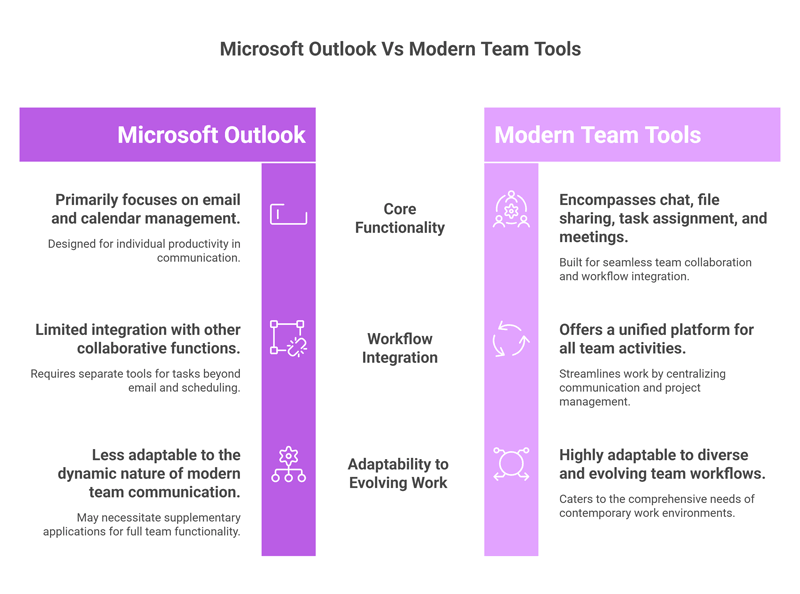
While Outlook is a strong email tool, many teams now need more than email. Modern teams often look for tools that combine chat, tasks, files, and communication in one place.
Some alternatives focus on unified collaboration rather than separate tools. This can reduce app switching and improve team clarity.
Teams may switch because they want:
- Better team communication.
- Context-based collaboration.
- Fewer separate tools.
- Improved workflow visibility.
- Simpler remote collaboration.
For teams that need more connected communication, exploring Outlook alternatives may offer better long-term efficiency.
Why teams switch from Outlook to unified communication tools
Outlook is great for email. But it is still just one part of work. Teams often need to open many apps to finish one task.
For example, a simple project may look like this:
- Email for client messages.
- Chat app for team talk.
- Drive for files.
- Calendar for meetings.
This means people keep switching between apps. This takes time and breaks focus. It can also cause confusion. Important details may get lost between emails, chats, and files.
Another problem is lack of context. An email may not show the full story. A chat may miss key details from a meeting. So, team members often ask the same questions again. This slows down work.
Unified communication tools solve this problem. They bring everything into one place. Teams can see messages, files, and tasks together. This makes work faster and easier to follow.
How Clariti solves Outlook's biggest collaboration limitations
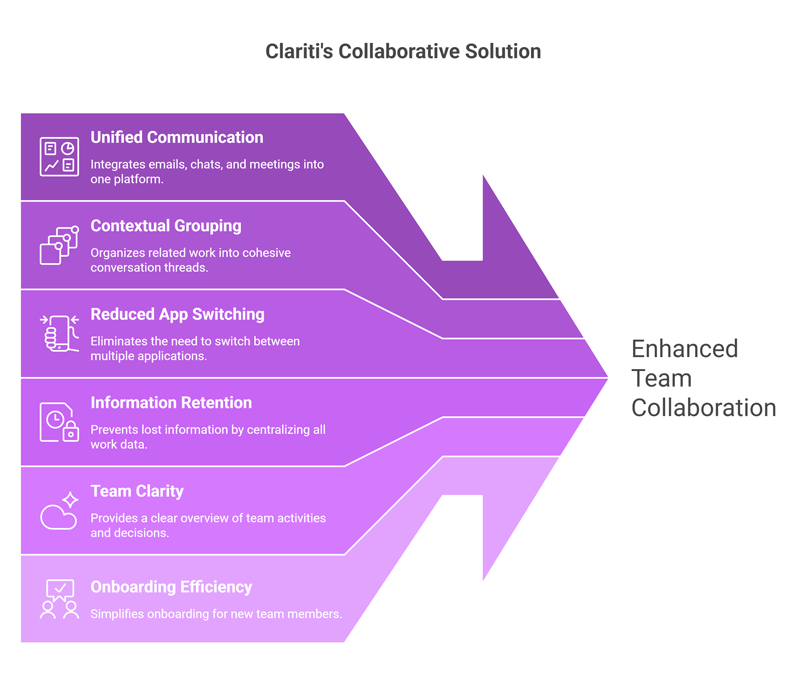
Clariti is built to fix these problems. It brings emails, chats, files, and meetings into one simple space. But more importantly, it connects them with context.
In Clariti, everything is grouped into “conversations.” This means all related work stays together. For example, a client email, team chat, shared file, and meeting can all sit in one thread.
This helps teams in many ways:
- No need to switch between apps.
- No lost information.
- Easy to understand full history.
- Better teamwork and clarity.
Instead of searching in many places, teams can see the full picture in one view. They know what was said, what was decided, and what needs to be done.
Clariti also helps reduce confusion. New team members can quickly understand work by reading one conversation thread. There is no need for long explanations or back-and-forth messages.
In simple words, Clariti turns scattered work into connected work. It helps teams stay focused, save time, and work better together.
Conclusion
Microsoft Outlook is a powerful tool. It helps you manage emails, meetings, and tasks in one place. But many people use only basic features and miss its full value.
By using rules, categories, and shortcuts, you can save time. Automation tools like Quick Steps and Power Automate can make your work easier. The calendar helps you plan your day and avoid missed meetings.
Outlook also works well for teams. Shared mailboxes and integrations with Teams make collaboration simple. At the same time, you must keep your account safe by using strong security settings.
Still, work today is changing. Teams now need tools that combine email, chat, and tasks in one place. This is why some teams look for better options that reduce app switching and improve clarity.
The key is to choose what works best for you. If you use Outlook well, it can greatly improve your productivity. And if your needs grow, you can explore tools that offer more connected workflows.
In the end, better communication and organization will always help you work smarter and faster.
Frequently Asked Questions
What is Microsoft Outlook, and how does it differ from webmail like Gmail?
Microsoft Outlook is an email and calendar tool that is part of Microsoft 365. It offers deeper integration with tools like Teams and Excel. Gmail is web-based and simpler, while Outlook provides more advanced features for business use and offline access.
What are the top productivity features in Microsoft Outlook 2026?
- Email rules for auto-sorting.
- Focused Inbox for priority emails.
- Calendar scheduling and reminders.
- Quick Steps for fast actions.
- Integration with Teams and apps.
How do I set up email rules in Outlook to declutter my inbox?
Go to Settings → Rules → Create new rule. Choose conditions (like sender or subject), then set actions (move, delete, or flag). This helps organize emails automatically.
Can Outlook integrate with Microsoft Teams and Power Automate?
Yes, Outlook connects easily with both. You can schedule Teams meetings from Outlook and use Power Automate to create workflows like auto-saving attachments or sending alerts.
What are the best Outlook calendar hacks for efficient scheduling?
- Share your calendar with your team.
- Use color categories for events.
- Set recurring meetings.
- Add buffer time between meetings.
- Turn on reminders to avoid missing tasks.
How does Clariti compare to Microsoft Outlook in 2026?
Outlook is strong for email and calendar. Clariti goes beyond that by combining email, chat, files, and tasks in one place. It also keeps everything linked in context, so teams can see the full picture of work.
Is Clariti a better alternative to Outlook for team communication?
For team communication, it often is. Clariti reduces app switching and keeps all discussions connected. This makes teamwork clearer and faster, especially for remote teams.
What are free Outlook alternatives with AI context features in 2026?
Some tools offer free plans with basic features, but true AI-based context tools are still limited. Platforms like Clariti focus more on context-driven communication, though full features may come in paid plans.




Start for FREE with Personal CRM
We too hate spam! Your email is secure with us.

Spot secured. You're in.
You’re officially on the list for early access to Clariti.


No more switching tools.

No more lost context.

Just Clarity.
You’ll be among the first to experience it when we launch. We’ll let you know the moment it’s ready.

Keep an eye out for emails from @clariti.app.
(and check your spam folder just in case—whitelisting us helps ensure you don’t miss a thing).

