


Build 20260909
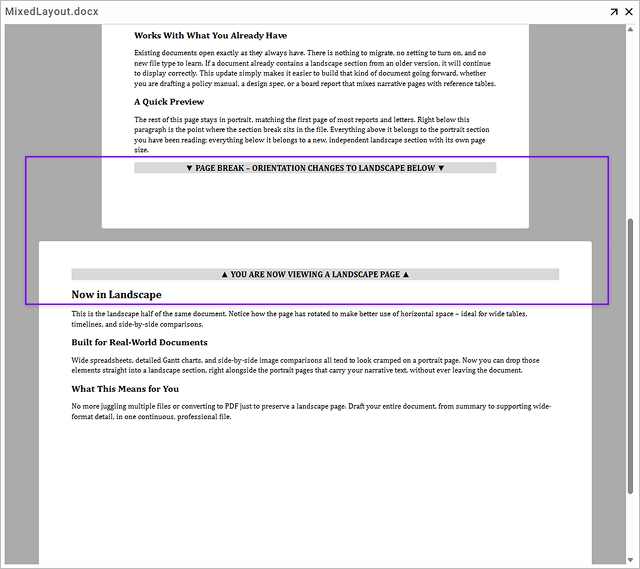
Added support for mixed page layouts within a single DOCX document, including portrait and landscape orientations, page sizes, margins and page breaks
Build 20260902
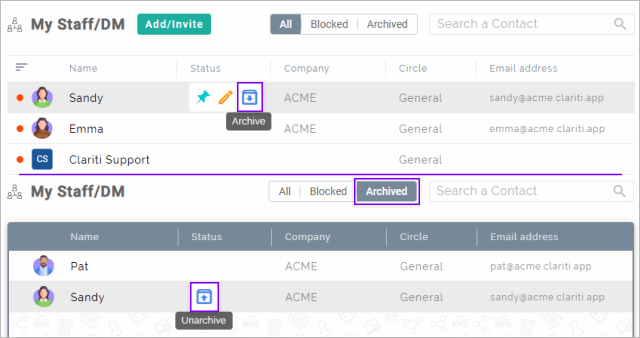
Users can now archive contacts from MyStaff/DM to keep their contact list tidy. Archived contacts need to be unarchived to start messaging. Call invitations and browser notifications from archived contacts will not be displayed.
Build 20260826
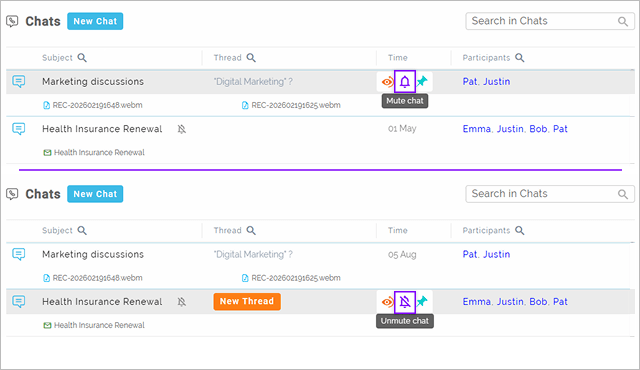
Added an option to mute notifications of a subject chat. Despite you muting the chat, a notification will be shown if other participants reply explicitly to the messages sent by you.
Build 20260805
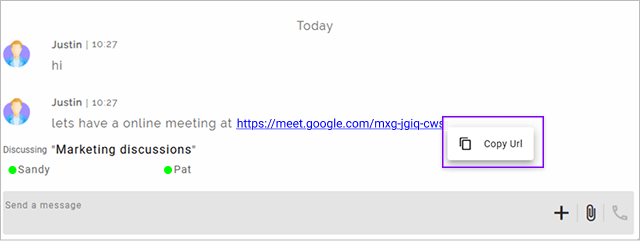
Added a Copy URL option to the right-click menu for links in Direct Chat, Group Chat, and Mail/Feed
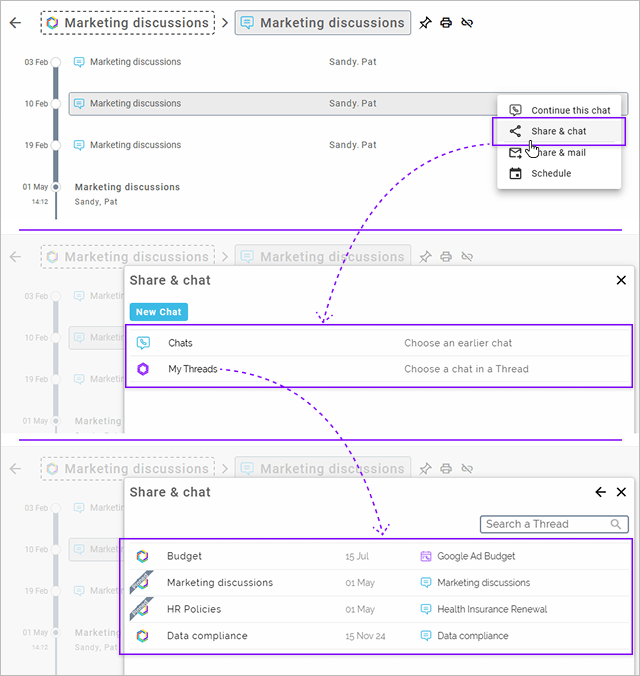
Subject search is now supported in the overlay across all menus for thread lists (My Threads)
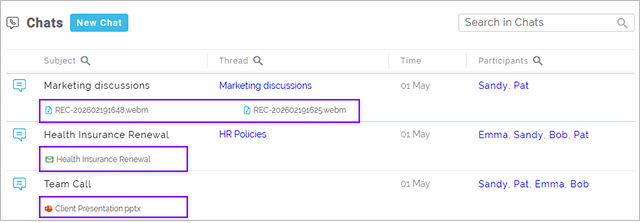
Chat/Mail attachments are now expanded by default in the list view
Build 20260729
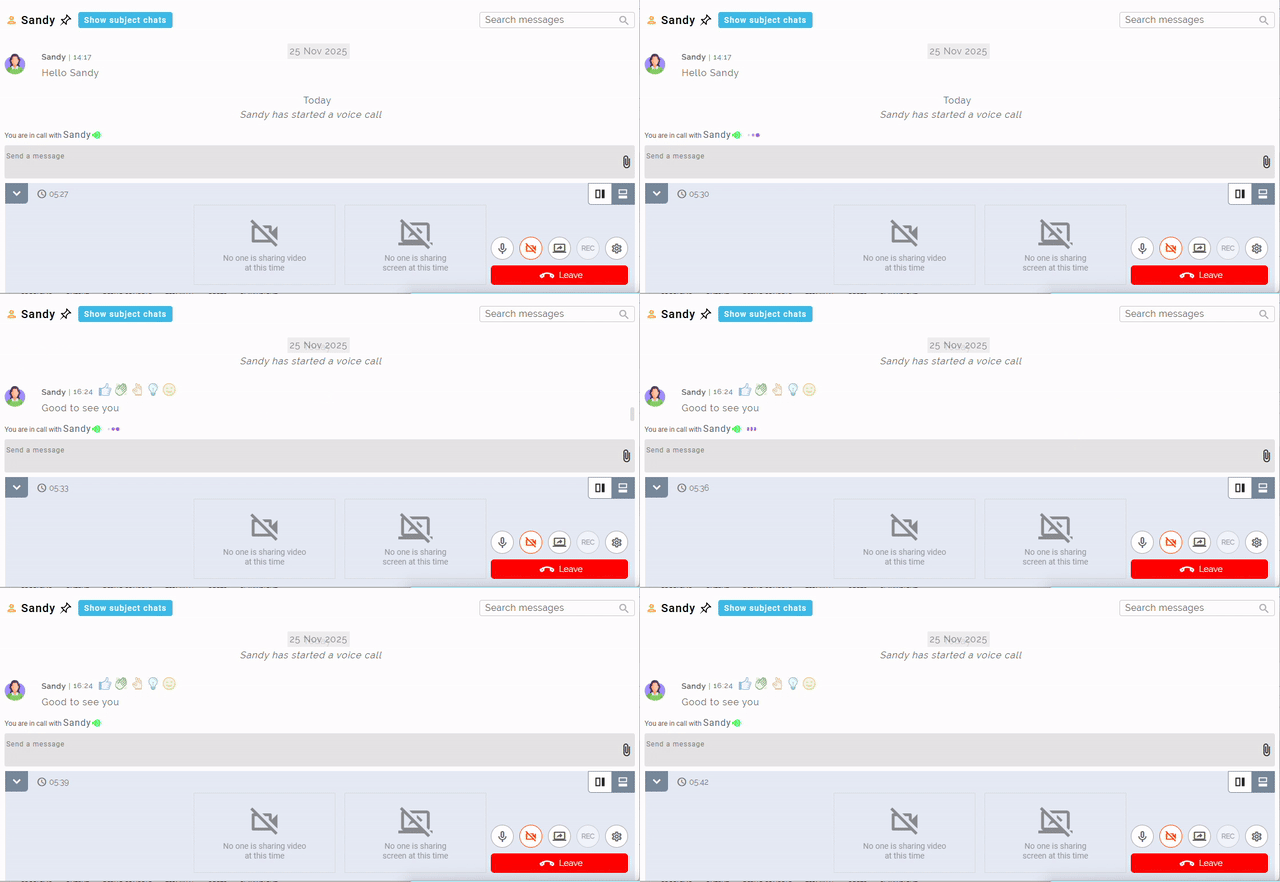
Introduced an audio indicator to show which participant is speaking during a call.
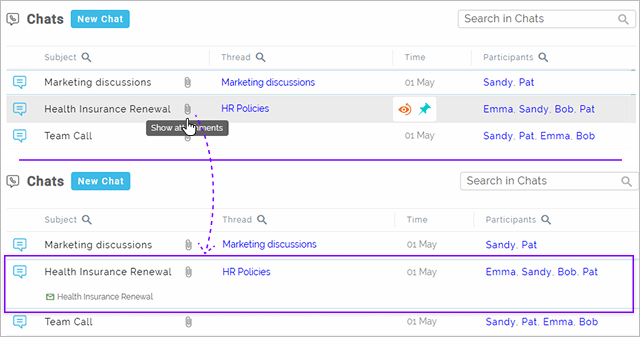
Clicking the attachment icon on a Chats menu now shows attachments inline
Improved document viewer display when the font used is not available.
Build 20260722
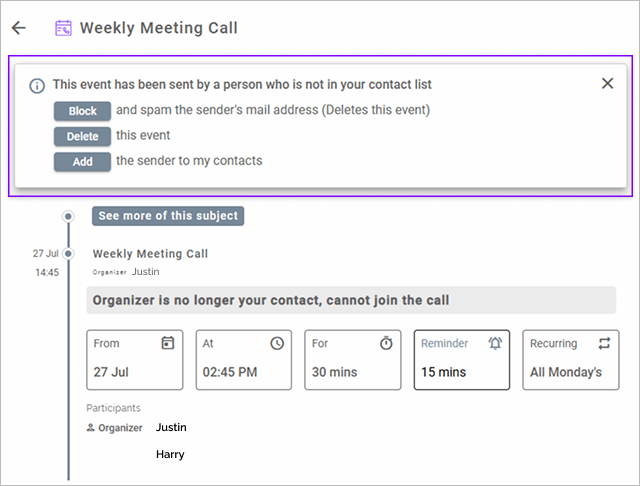
Users are alerted when an event is received from an unknown contact. Provided options to block the sender, delete the event, or mark the sender as a genuine contact.
Build 20260715
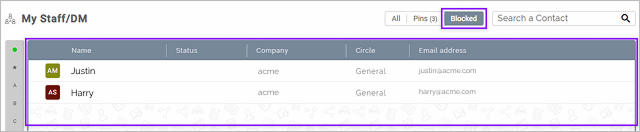
Introduced a new Blocked filter in the Contacts view (My Staff/Direct Messages) that displays all blocked contacts.
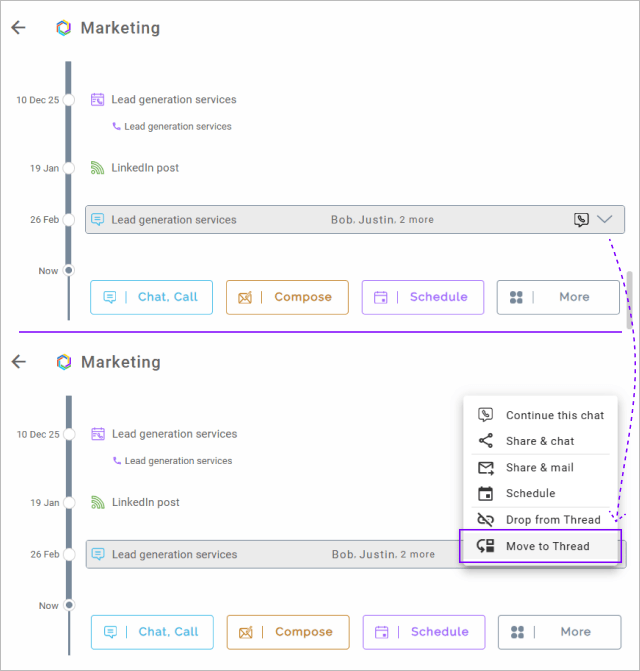
Provided Move to Thread option to move chat/mail/event/feed from one Thread to another Thread
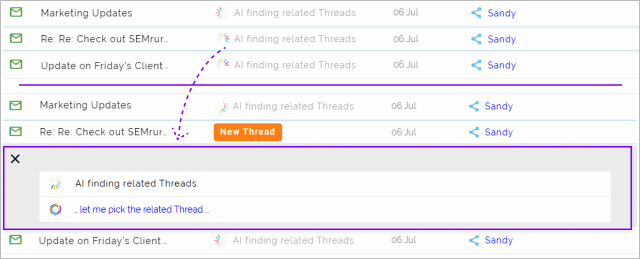
Clicking AI finding related Threads allows user to add the activity to a New or Existing thread without waiting for AI to find the related threads
Build 20260708
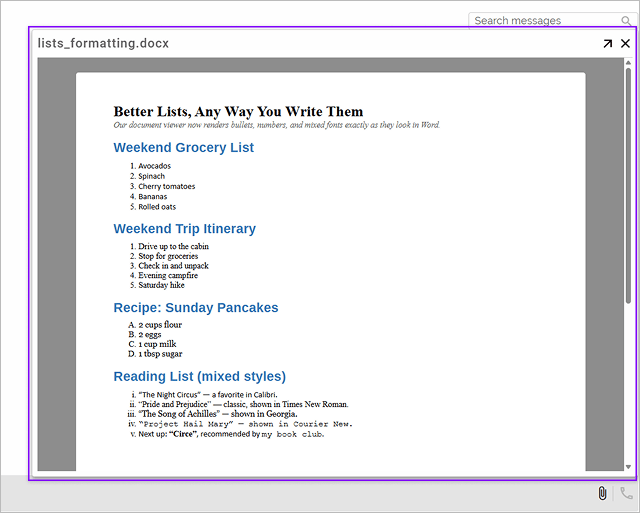
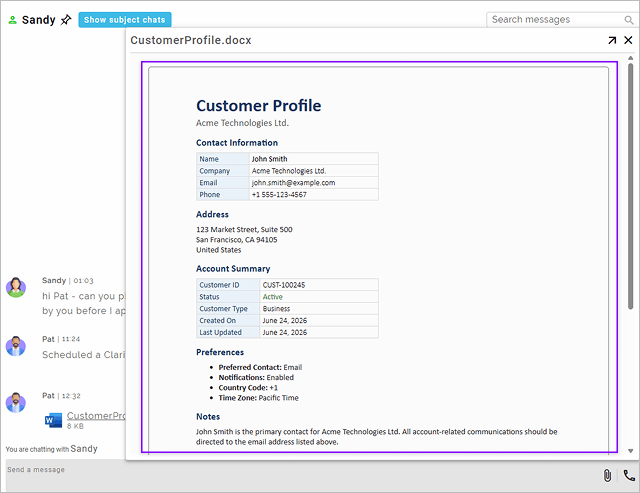
Updated the Word document viewer to improve indentation, font rendering, and list formatting for DOCX files
Build 20260624
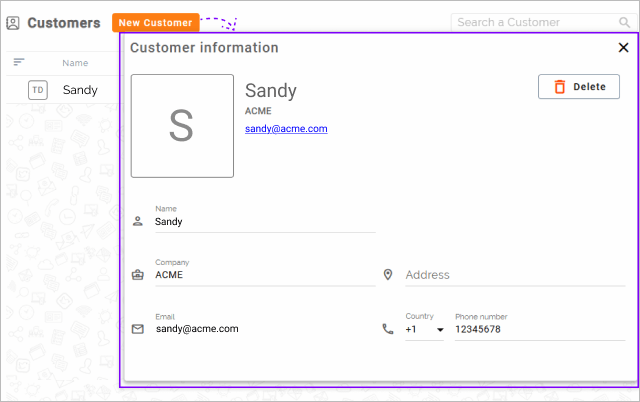
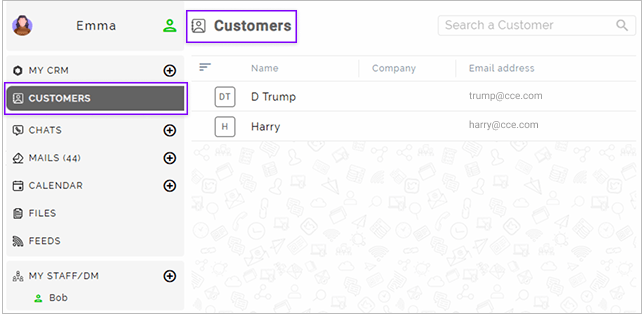
Added the ability to edit & add customers from the Customers menu.
Build 20260617
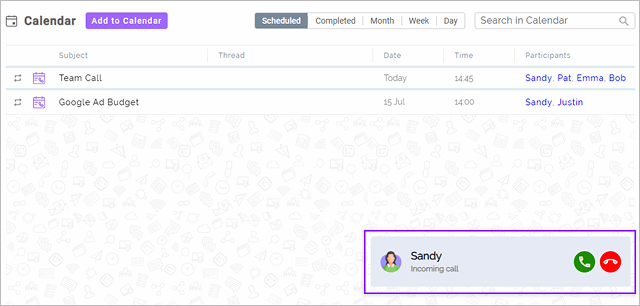
Introduced a mini call view that lets users answer or end calls while working in other menus
Build 20260610
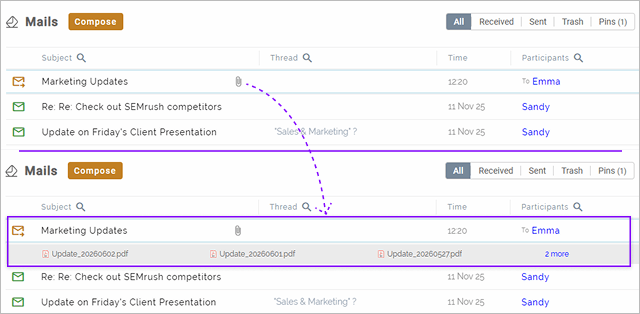
Clicking the attachment icon on a mail row now shows attachments inline.
Improved the Word document view in the file viewer to more accurately reflect the original document layout and formatting.
Build 20260513
Added Customers menu which have all contacts that do not belong to user's organization
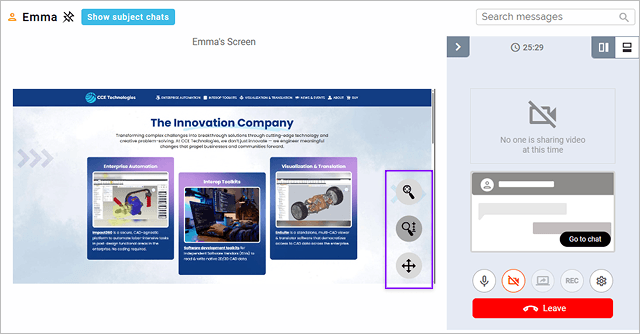
Added zoom and pan support for screen-shared videos
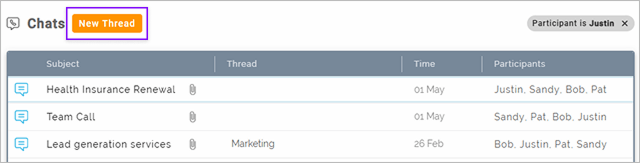
A 'New thread' can be created by selecting activity from the search results of content, subject or participant in Chats, Calendar and Feeds menu.
Build 20260506
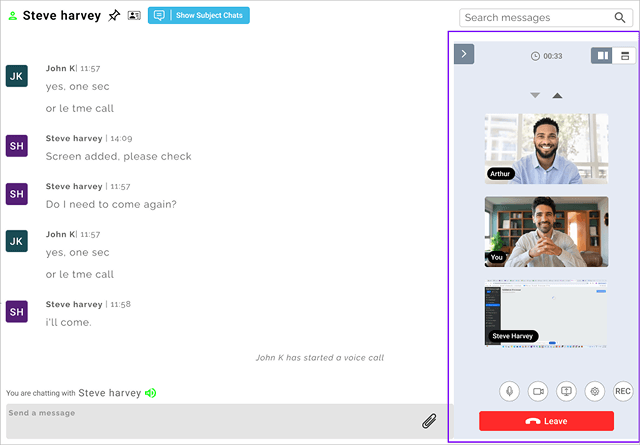
New UI Design for Direct Calls and Group Calls
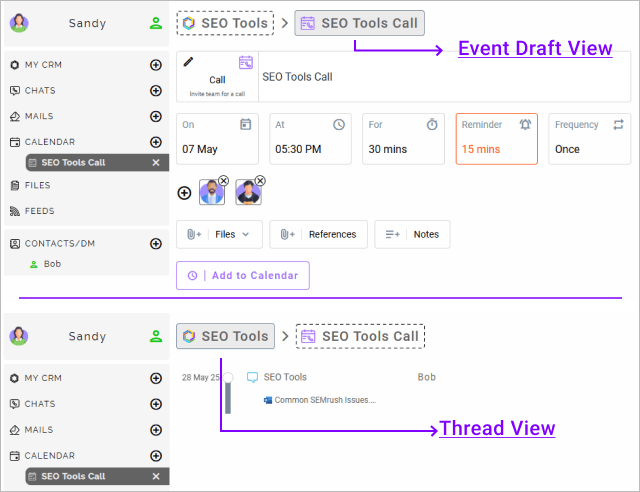
Support to quickly switch between new event and its Thread
Build 20260429
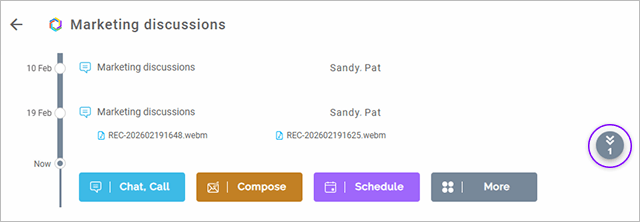
Scroll to bottom control displays any unread activity with count in the threads timeline view.
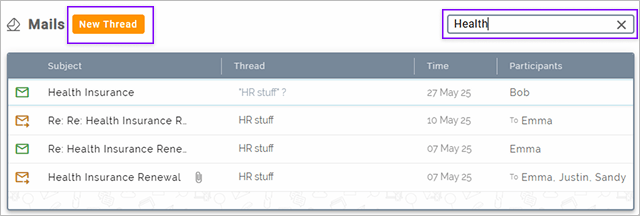
A 'New thread' can be created by selecting activity from the search results of content, subject or participant in Mails menu.
Build 20260422
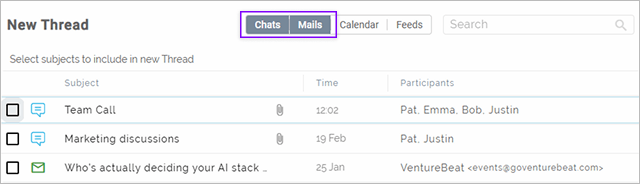
Filters if changed while creating New Thread are remembered across sessions
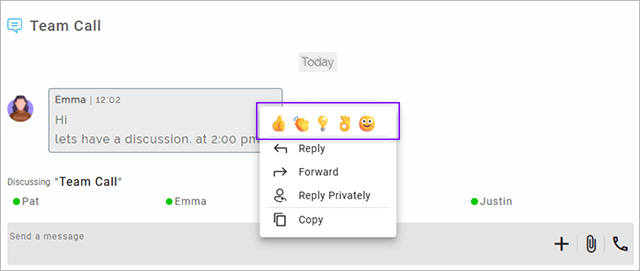
Responding with reactions for old messages is now available.
Build 20260415
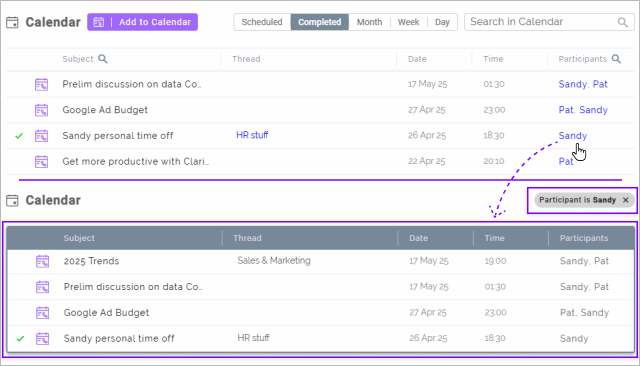
Scheduled and completed events from Calendar can be filtered by Participant's name
Build 20260407
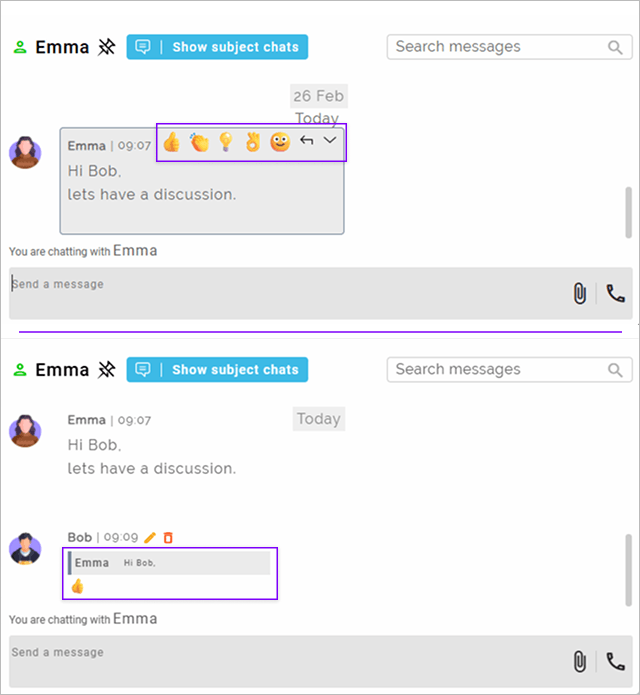
Reply to a message using emojis in active chats
Build 20260402
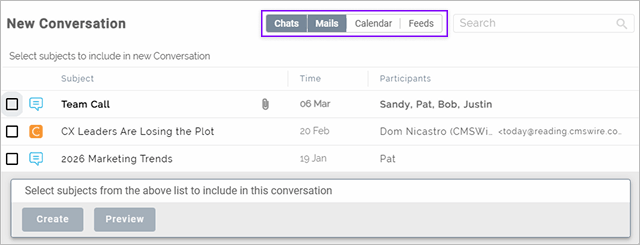
Option to apply multiple filters by activity type to filter activities that can be added to a New Conversation.
Build 20260331
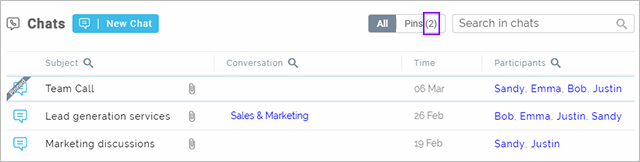
Pinned item count is displayed next to "Pins" text in filters of all the menus.
Build 20260324
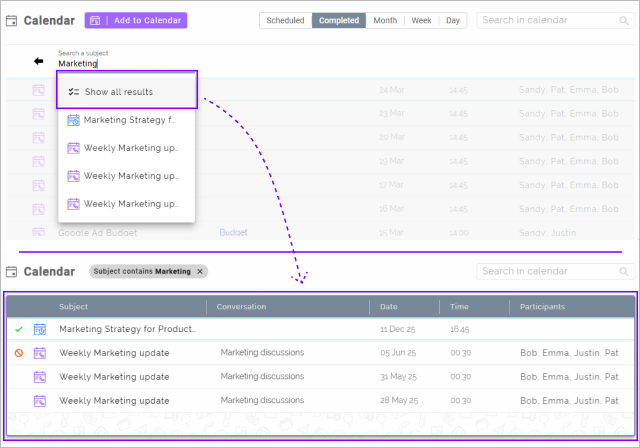
Scheduled and completed events from Calendar can be filtered by subject
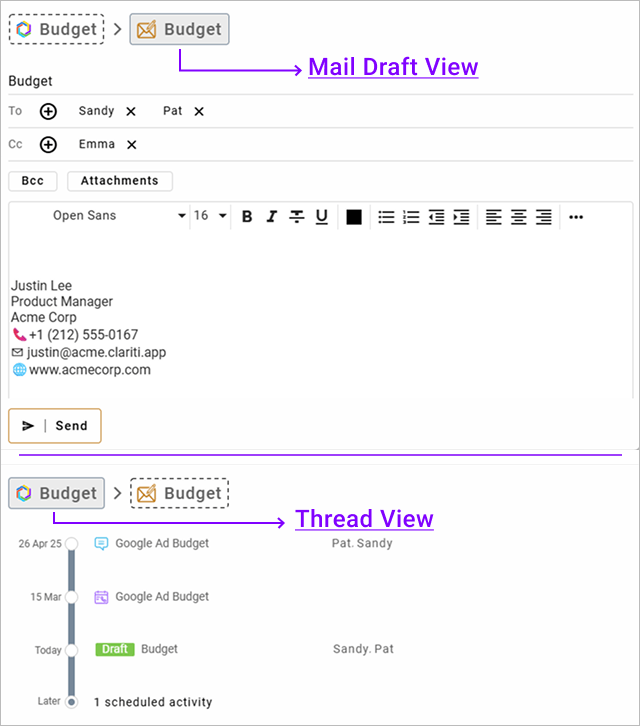
Support to quickly switch between mail draft and its Conversation
Build 20260319
Calendar menu's last selected display state (Scheduled, Month, Week, Day) is remembered across sessions.

Build 20260317
Content search is supported for Conversations
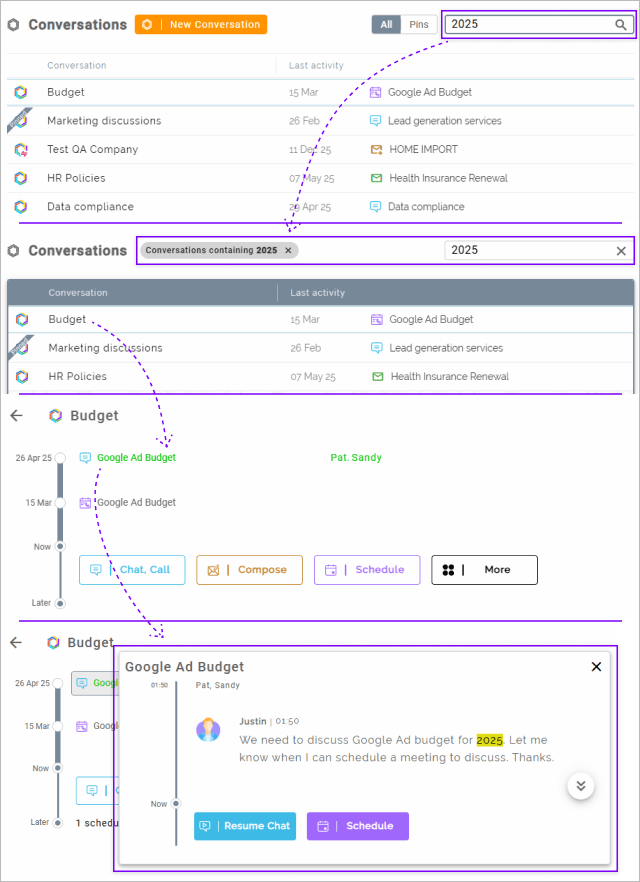
When filter or search results are displayed, the table listing the results is presented differently to give indication that list is filtered.
Build 20260305
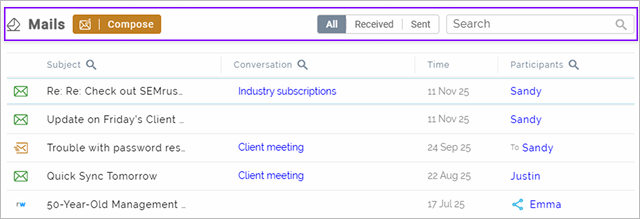
Redesigned menu header to make it compact and with uniform design across all UI elements
Build 20260303
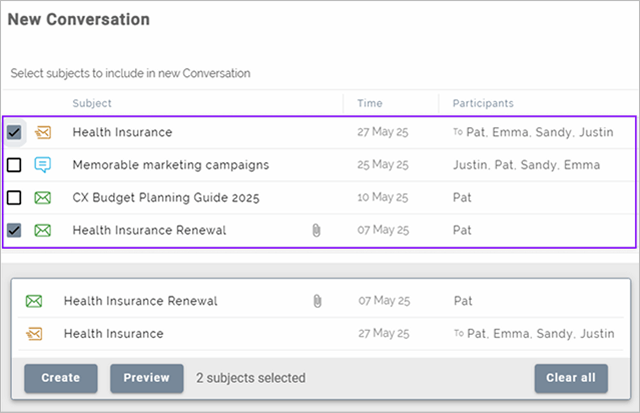
New Conversation lists all Mails, Chats, Feeds, and completed Calendar events in a single list. All activity that have already been added to a conversation will not be listed.
Build 20260226
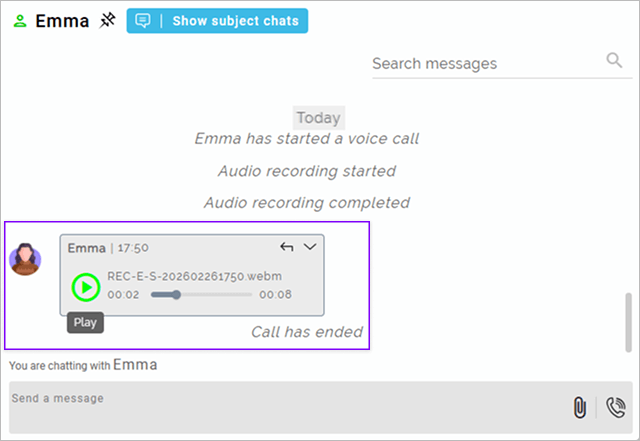
Call recordings & audio files (.wav, .mp3, .m4a, etc.) in chats and mails can be played in place.
Note: Playback is currently not supported in Safari.
Build 20260219
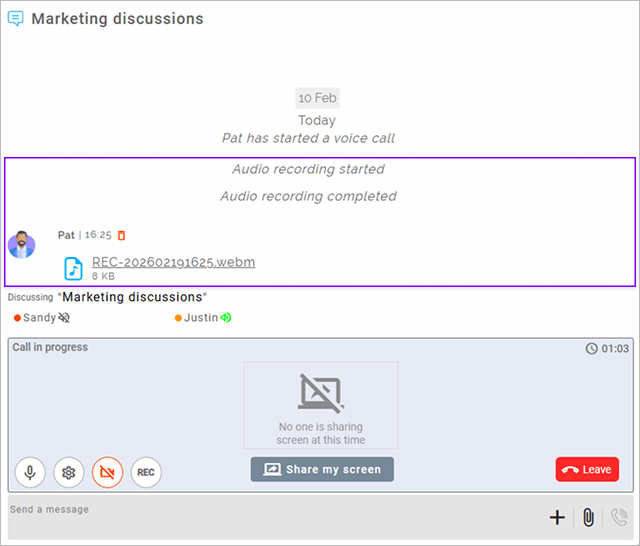
Recording of Audio calls has been extended to group calls. Initiator of call has option to record, and the recording is shared with all call participants at the end of call.
Note: On the Safari browser, call recording is supported only on macOS 14 and later.
Build 20260205
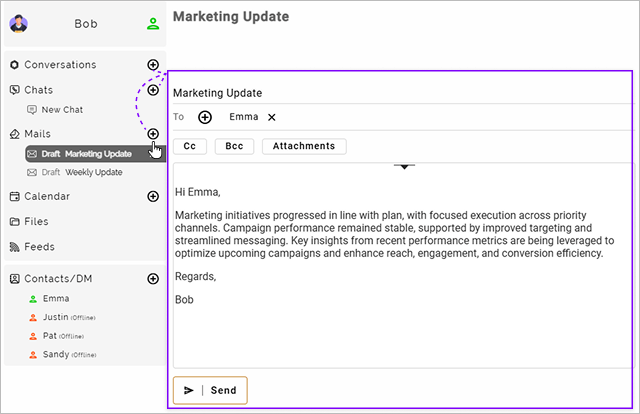
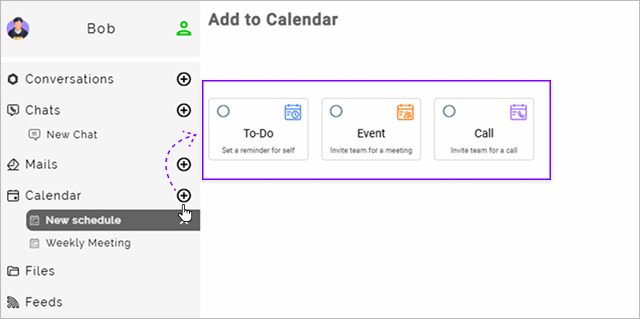
Using the (+) for Mail and Calendar menu creates new draft and event and shows it right under the menu making it consistent with (+) click behavior for Conversations and Chats menu
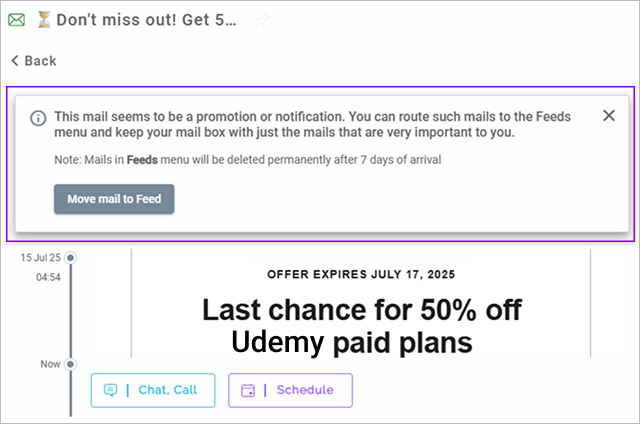
Notification & Promotion mails are identifed and user is prompted to move them to Feeds
Build 20260203
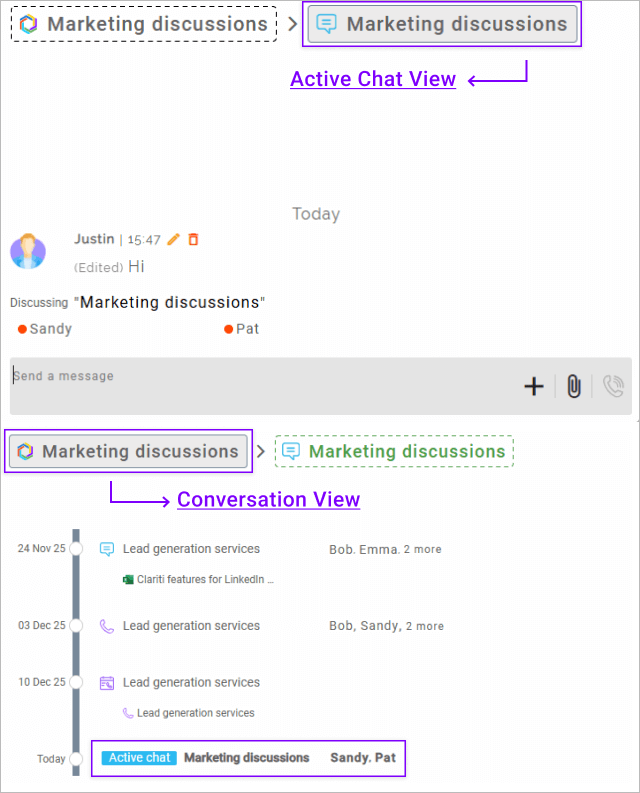
Quickly switch between an active chat and its Conversation
Build 20260127
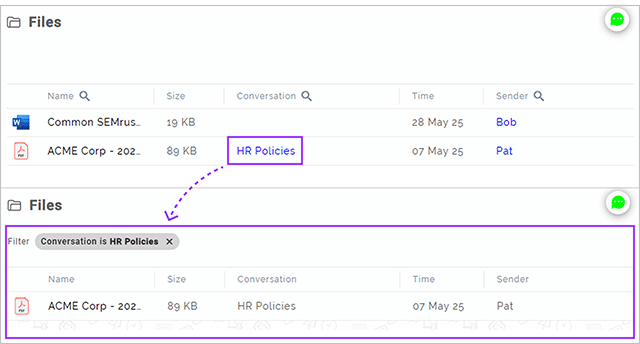
Clicking a conversation name displayed under Conversation column in Files menu, filters the list to show only the Files in that conversation
Build 20260122
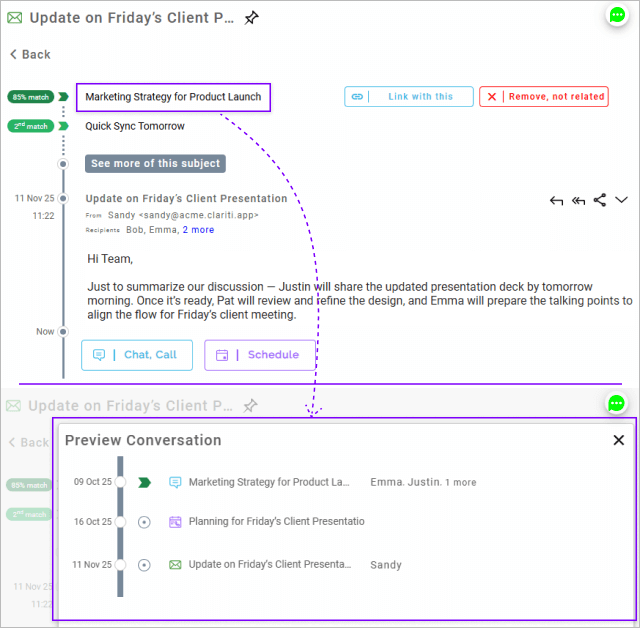
Preview of conversation is shown when suggestion displayed in Chat and Mail is clicked
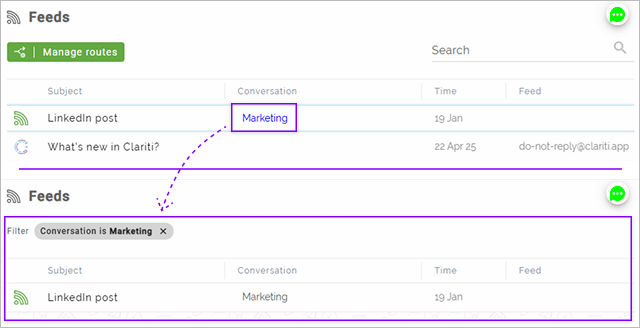
Clicking a conversation name displayed under Conversation column in Feeds menu, filters the list to show only the Feeds in that conversation
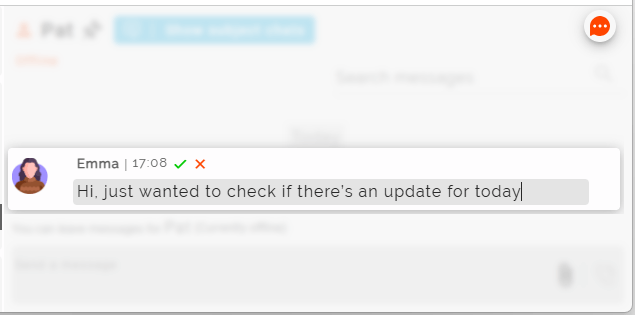
UI improved to edit the sent messages, the editor is displayed at the location of the message.
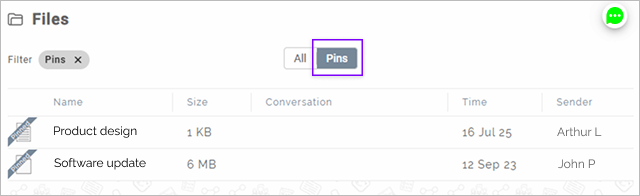
Pinned files can be viewed in the Files menu using the Filters.
Build 20260116
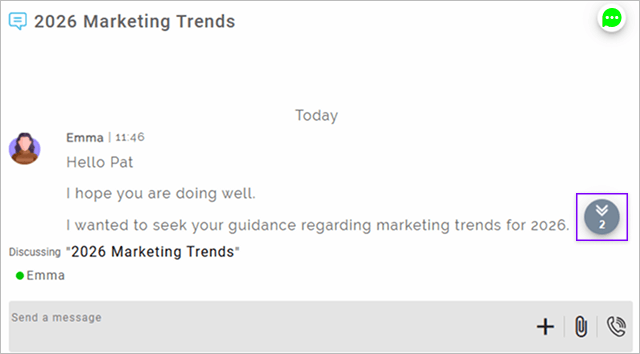
Subject chats now show a new message control to indicate arrival of new messages when user scrolls up to see older messages
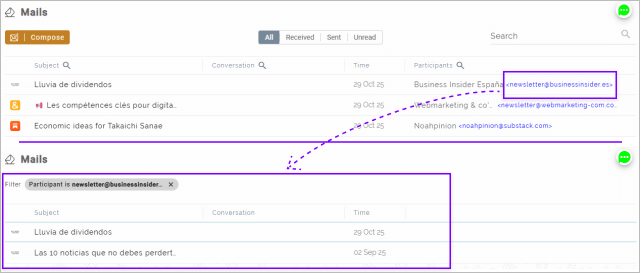
Participants column in the Mails table now supports filtering mails by name, and by email when both are shown
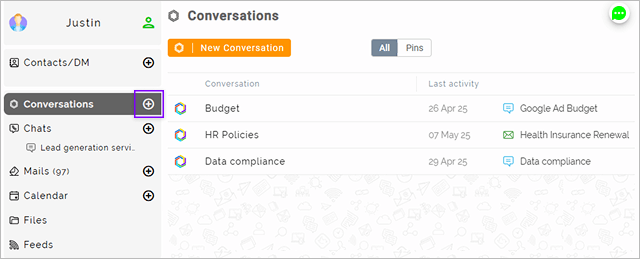
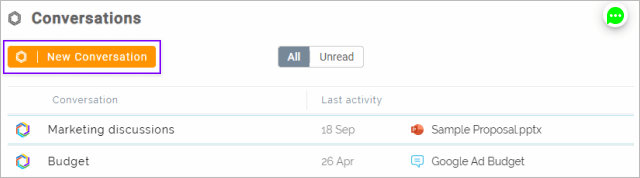
A New Conversation can be started from (+) in the Conversations menu making the behavior consistent with the other menus.
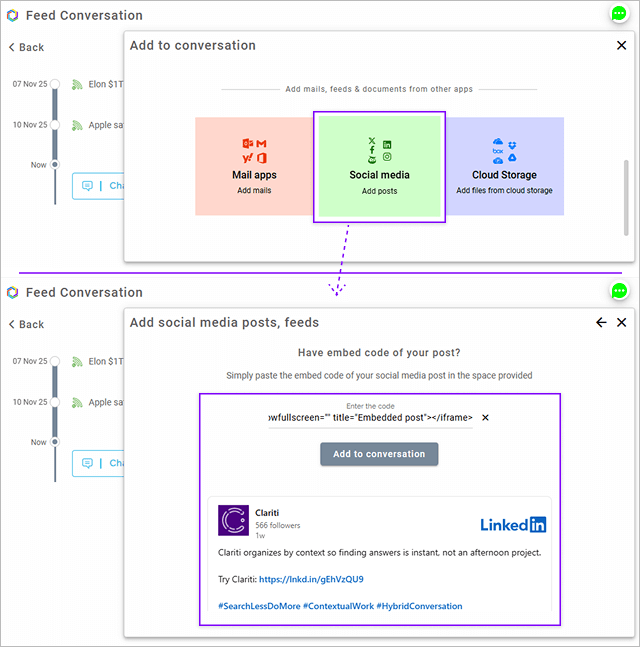
LinkedIn posts can now be added or shared in conversations and chats
Build 20260113
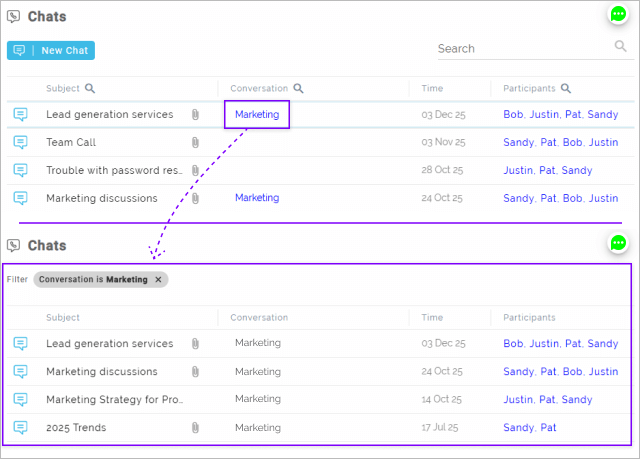
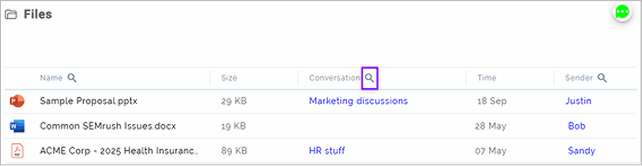
Clicking a conversation name displayed under Conversation column in Chats or Mails menu, filters the list to show only the Chats or Mails in that conversation
Build 20260102
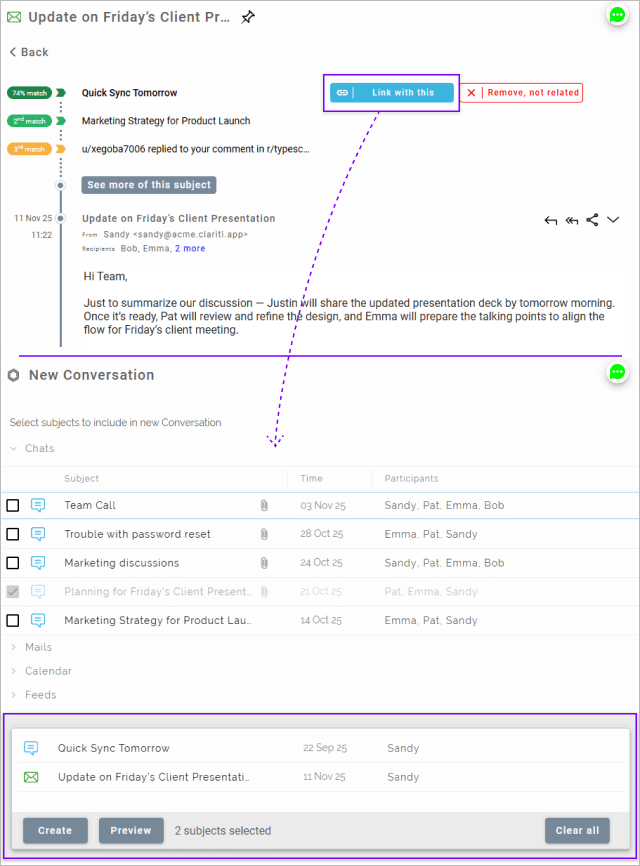
Linking an activity with its related activity suggested by Clariti AI is integrated with New Conversation workflow.
Build 20251216
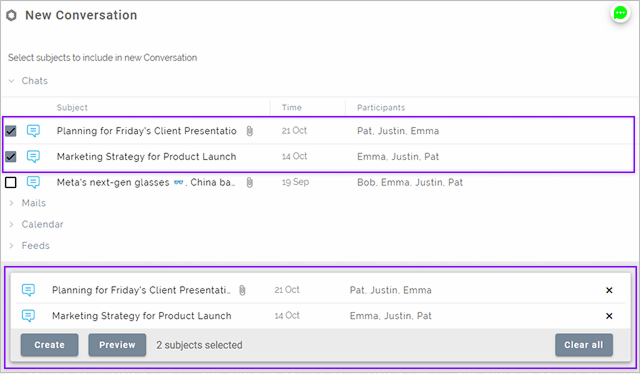
New Conversation draft is redesigned to show selected subjects, preview and name the conversation
Build 20251211
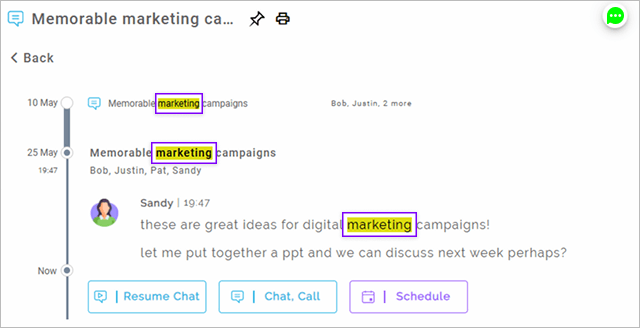
Support to highlight the searched keyword across chat subjects, participant names, and messages
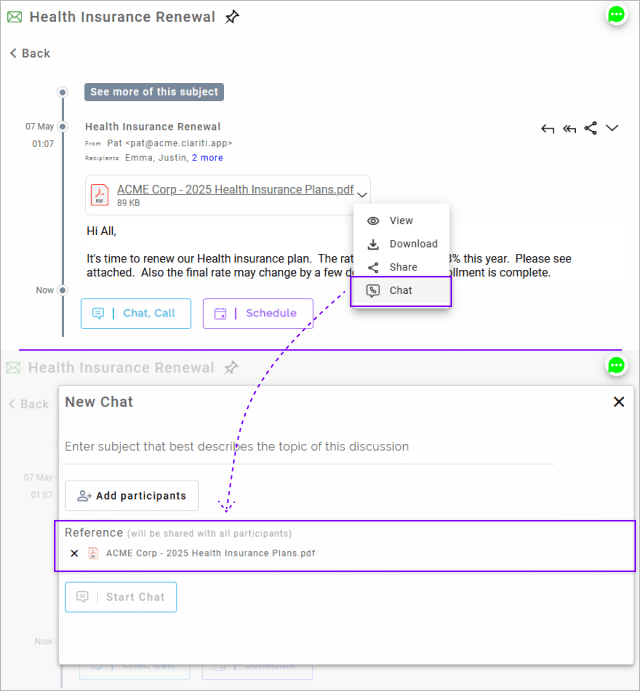
‘Chat’ operation is now supported on file attachments within mail and feed items
Build 20251209
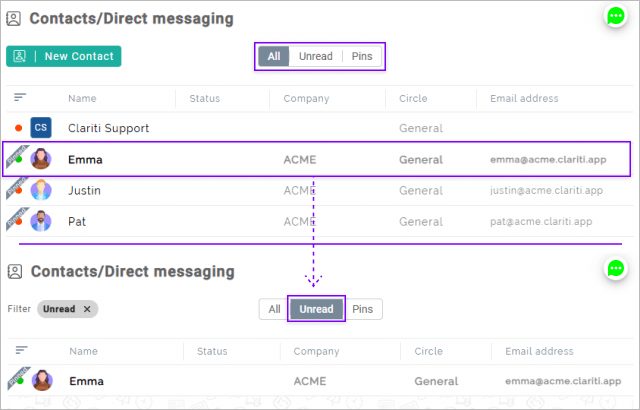
Contacts menu now supports All, Unread, and Pinned filters
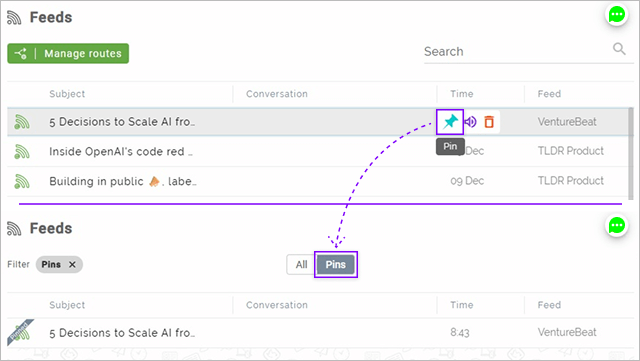
Pinned feeds will be displayed under 'Pins' filter in Feeds menu
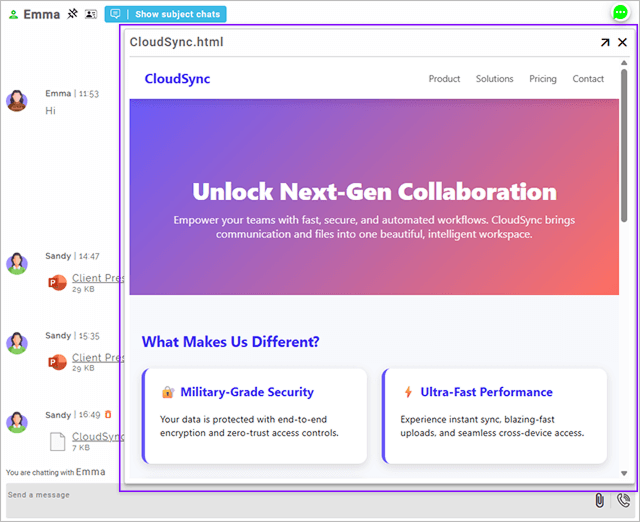
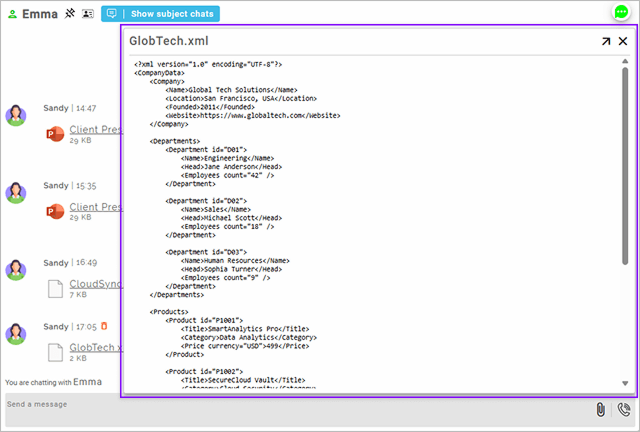
File Viewer now supports viewing standalone HTML and XML files
Build 20251127
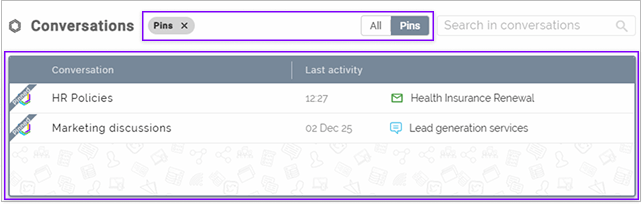
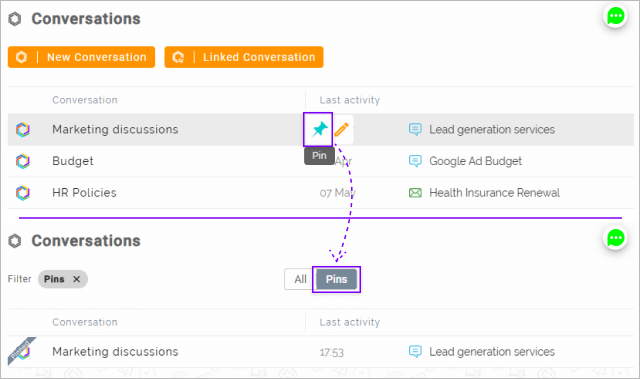
Pinned Conversations will be displayed under 'Pins' filter in Conversations menu
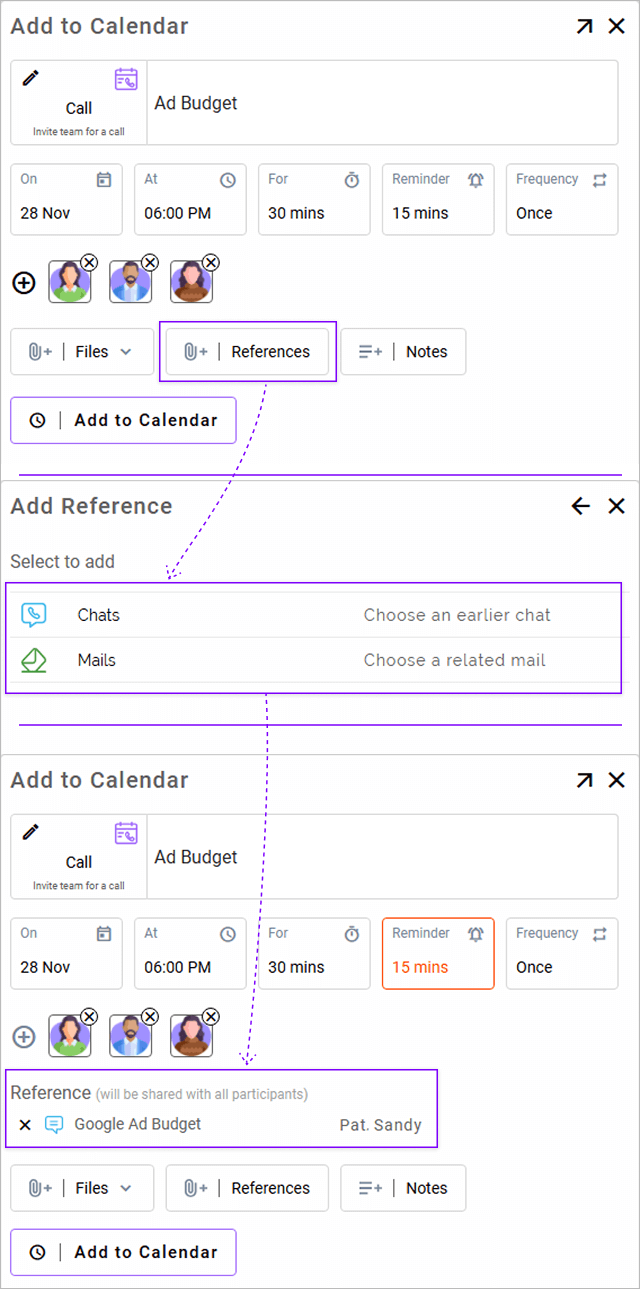
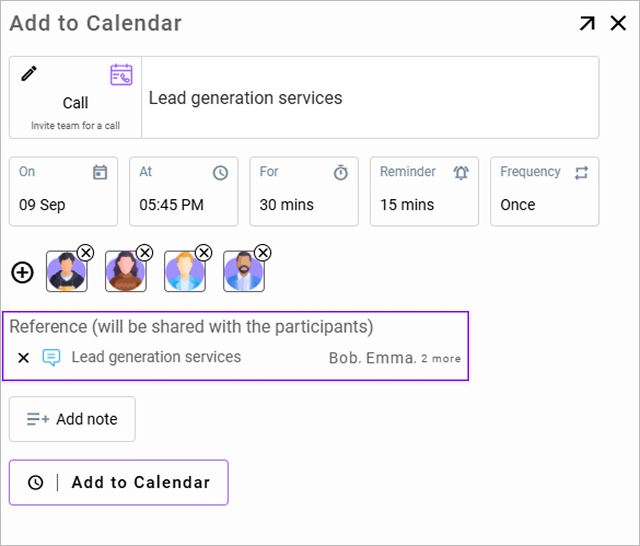
Chat/Mail references can now be added when scheduling a new Todo or Call
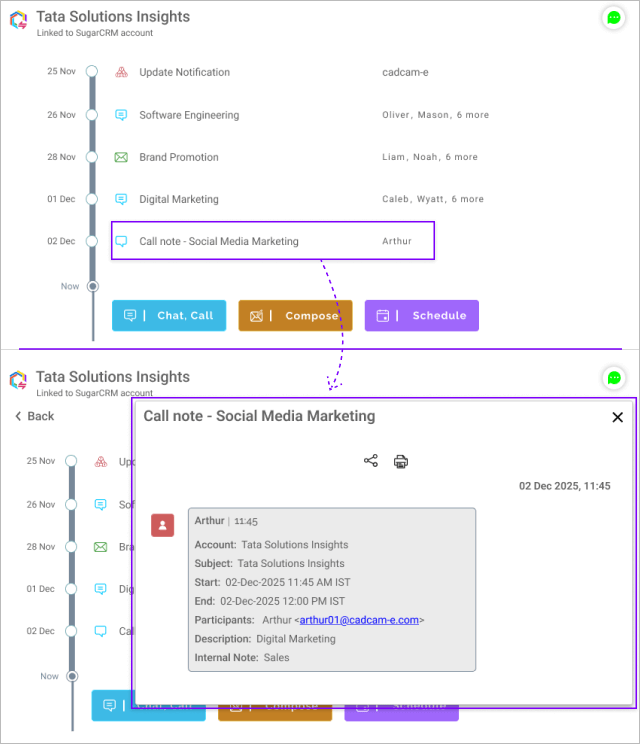
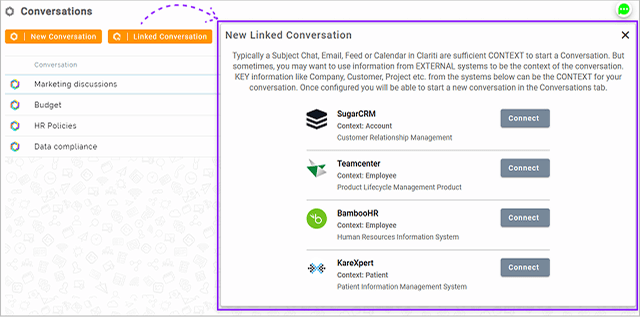
Call notes from SugarCRM can now be synced into Linked Conversations
Build 20251125
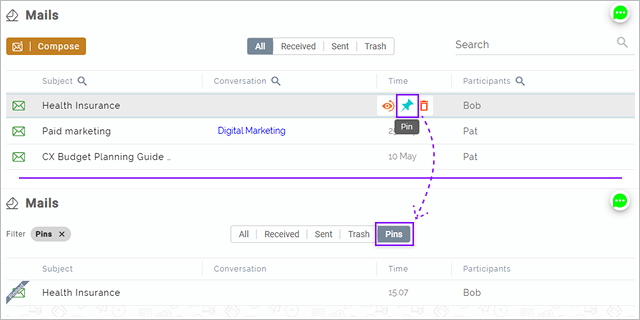
Pinned mails will be displayed under 'Pins' filter in Mails menu
Build 20251120
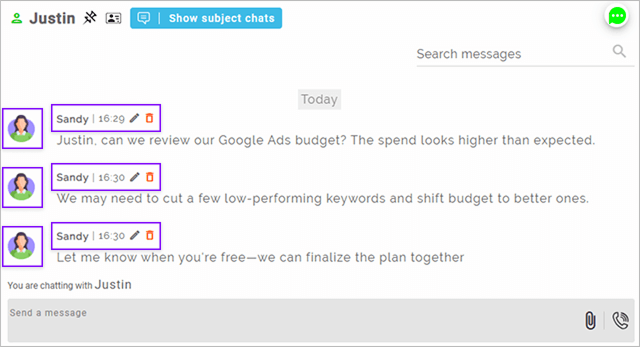
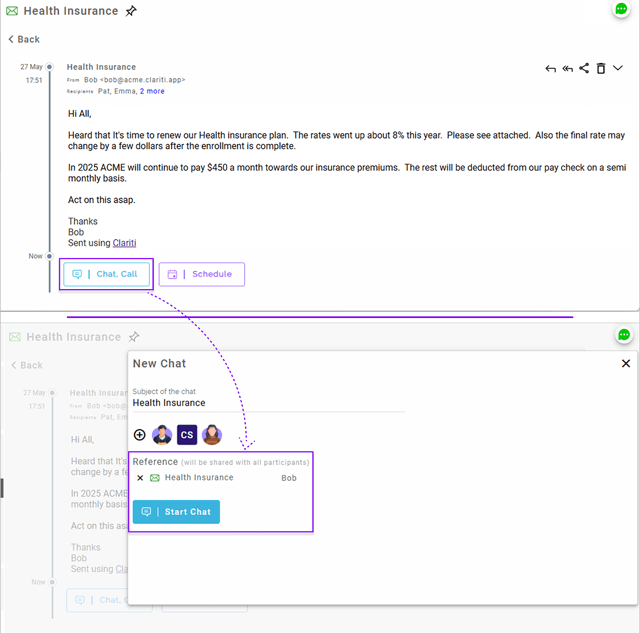
New chats started from mails are prefilled with subject and participants of the mail
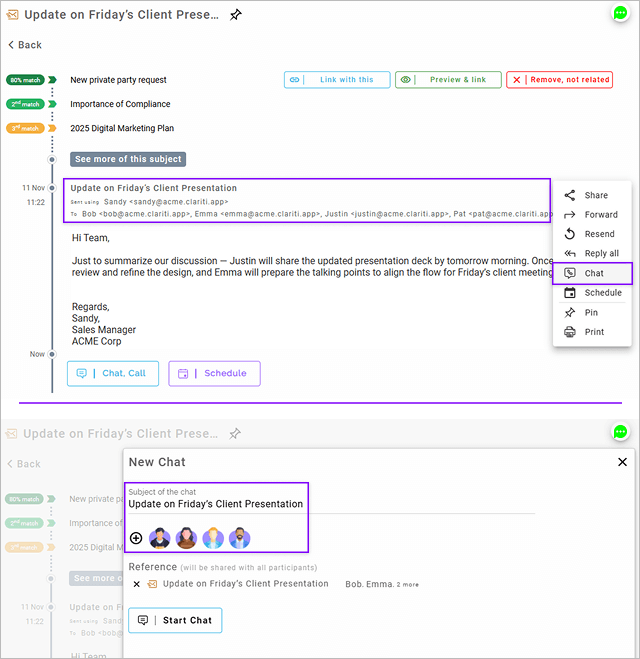
UX improved to access Edit & Delete of sent messages.
Build 20251118
UI of New chat has been improved to display the reference activity from where it is started and has an option to not share it with the participants of the chat.
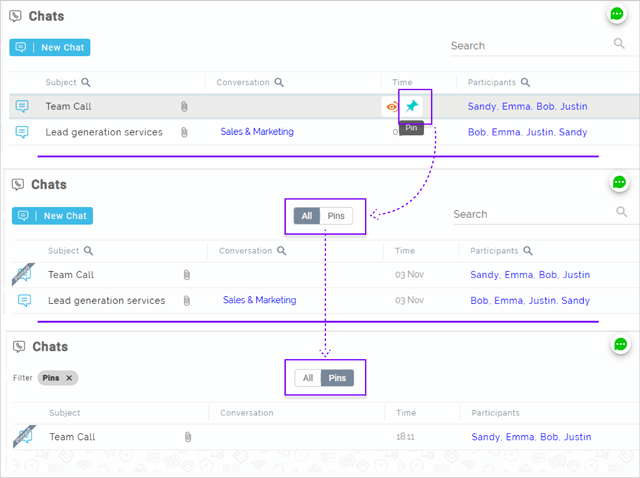
Pinned chats will be displayed under 'Pins' filter in Chats menu
Build 20251113
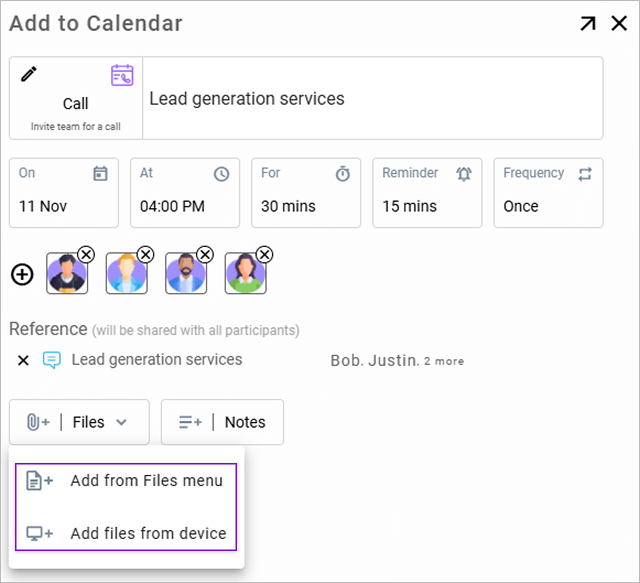
User can now add files from computer to an event.
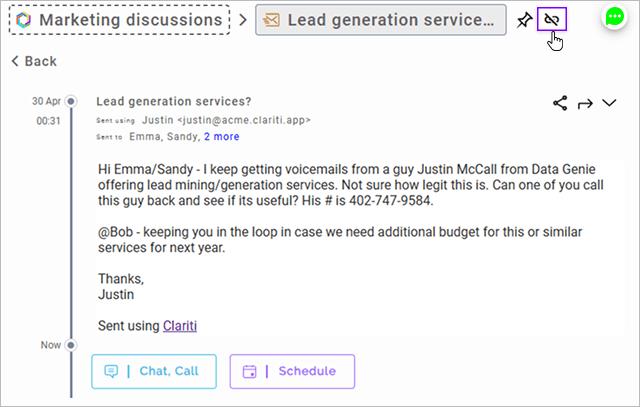
You can now use the ‘Drop from Conversation’ option in the header of any chat, mail, feed, or event detail view to remove it from a Conversation
Support added for daylight savings adjustments in recurring events created in Clariti or imported from external calendars like Google or Outlook.
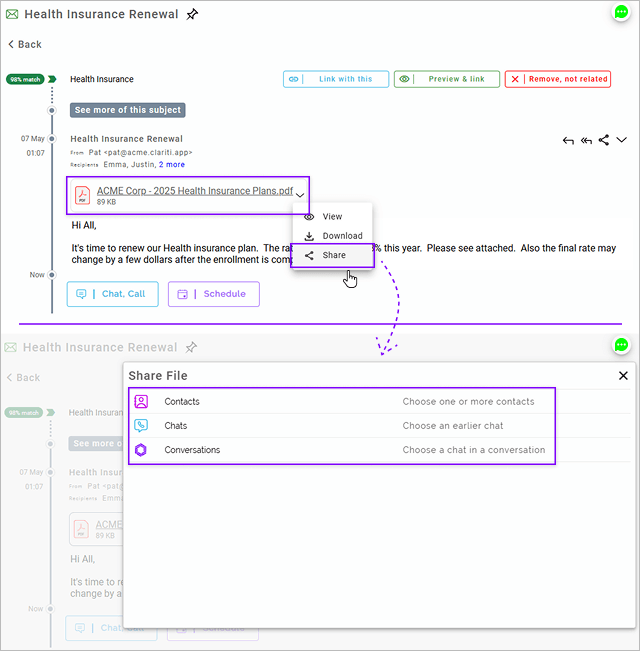
Added support to list ‘Contacts’, ‘Chats’, and ‘Conversations’ in the file share overlay when sharing from Mails, Feeds, or Conversations.
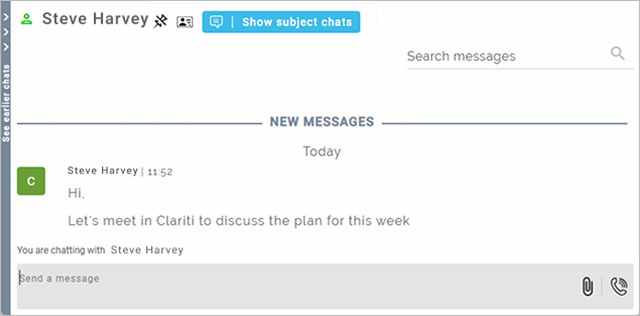
When users join a chat without signing up to Clariti, only that chat is displayed by default. Users have an option to view other chats when needed.
Build 20251104
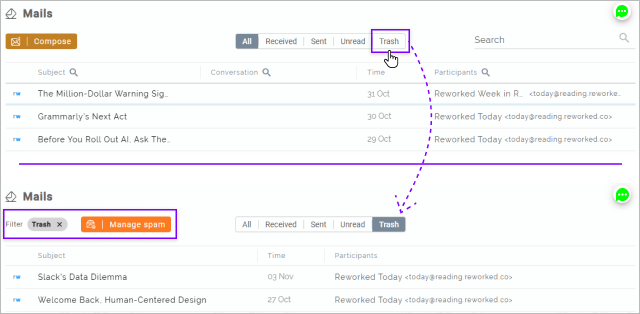
Trash is now a filter inside the Mails menu to view deleted and spam mails, with options to manage spam settings
Build 20251030
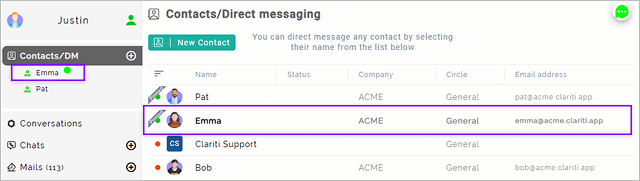
Contact name in Contacts list is displayed in Bold if there are any unread DC messages
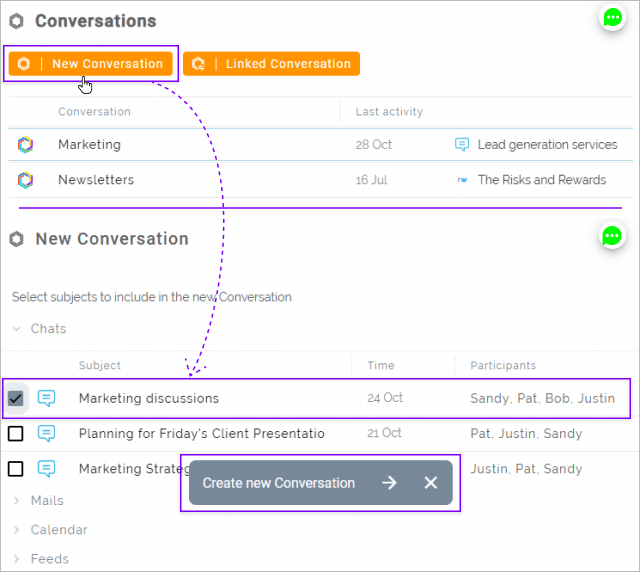
Allowed creation of a new Conversation even with a single activity on any of Chat, Mail, Feed or Calendar
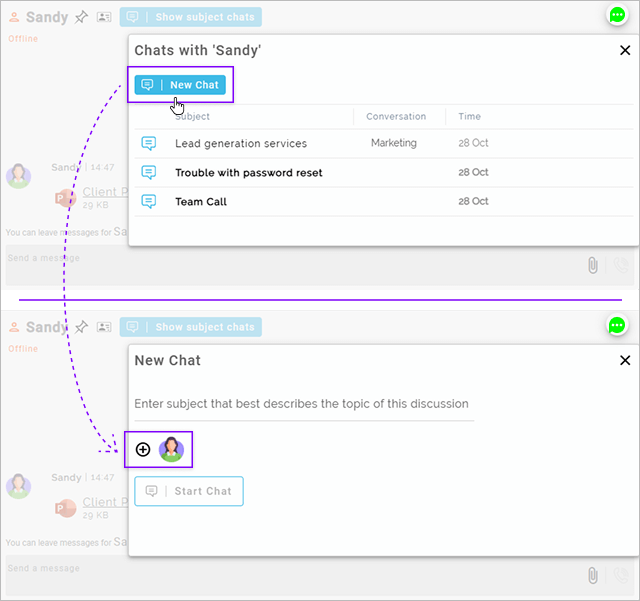
A new chat can be started when user selects ‘Show subject chats’ in DC.
Users can now ‘Schedule’ in Calendar using the activity of linked conversations as reference
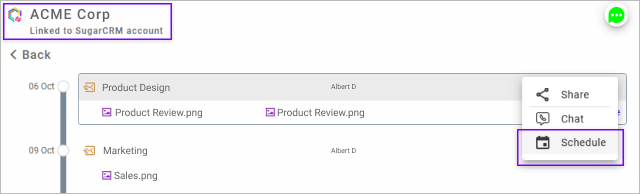
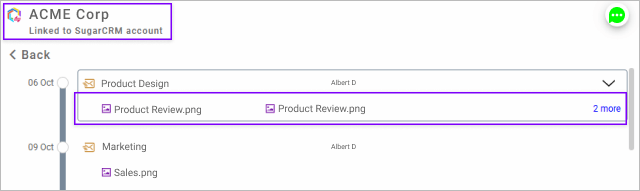
Attachments are now shown in the Conversation view of linked conversations.
Build 20251028
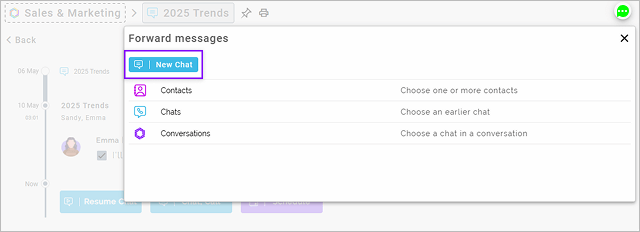
Added ‘New Chat’ option to start a new chat when forwarding messages from DC or GC
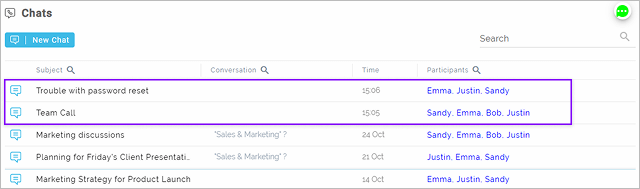
Chats and Conversations will reorder to the top in the list view on any update or arrival of new messages.
Build 20251024
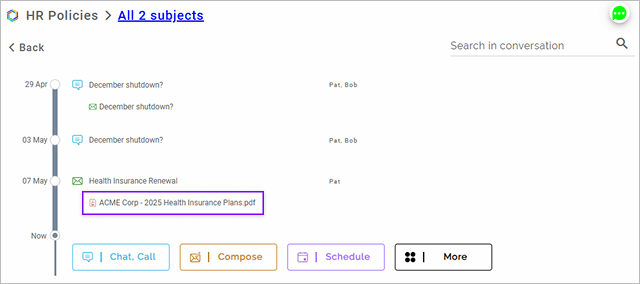
Attachments are now displayed for each activity in the Conversation view.
Introduced ‘Context Integrations’ with support for configuring SugarCRM to create Linked Conversations for Accounts in SugarCRM.
Build 20251014
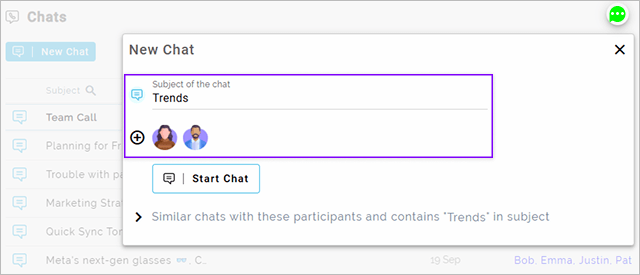
‘New Chat’ workflow redesigned to allow users the flexibility to key in subject or select the participants.
Build 20251007
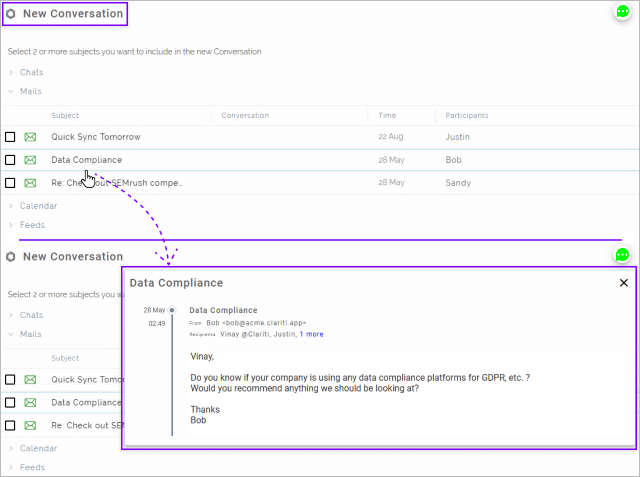
While creating a new conversation, preview of Chat, Mail, Feed, or Calendar is enabled.
Added support to filter files by conversation in the Files menu.
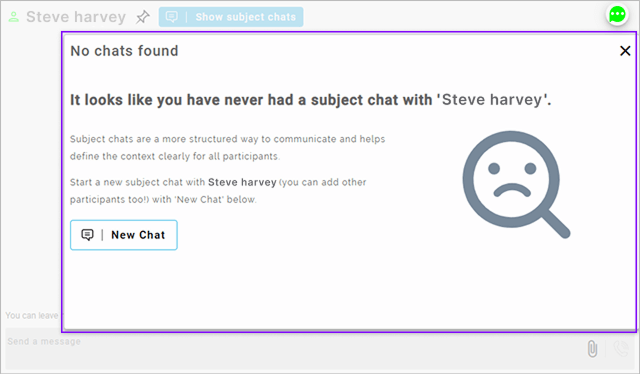
‘Show subject chats’ functionality in direct chat of contacts has been enhanced to start a new subject chat if there are no subject chats with that contact.
Build 20250930
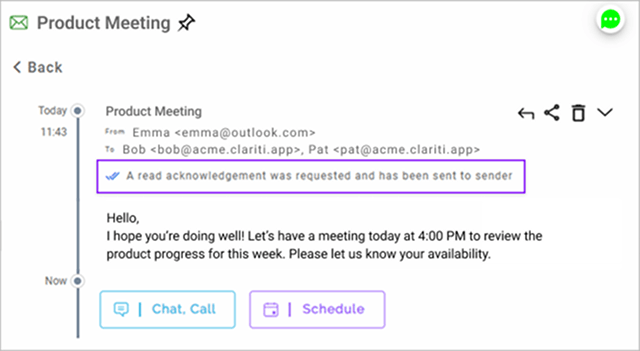
Read acknowledgement is now clearly shown in the mail header for acknowledged mails.
Build 20250925
A new Conversation can now be created by manually picking related chats, mails, feeds & calendar events
Build 20250923
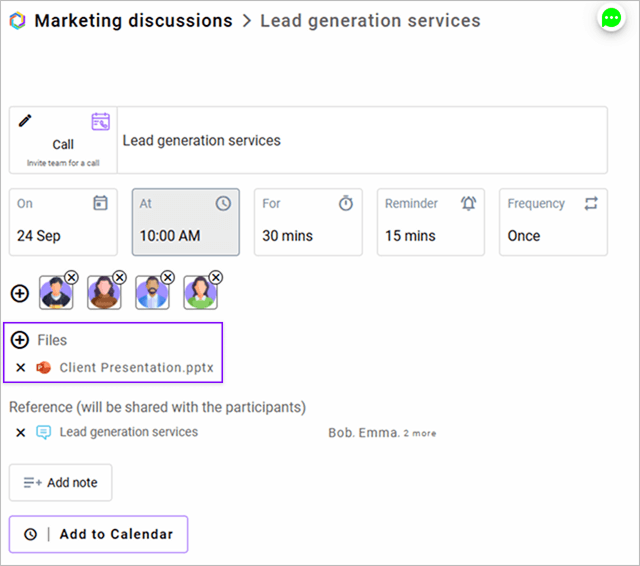
While scheduling an Event or Call, user can attach files as reference and share them with the participants of the Event/Call
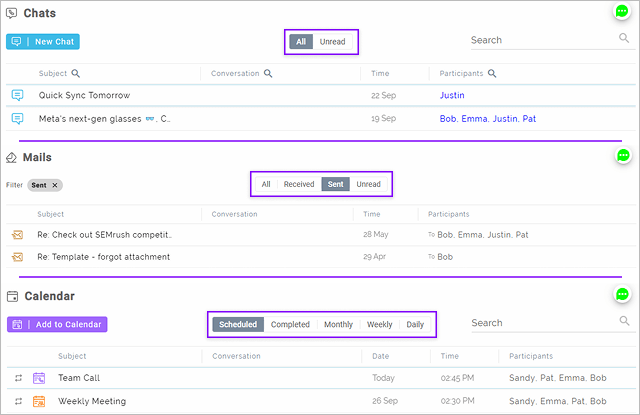
New UI to toggle between predefined filters in Conversations, Chats, Mails and Calendar menus
Build 20250916
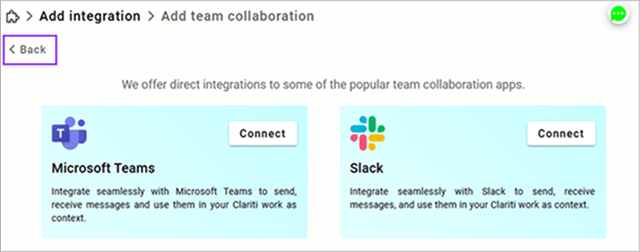
'Back' navigation in integrations and preferences is made consistent with navigation in main menu's
Build 20250909
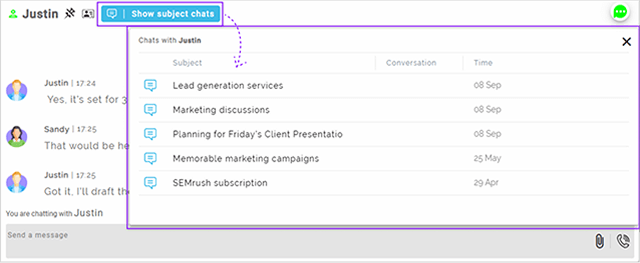
On opening a direct chat of a contact, an option is added to 'Show subject chats' to show the list of all subject chats with that contact.
While scheduling a To-Do or Call using mail, chat or feed as reference, user has now an option to remove the reference or not share it to participants of the call
Build 20250826
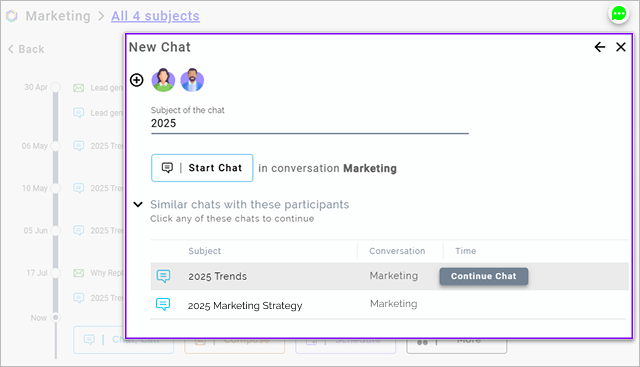
Improved user interface for starting new chat. Also, shows previous chats with the selected participants and with similar subject
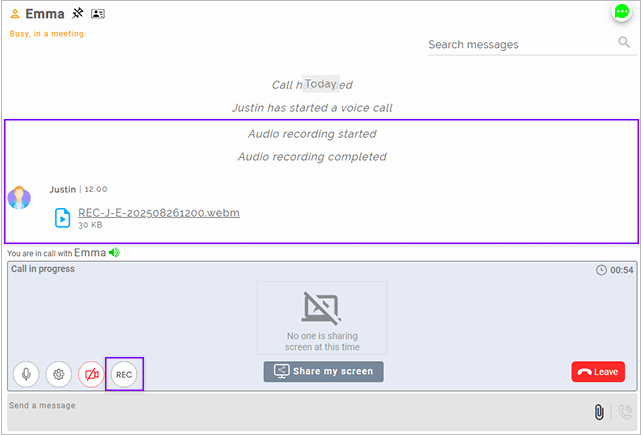
Call recording option is now available for initator of call started from Direct chats
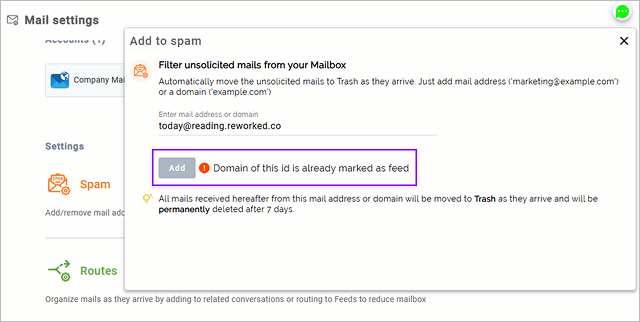
Warning is displayed when a spammed mail address/domain is also being marked as feed and viceversa
Build 20250812
Unread count displayed in Chats menu now includes unread active chats
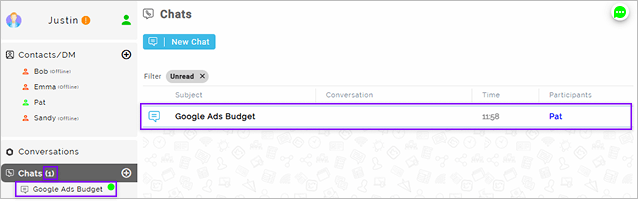
'Reply all' can be done on sent mails
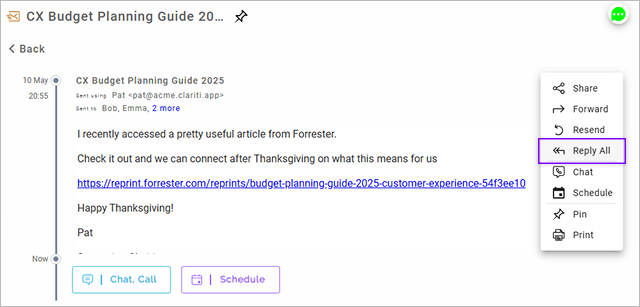
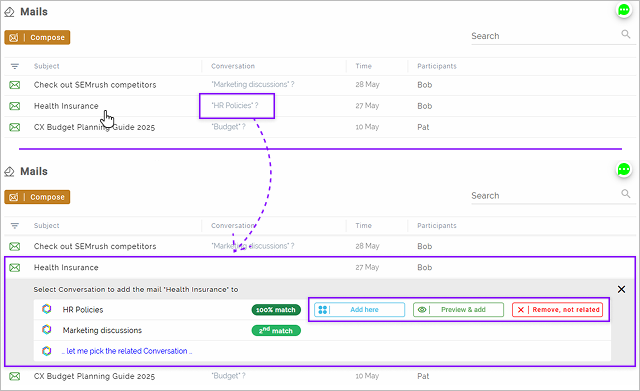
Improved user interface to link mail/chat with related communications suggested by Clariti AI. Options are provided to Link them, Preview & link or specify if they are not related.
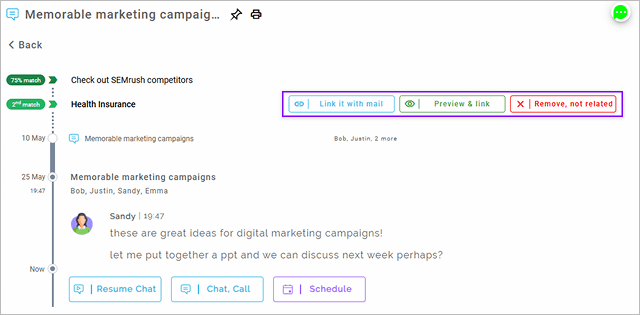
Added an “Unlink” option to remove the link between two communications that were earlier linked manually.
Build 20250807
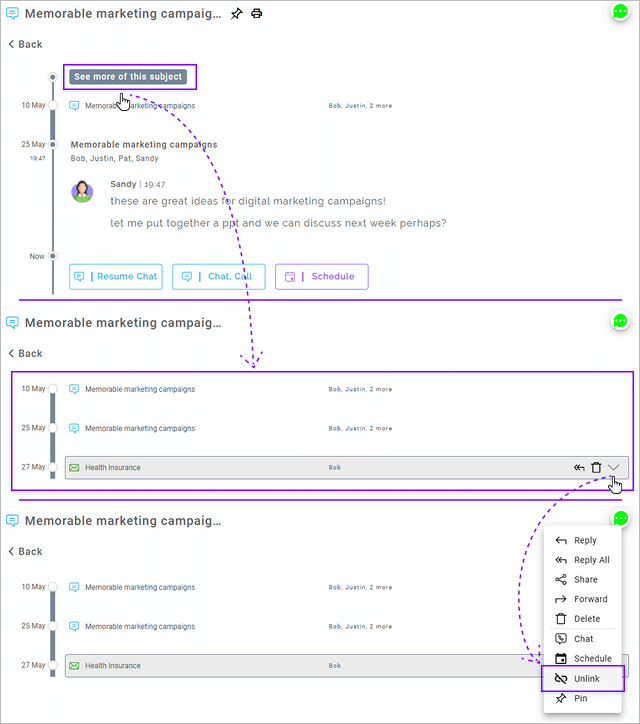
"Add here", "Preview & add", "Remove, not related" actions are added for adding mails or chats to the related conversation suggested by Clariti AI.
Build 20250805
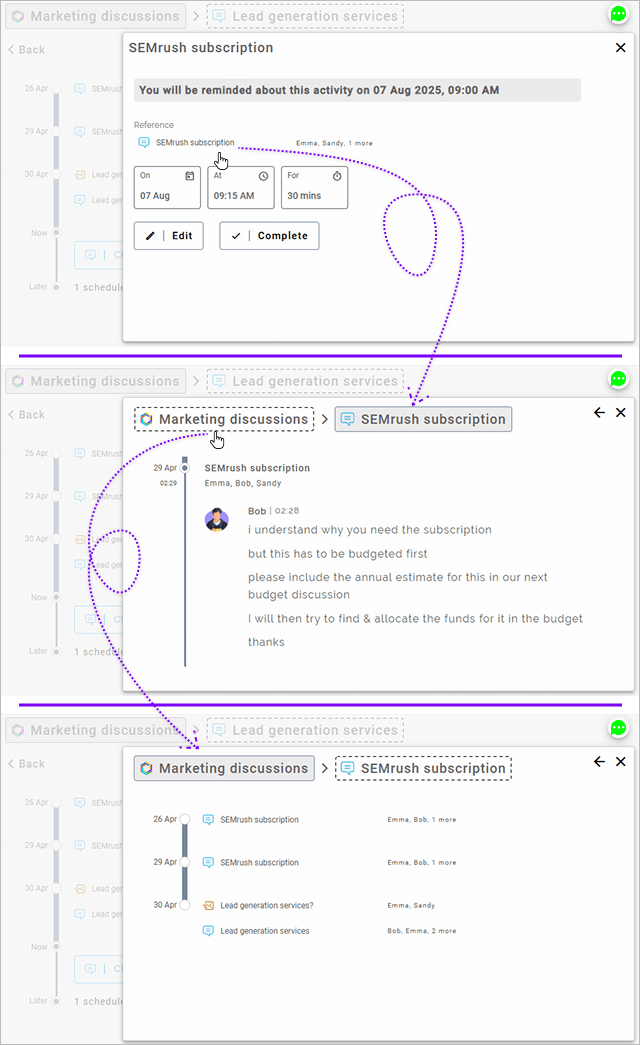
On click of reference items added to an event, information of the conversation the reference belongs to is displayed and user can switch between the conversation and the reference item views.
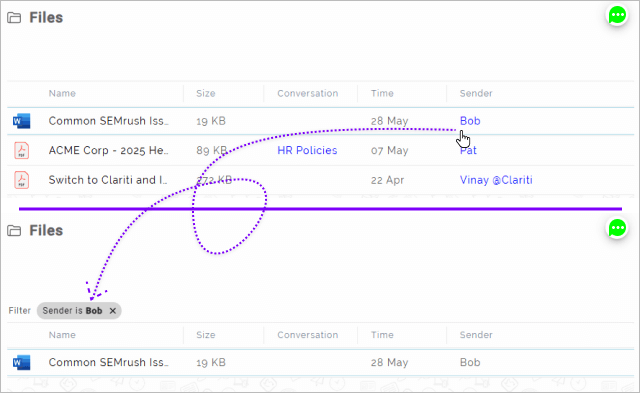
Supported filtering of files in Files menu by simply clicking the sender’s name
Build 20250729
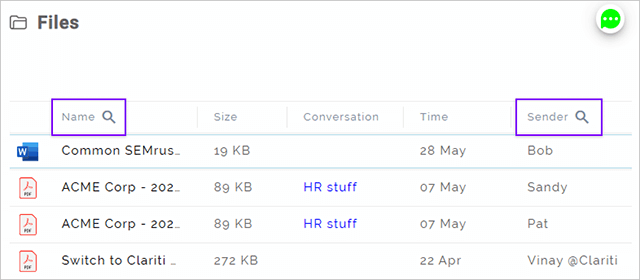
Added support to filter files by file name or the sender
Build 20250722
Presentation of self profile is updated to show the user's profile picture or initials.
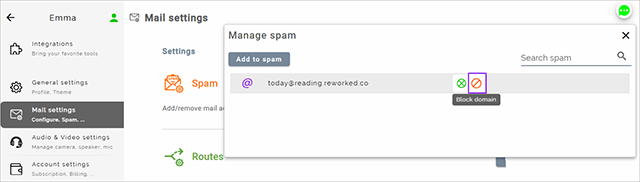
In 'Manage spam' settings, user can select any email address that has been spammed and modify it to spam the entire domain.
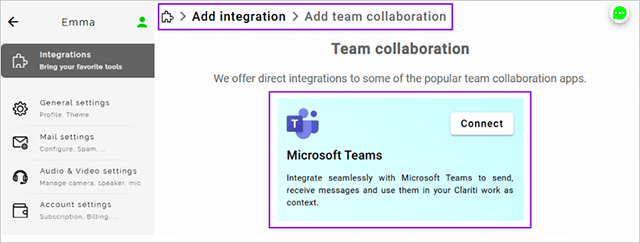
New Teams Collaboration integration "Microsoft Teams" is added. Clariti users can integrate their Teams account and directly receive/send messages to direct chats of Microsoft Teams.
Build 20250717
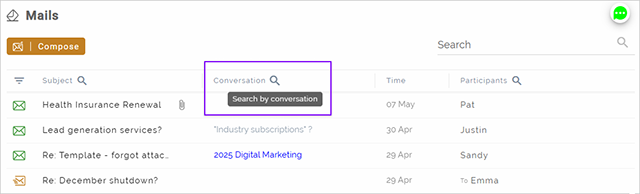
Chats and Mails can be filtered by conversation name
Build 20250715
Improved workflow to add / remove participants from participant selection window
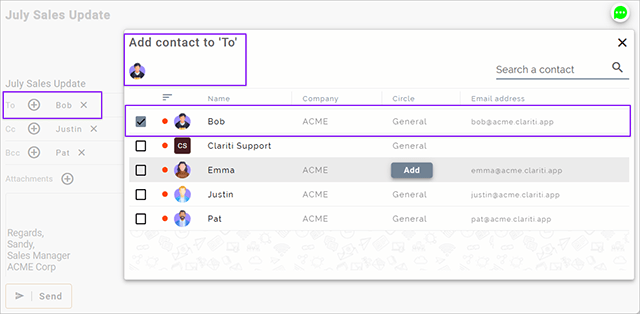
Build 20250708
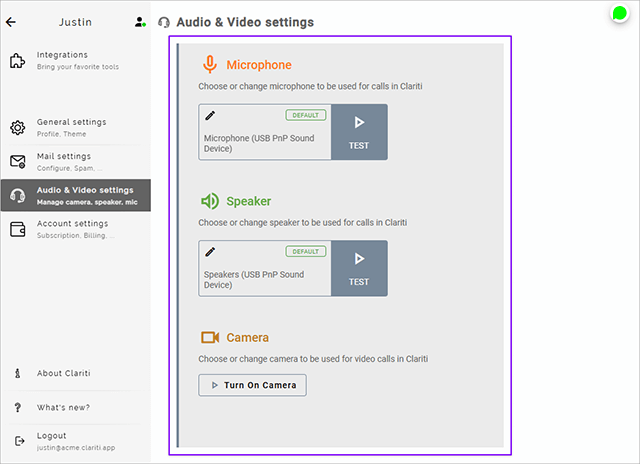
Redesigned user interface of Audio Video settings
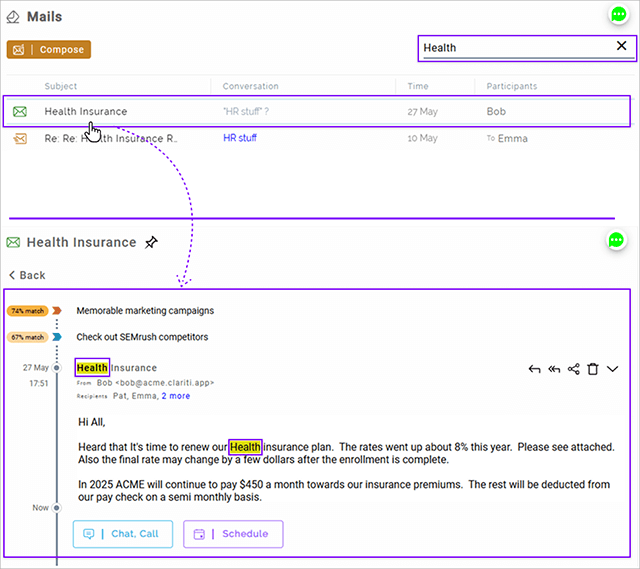
Search string is highlighted in the mail header and body for the mails filtered by search
Build 20250701
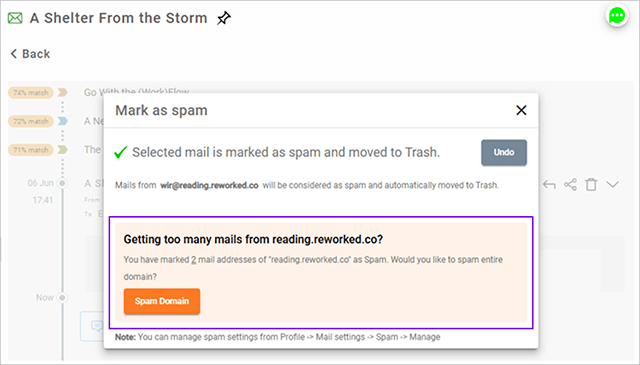
Redesigned & simplified "Mark as spam" workflow for spamming domain.
Build 20250626
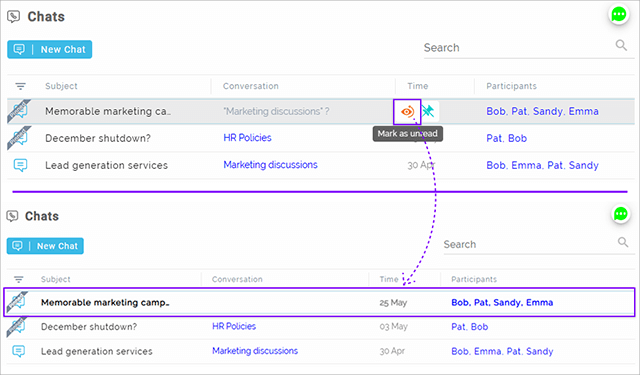
Supported option to mark a read Chat as Unread.
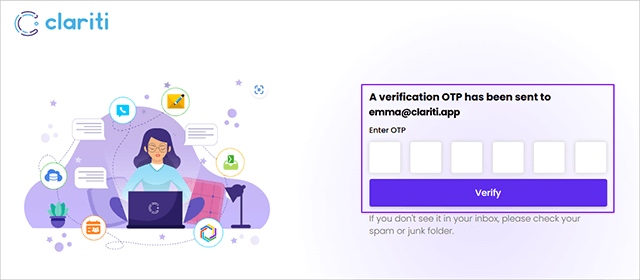
Simplified the workflows for Signup, Invite, Forgot Password & Join Chat by using One Time Passwords
Build 20250624
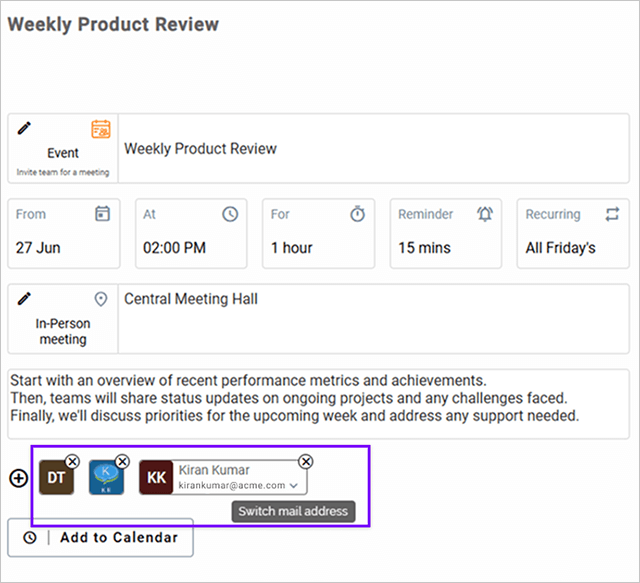
Participant selection and display in event creation has been redesigned for better look and user experience.
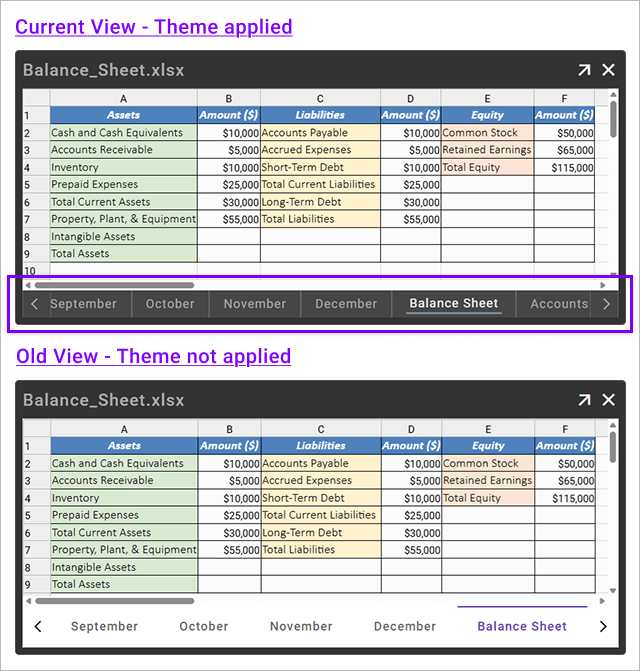
Excel viewer has been updated to support the color scheme of the active theme
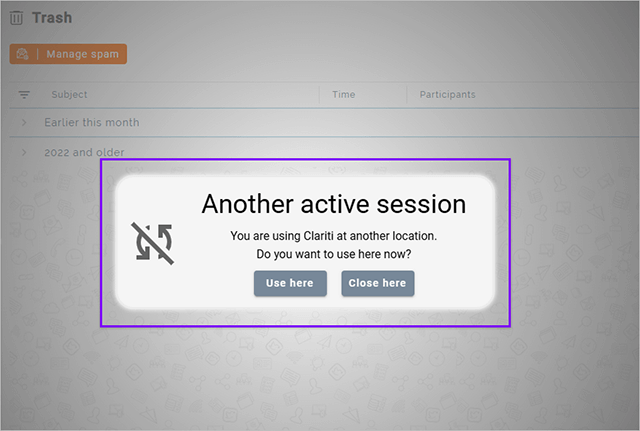
Users who have selected "Remember me" on this device will not be signed out if the same user is logged in a different device, they just need to click "Use here" to get back to Clariti.
Build 20250619
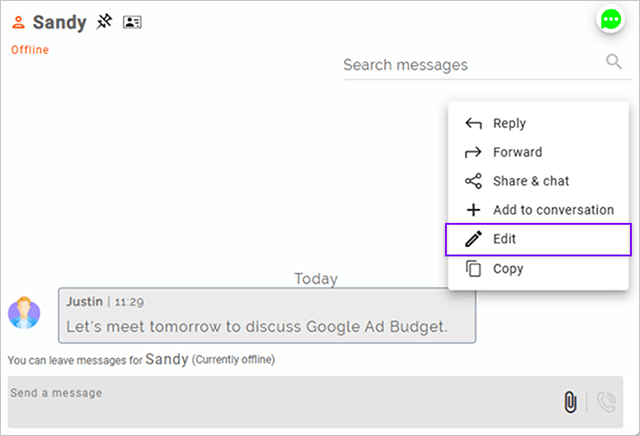
Chat messages in direct and subject chats can now be edited within 3 minutes of sending
Build 20250617
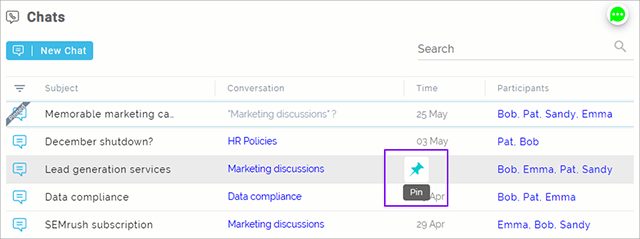
A Chat listed in Chats menu can be pinned and unpinned directly from its row operations
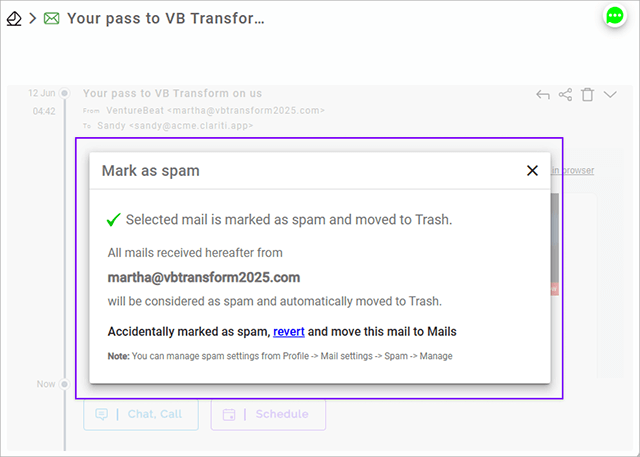
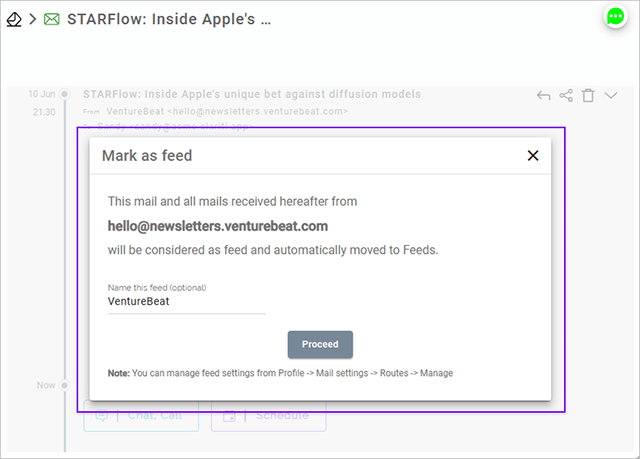
Redesigned user interface to mark an incoming mail as Spam or as a Feed.
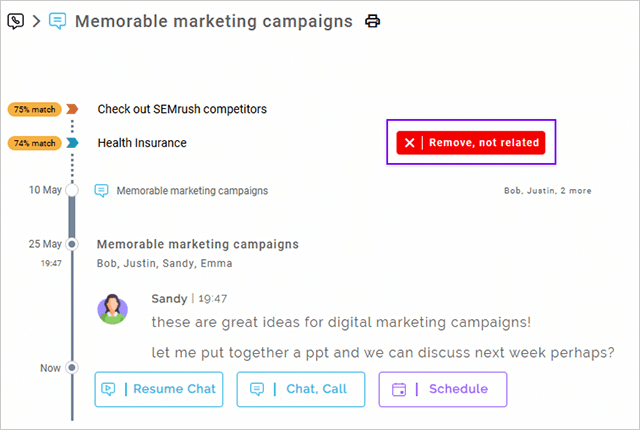
Clariti AI suggested context can be now be marked as "Not related" to improve the relevance of the suggestions going forward.
Build 20250610
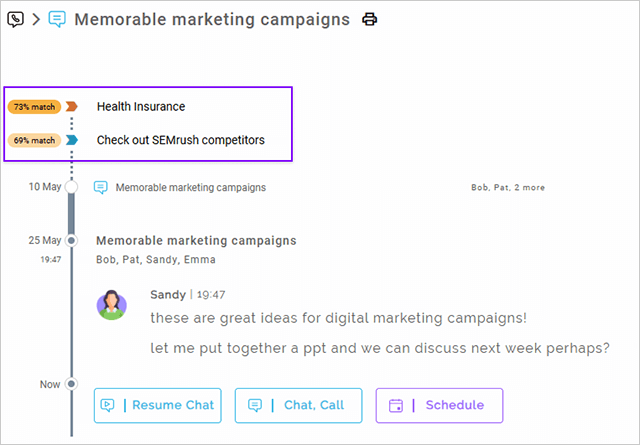
Redesigned display of context suggestions from Clariti AI for Mail, Chat, Feed, or Calendar event
Build 20250605
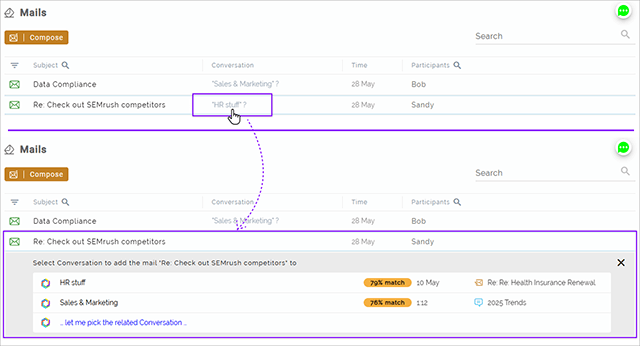
Improved the listing of related conversations found by Clariti AI by presenting them in a tabular format, allowing users to pick a related conversation for mails, chats, feeds, or calendar events.
"What’s New" dialog is now shown at login when there’s an update to inform users
Build 20250603
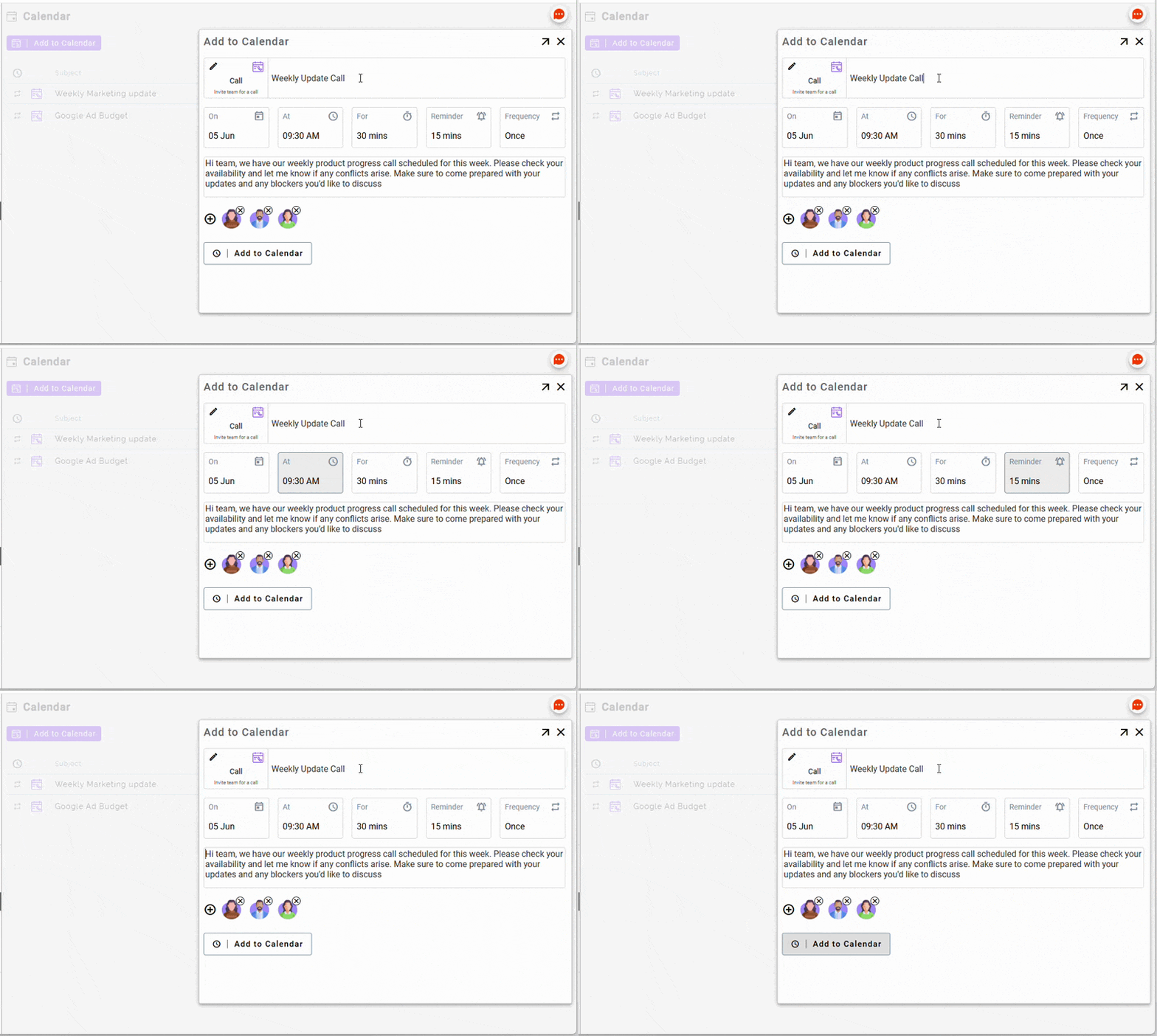
Tab key navigation is partially supported in calendar drafts (to-do, event, call)
Build 20250527
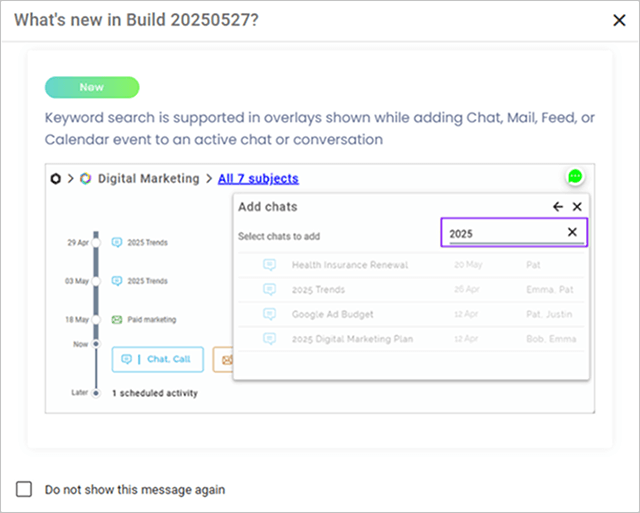
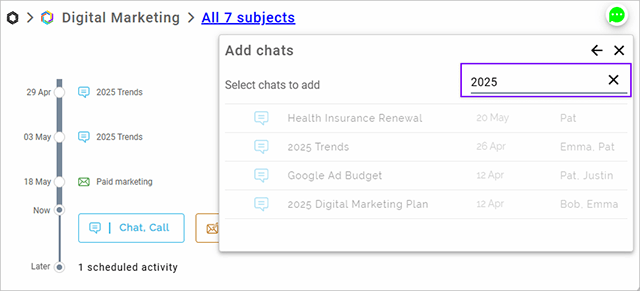
Keyword search is supported in overlays shown while adding Chat, Mail, Feed, or Calendar event to an active chat or conversation
Build 20250520
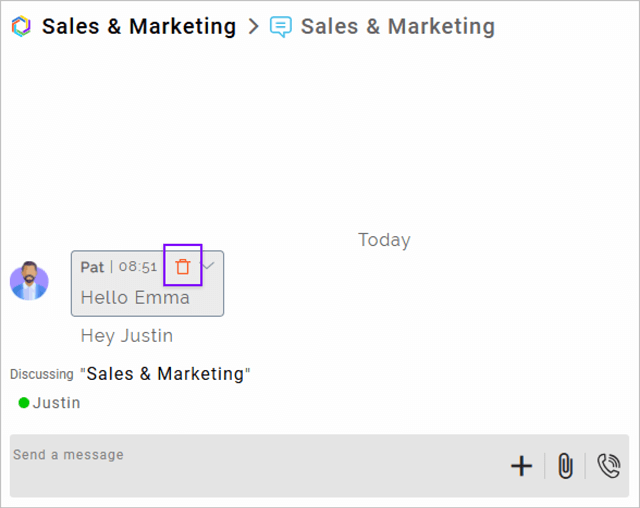
Support for deleting of chat messages has been extended to subject chats.
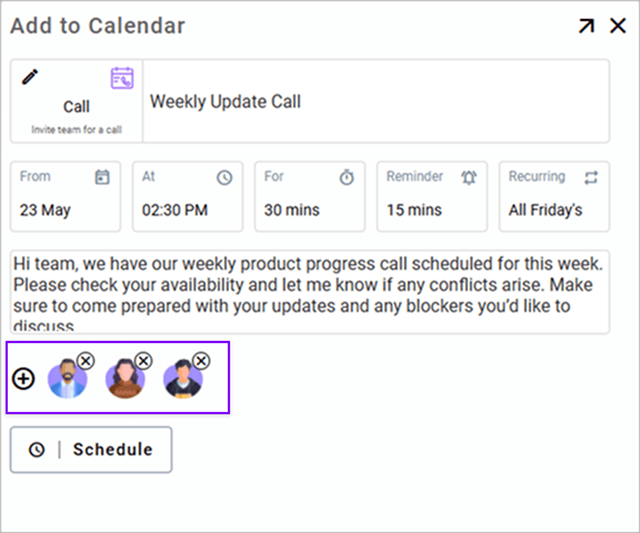
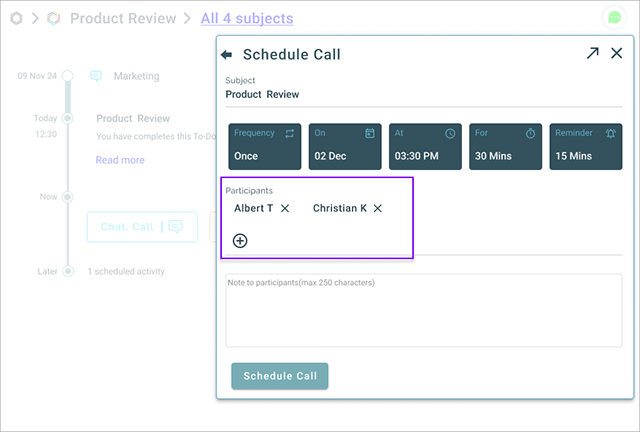
Redesigned participants presentation in schedule call user interface.
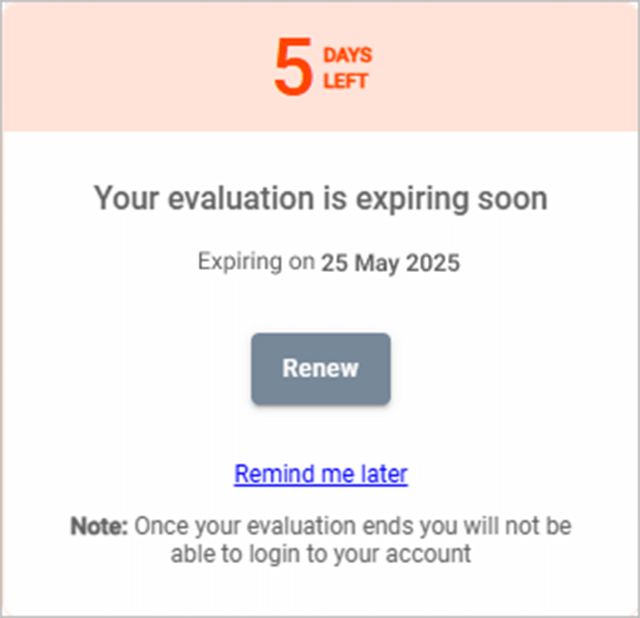
Redesigned presentation of alert to notify users about expiration of subscription
Build 20250515
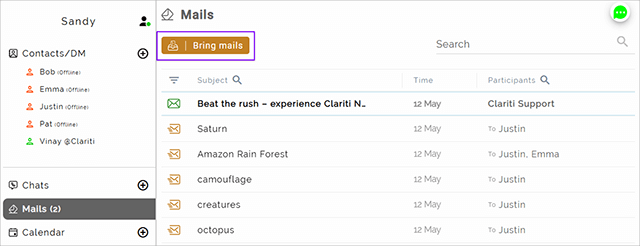
Standard subscription users can use 'Bring mails' to bring selected mails from their original mail system to Clariti.
Build 20250513
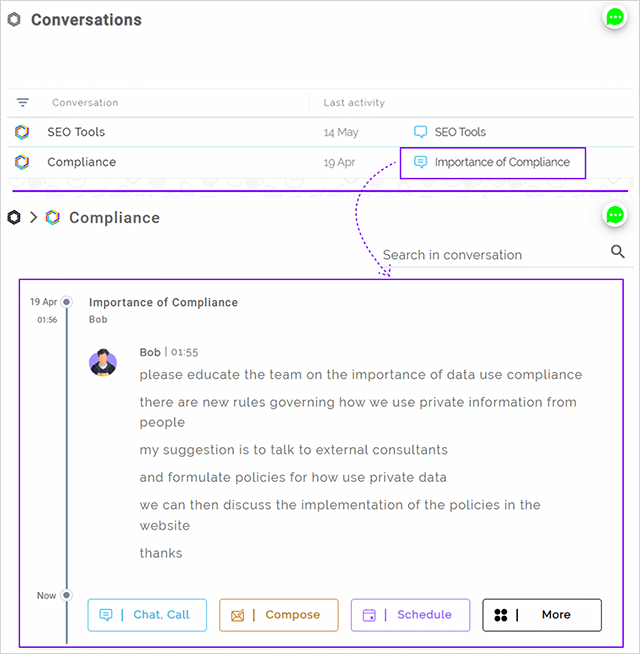
Click on "Last activity" of a conversation from conversation list, opens the conversation and navigates to its position in the chronological display.
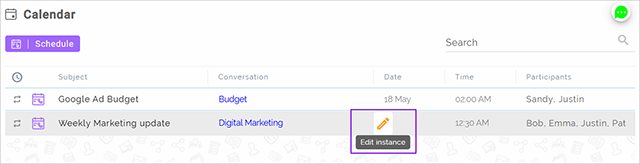
Added edit control on a scheduled calendar events under Calendar menu
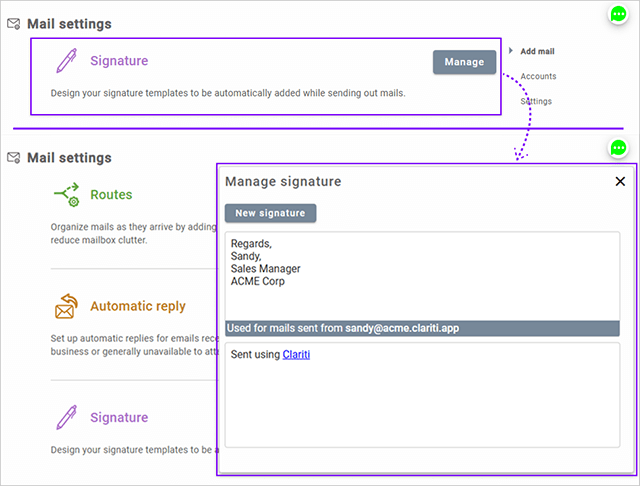
Support for multiple mail signatures and ability to assign a signature to a configured mail account. Default signature is automatically assigned to newly configured mail account.
Build 20250508
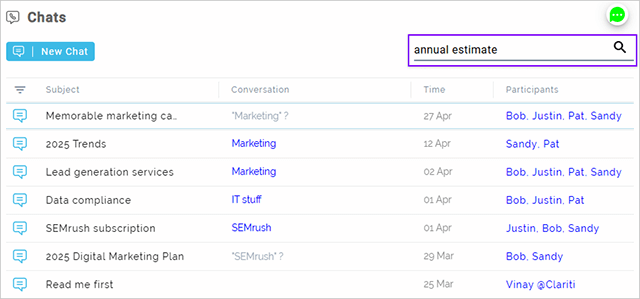
Keyword search is supported in Chats menu.
Build 20250506
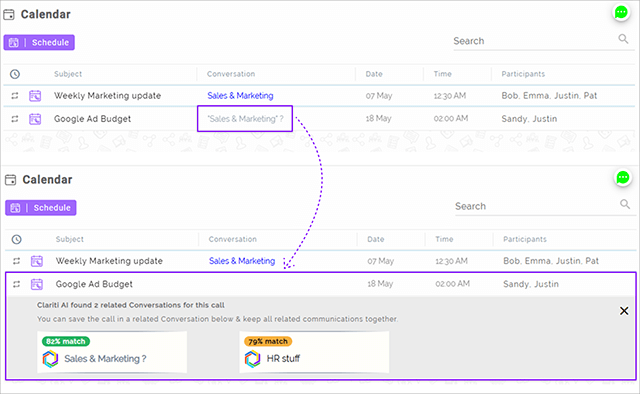
Added badges to the related contexts identified by Clariti AI to display the accuracy of match found.
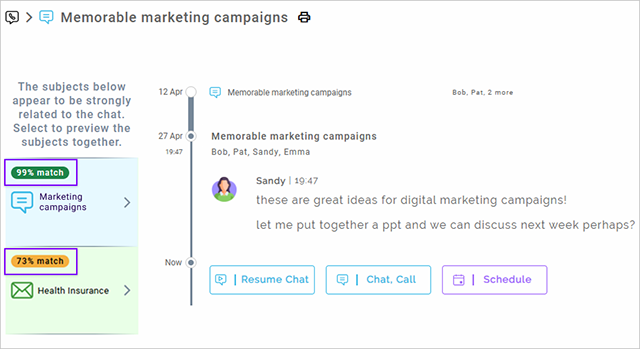
Clariti AI is extended to find related contexts for scheduled and completed calendar events.
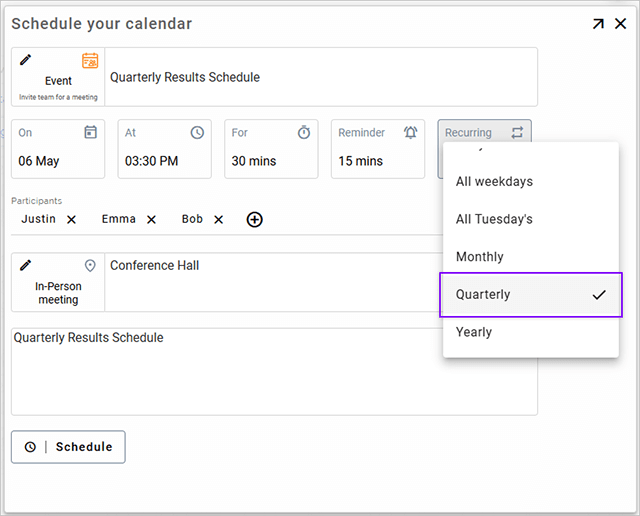
A calendar event can now be scheduled to recur once every quarter
Build 20250501
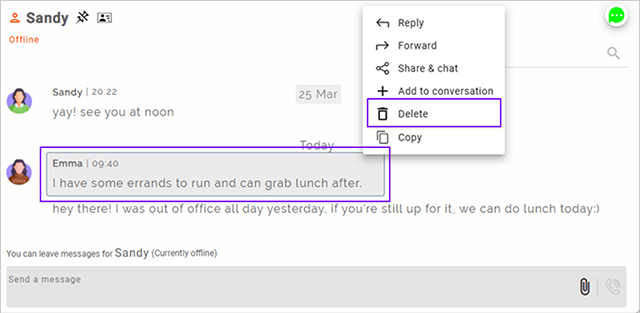
Direct Chat messages can be now be deleted within 5 minutes of sending the message.
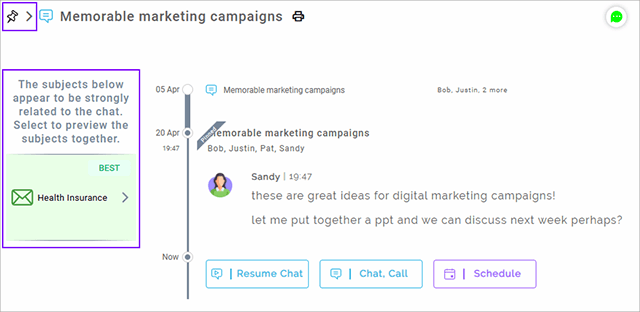
Clariti AI suggestions are shown for Pinned mails and chats
Build 20250429
Fixed issue related to audio getting disconnected, when a file is downloaded during a conference call
Build 20250422
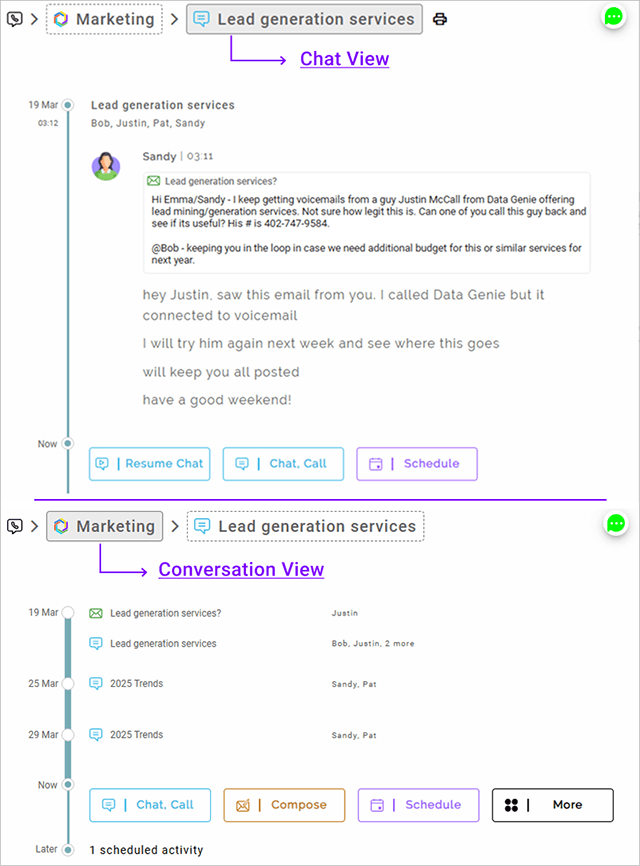
Made conversation and selected item subject clickable in the header to easily switch between views.
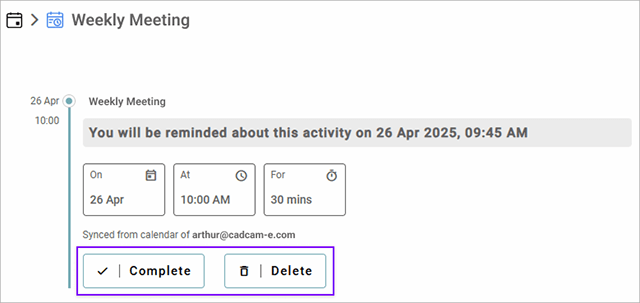
Provided 'Complete' & 'Delete' option for To-Do items synced from
external calendars
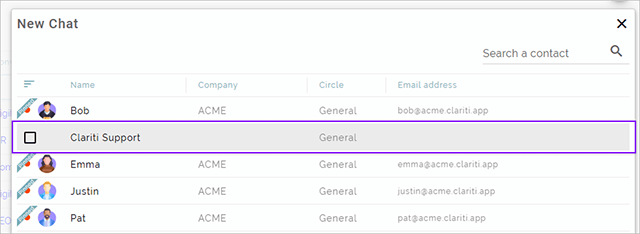
All workflows where multiple contact selection is applicable like forwarding messages, starting new chat etc... will show the Check box on hover of the contact. On selecting one contact, check boxes will appear for all the contacts.
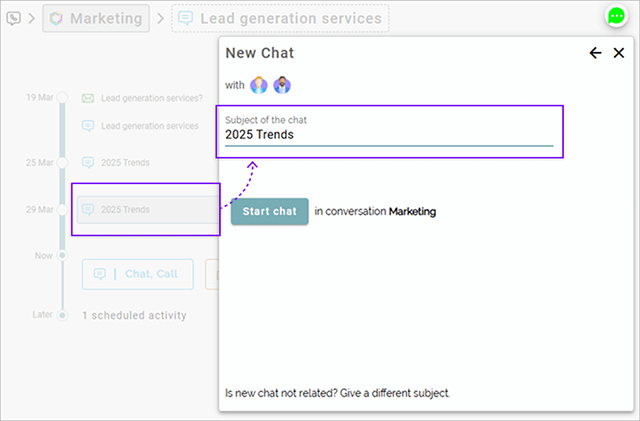
Chat subject is now prefilled with the chat item's subject instead of the conversation's when starting a new chat from 'Share & Chat'
Build 20250410
Conversation column in Mails and Chats menu now displays the related conversation found using Clariti AI. Users can add the mail and chat to a conversation right there.
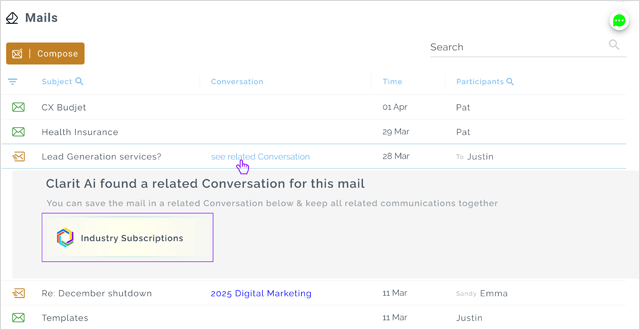
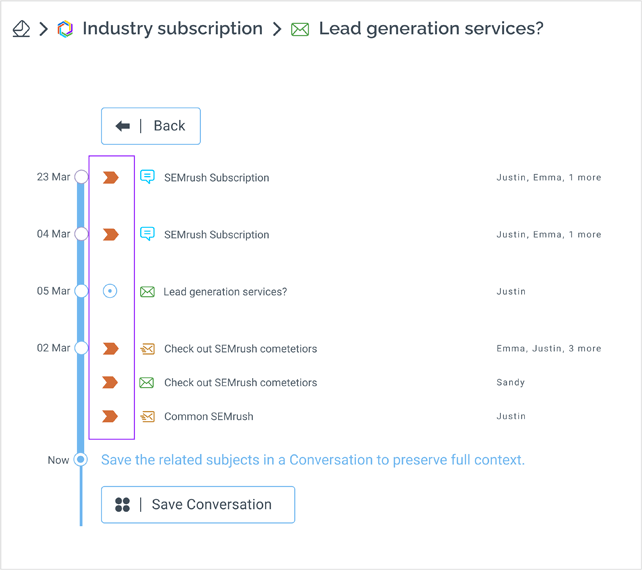
Improved preview by displaying the source and target communications in the combined conversation display while adding a mail or chat to a conversation or related contexts found by Clariti AI.
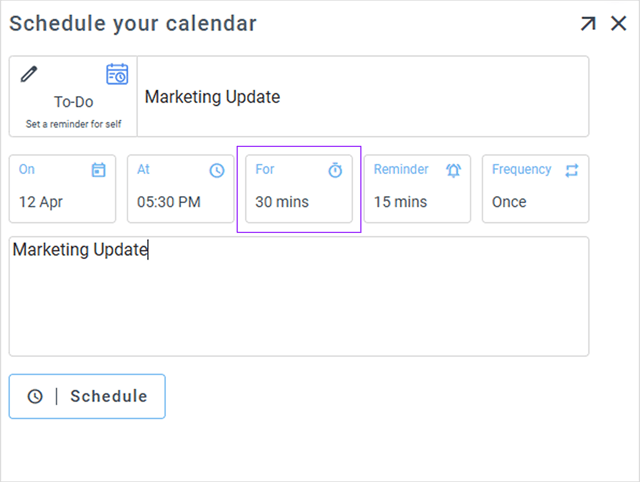
While creating a To-Do, an option has been added to specify the duration of it and the same will relect in the monthly, weekly and daily calendar.
Build 20250408
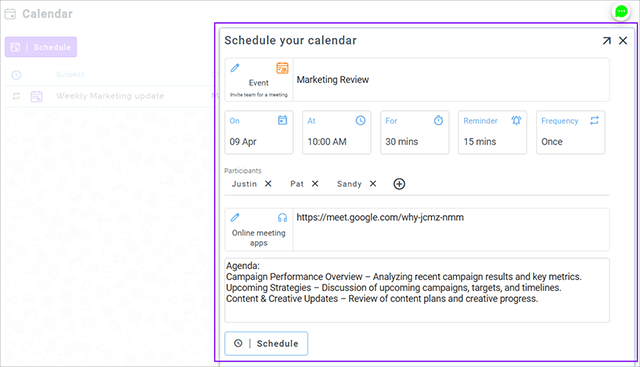
Schedule calendar user interface controls has been improved with consistent look and feel
Build 20250327
Option added to name a conversation when any one communication is expanded to see the complete chain of communication.
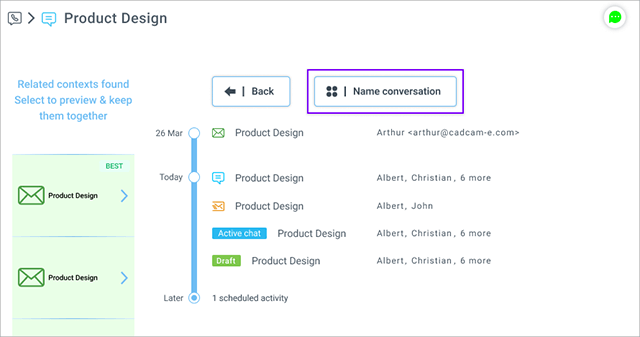
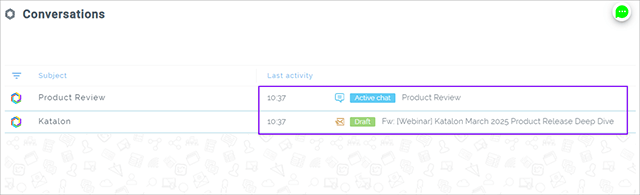
Ongoing active chat or mail draft will appear in the "Last Activity" column of the Conversations list
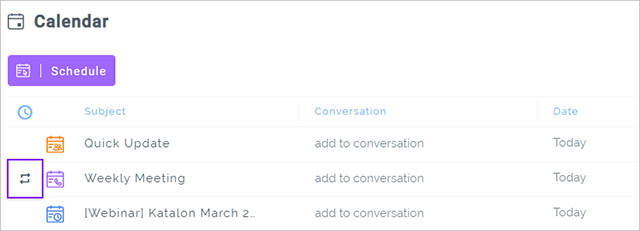
Recurring events in the list view are prefixed with recurring icon for easy identification.
Build 20250325
All the chats in Chats menu that are not in a conversation will display the related contexts of the chat found by Clariti AI
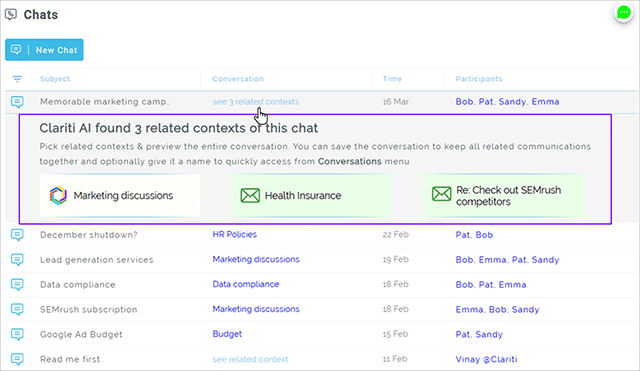
Consistent display of any communication whether viewed inside a conversation or directly from the list under each menu.
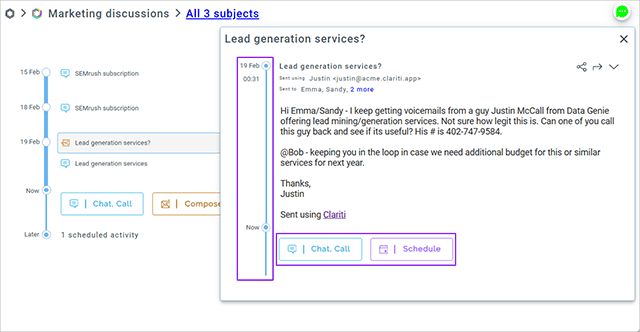
Build 20250318
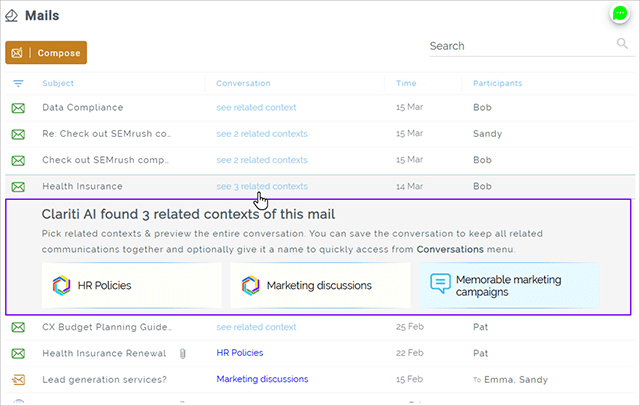
All the mails in Mails menu that are not in a conversation will display the related contexts of the mail found by Clariti AI.
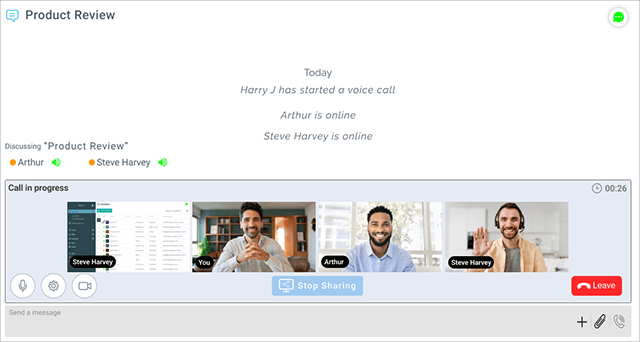
Video calling is now available for Group and Scheduled Calls
Build 20250313
Simplified workflow to keep related contexts found by AI for chats, mails, feeds etc... together in a conversation
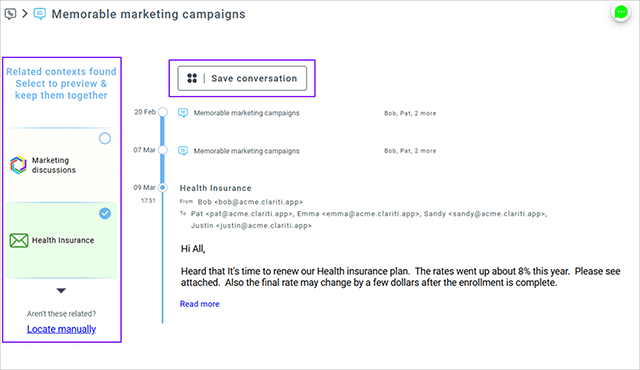
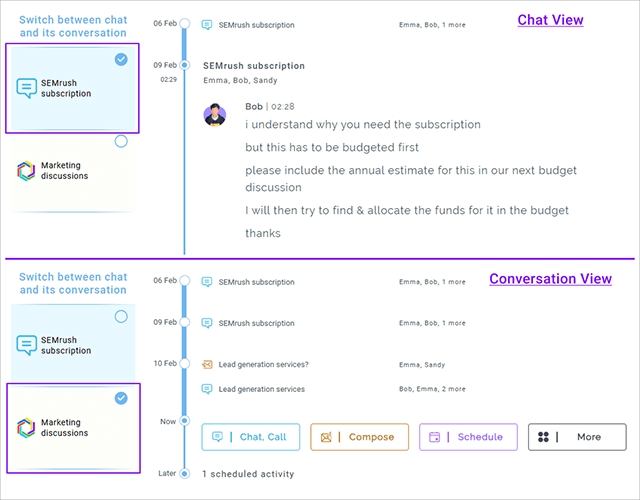
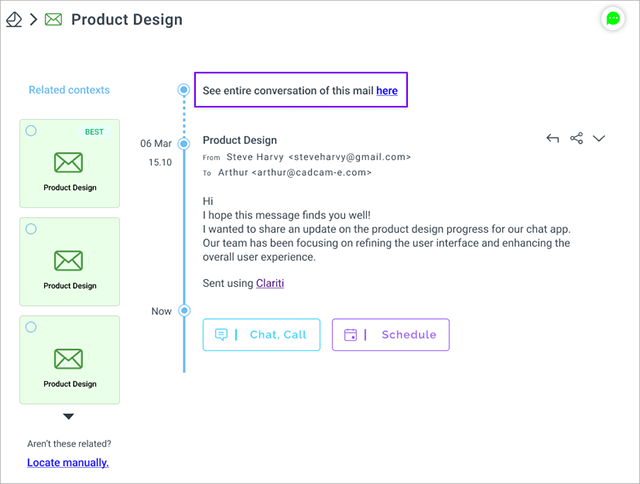
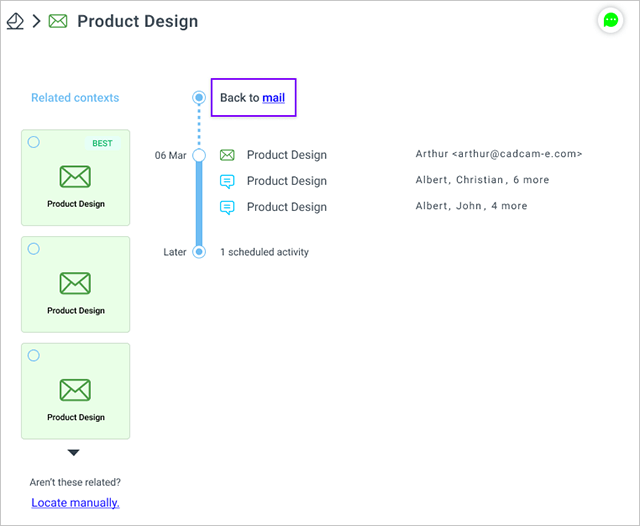
Provided an option to switch views between chat, mail, feed and their conversation to access of its related communications
Build 20250306
Switch between the view of a mail or chat or feed or calendar item & chronological view of all its related communication as it happened.
Build 20250304
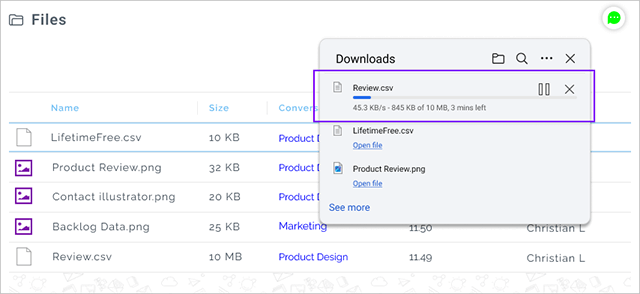
When a file is downloaded from Chats, Mails, etc., the browser's inbuilt functionality is used to display the progress and provide options to pause or abort the download.
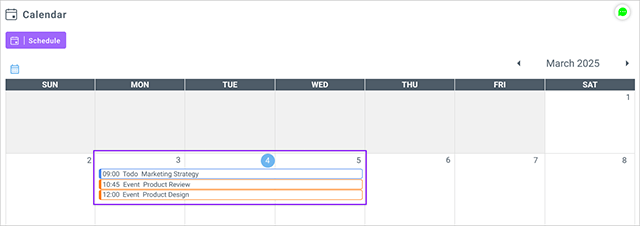
Added support to display multi-day scheduled events in monthly and weekly views of the Calendar.
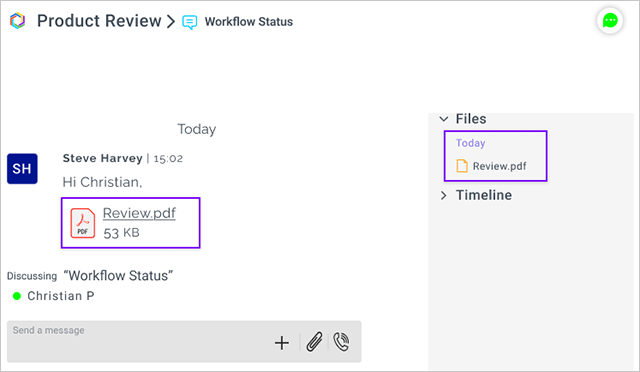
Files menu is now instantly updated with the files as soon as they are exchanged in the chats.
Build 20250227
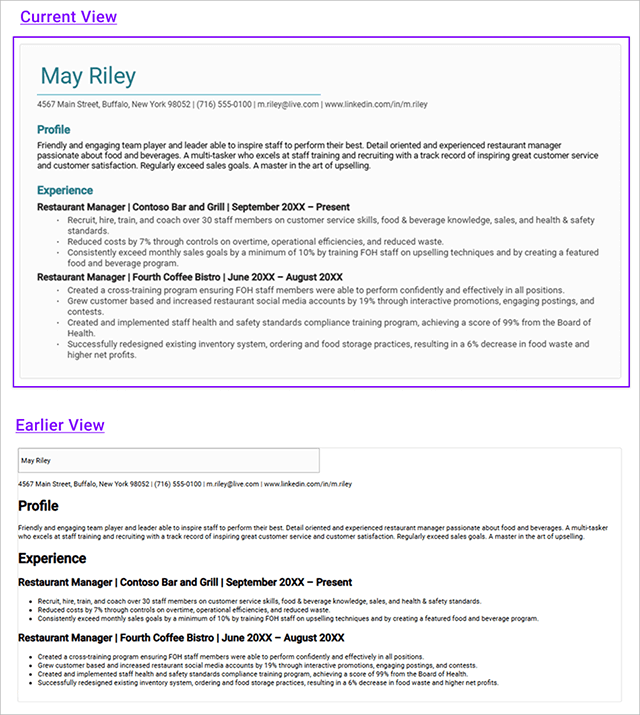
Clariti file viewer is enhanced to match the original styling and formatting of content in Microsoft .docx files.
Build 20250225
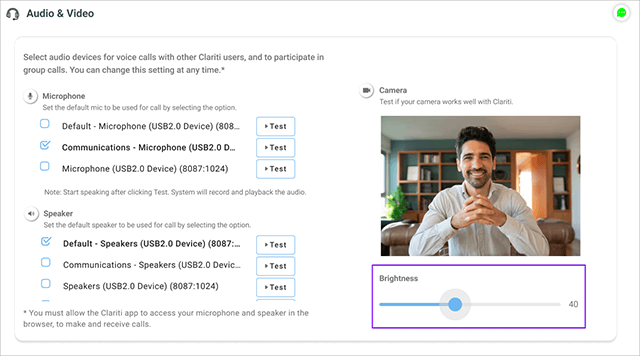
Added setting to adjust brightness of the camera's video feed in 'Audio & Video' settings with a default set to 10%. Changes made will be remembered only in that browser.
"Scroll to Bottom" is displayed when user scrolls to view the older communication in conversation and chats to quickly scroll to the end of the conversation
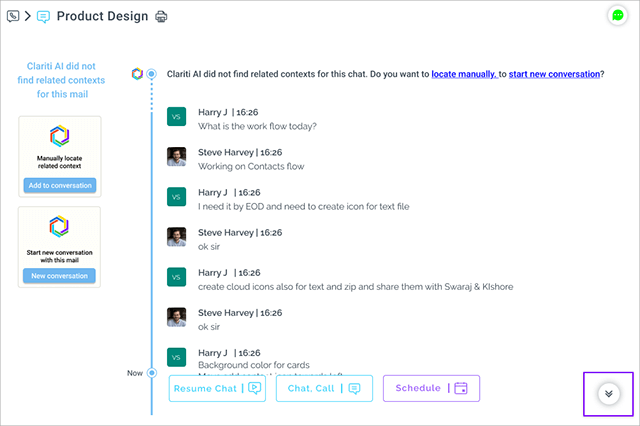
Build 20250218
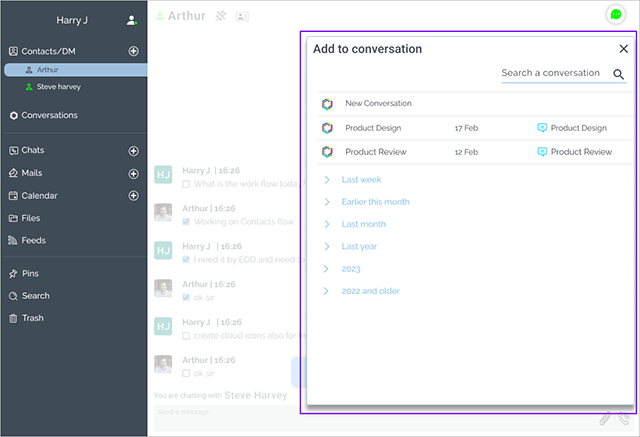
Workflow to add messages of a direct chat allows you to either start a new conversation or select a an existing conversation.
An instance of a recurring To-Do is automatically marked as complete when it crosses the scheduled duration of the event.
Build 20250213
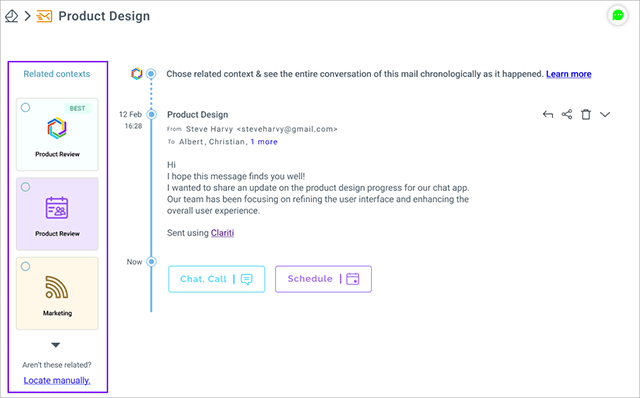
Clariti AI is enabled on web browsers to find related contexts of mail & chats.
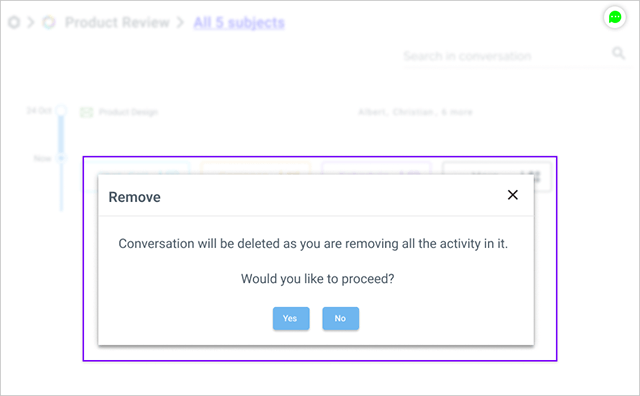
Conversation will be deleted when all the activity in it are removed.
Build 20250211
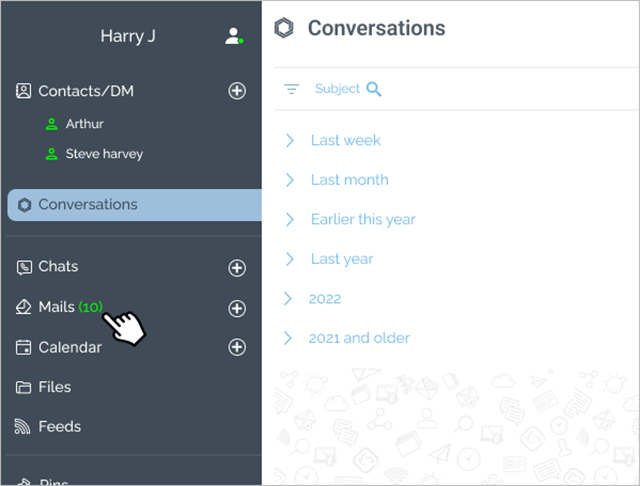
The unread count in the Mails menu will now appear in green upon login indicating arrival of new mails after previous logout.
New onboarding workflow for new signups focusing on bringing in your team for chats and your mail for creating hybrid conversations with the help of Clairit AI.
Build 20250206
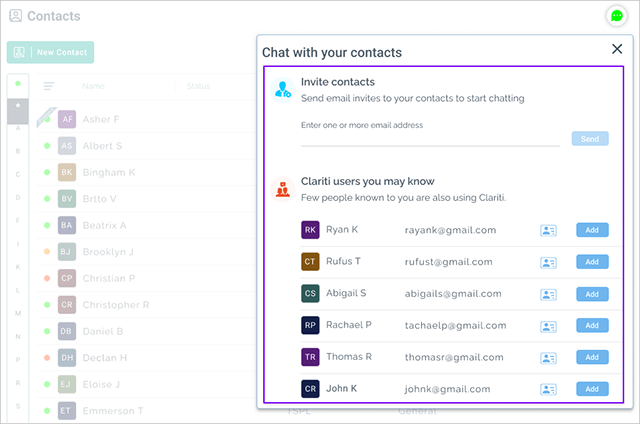
Introduced a redesigned UI for inviting contacts via email or adding existing Clariti users to your contacts.
Build 20250128
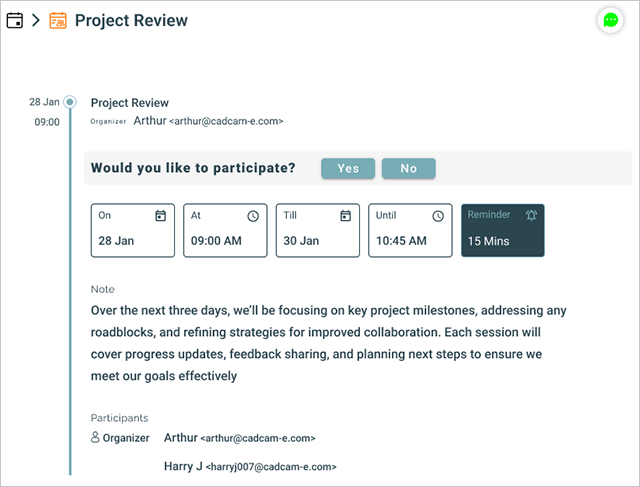
Supported sync of non standard durations and multi day calendar events
Build 20250121
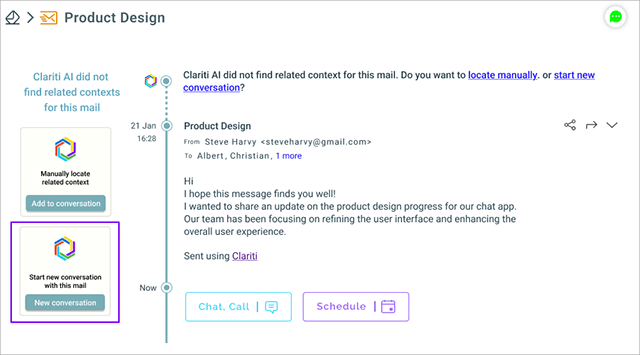
Option added to start "New conversation" in the context of the mail or chat when Clariti AI does not find any related contexts
Build 20250117
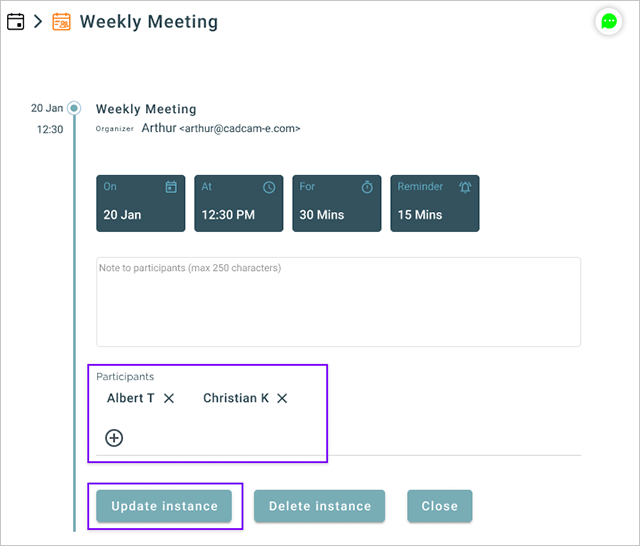
Organizer of a scheduled recurring call/event can now edit the participants of a selected instance
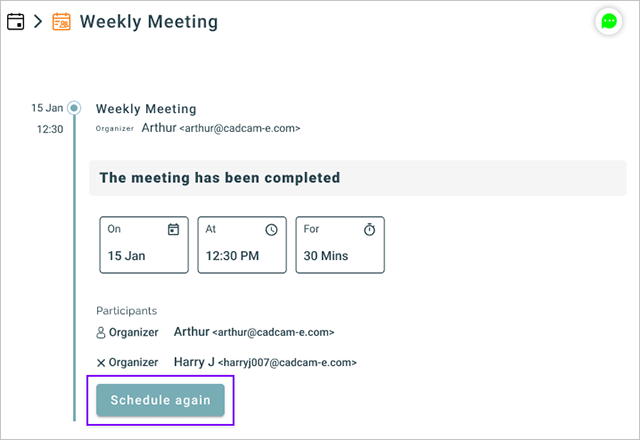
"Schedule Again" option added to completed calendar events to create a new calendar event by copying participants and subject from the completed event
Build 20250113
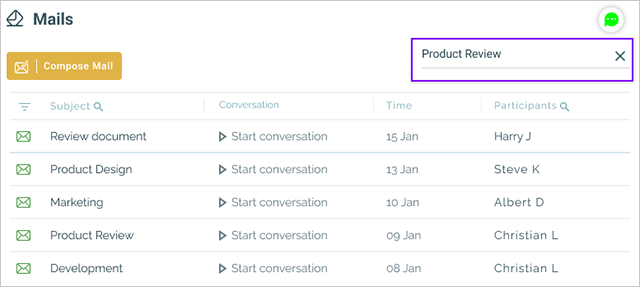
Supported content search in Mails menu.
Build 20250107
Video call support in direct chat is extended to Safari browser versions 15 and above
Build 20241227
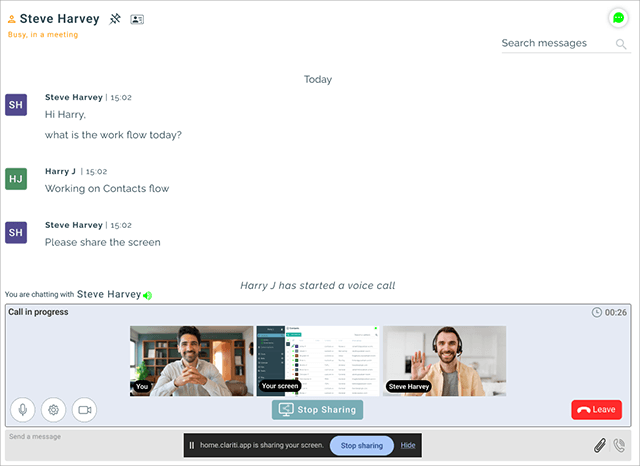
Introducing support for video calls in direct chat.
Build 20241224
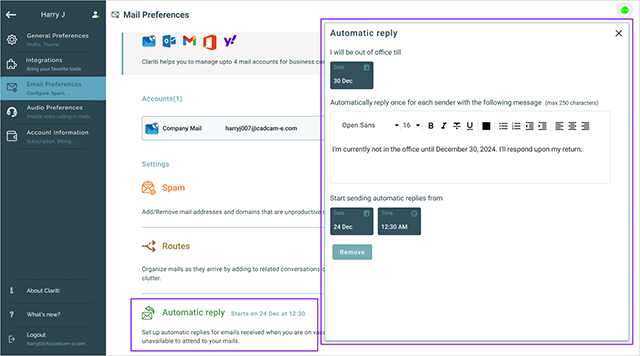
Introduced automated replies, enabling users to schedule and customize out-of-office responses for incoming emails
Build 20241219
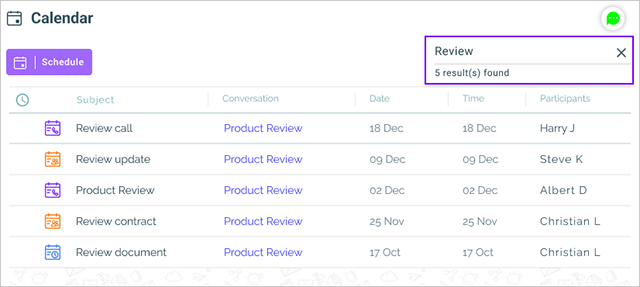
Search added in Calendar menu to search for a scheduled or completed activity by its contents or participants.
Build 20241217
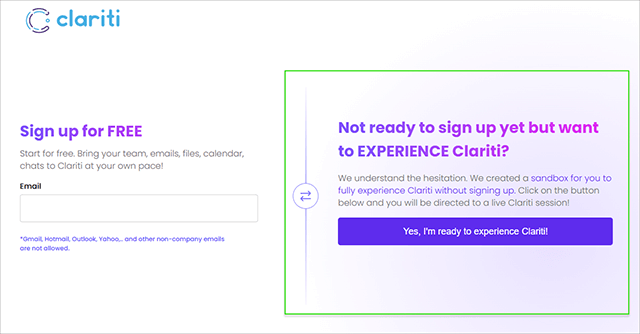
Introduced sandbox environment for users to quickly experience Hybrid Conversations and explore all the functionalities of Clariti without the need to signup.
Build 20241210
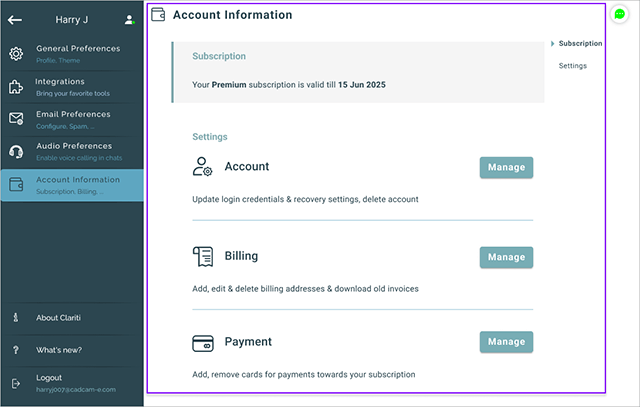
Account information page is redesigned in line with all other preferences
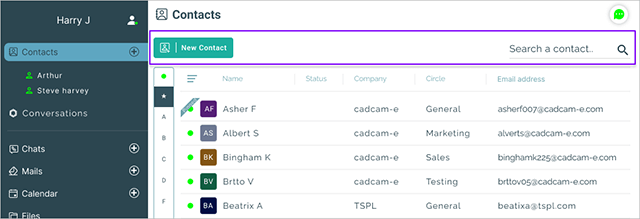
Header layout of all the menus have been updated with new design of buttons & repositioning of controls. Search has been placed in location consistent to other user interfaces with search functionality.
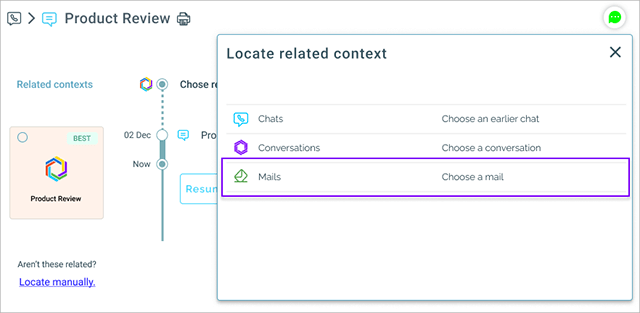
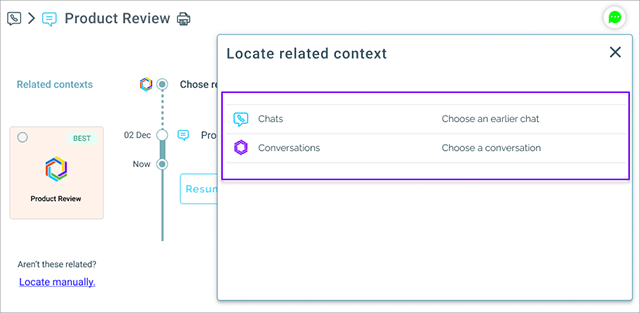
"Locate manually" workflow enhanced to allow selection of related Mails apart from Chats and Conversations.
Build 20241205
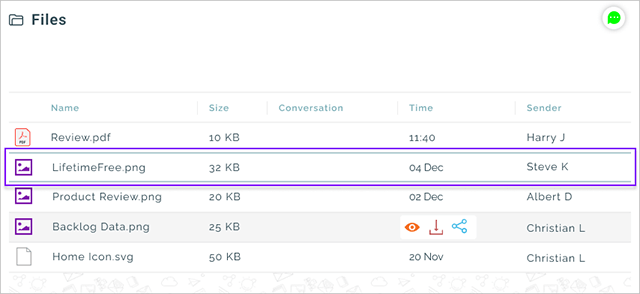
In Files menu, files list can now be navigated using up and down keys. Also, when a file is clicked for viewing, the selected row is now highlighted and remembered. While switching between menus, the list will be scrolled to the remembered row.
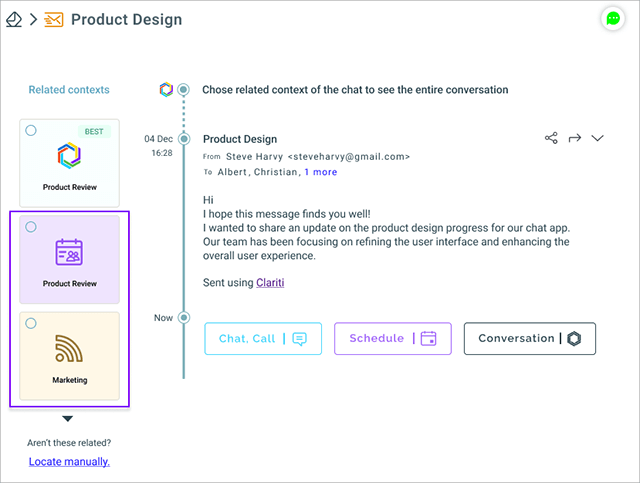
Clariti AI has been enhanced to look for related calendar events, scheduled calls & feeds
Build 20241203
"Locate manually" workflow enhanced to allow selection of related Chats apart from conversations.
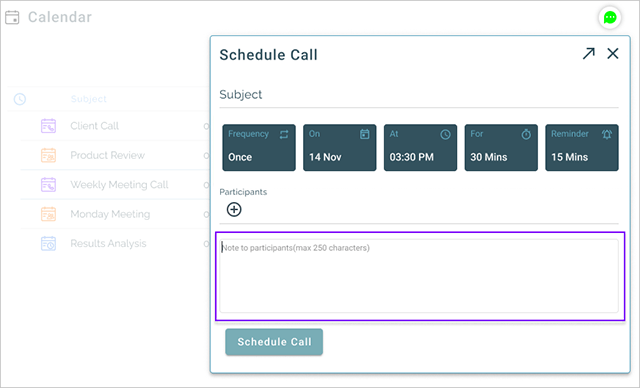
User interface improvements for scheduling To-Do, Event & Call
Build 20241128
Allowed to add/remove participants when a call is scheduled from a chat
Build 20241126
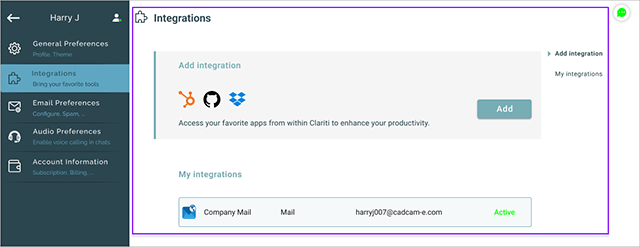
Redesigned Integrations and Mail Preferences in same lines of General Preferences layout
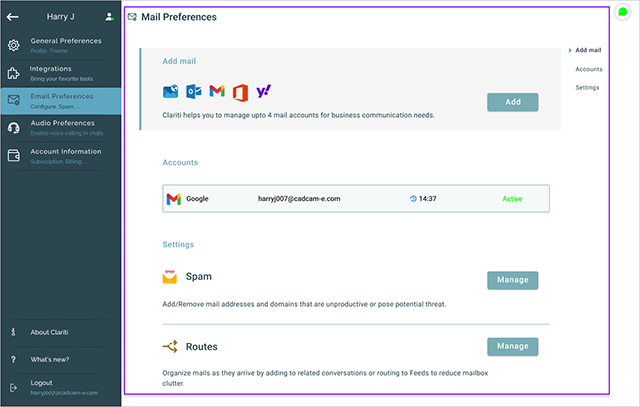
Build 20241119
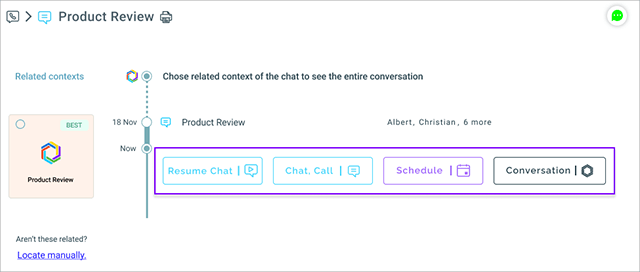
Added footer actions for chats to continue, chat with others, schedule in calendar, add/remove chat in a conversation
Build 20241114
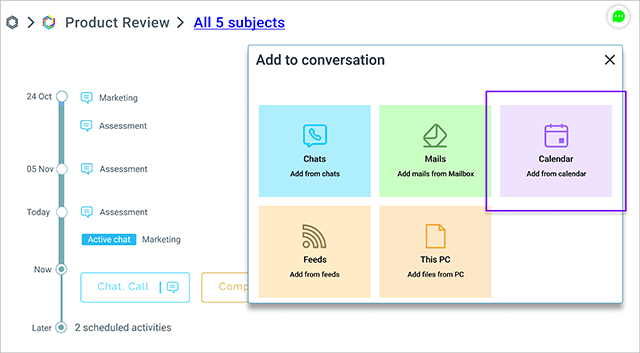
Scheduled & completed calendar events can be added directly from Conversation footer action 'More'.
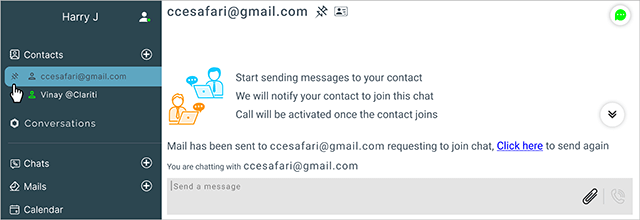
On sending mail invites to join Clariti, the contacts are automatically pinned under Contacts.
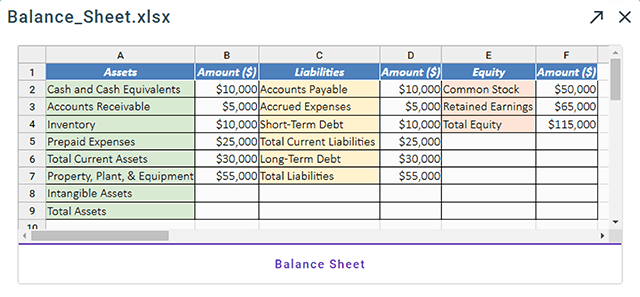
Clarit file viewer has been enhanced to match the original stying of cells of Microsoft Excel files
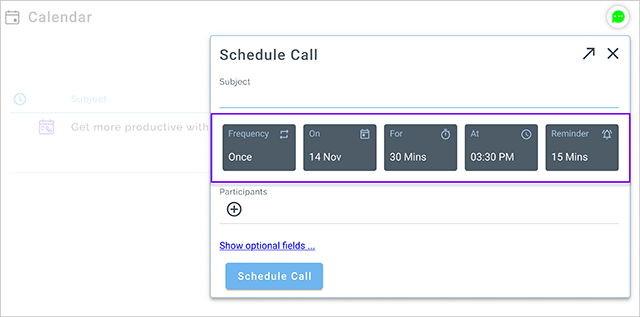
User interface improvements done for scheduling To-Do, Event & Call
Build 20241112
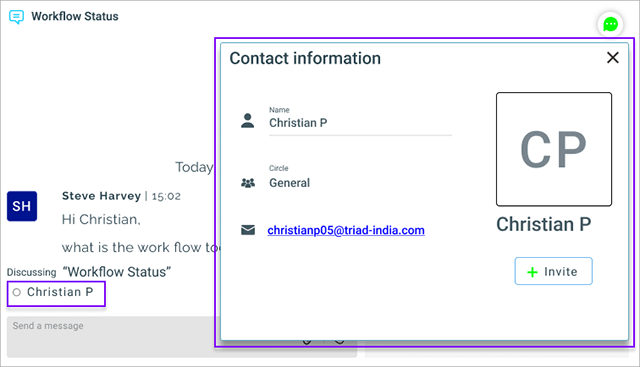
In an ongoing chat, the participants name can now be clicked to view information about the participant and also add them to the contacts or send invite
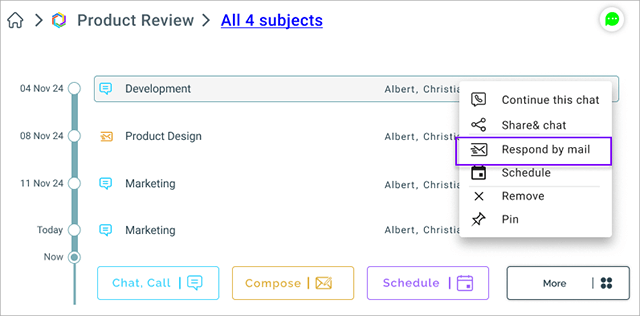
User can now respond to a chat by composing a mail, the chat transcript is automatically prefilled in the body of the mail with an option to remove it.
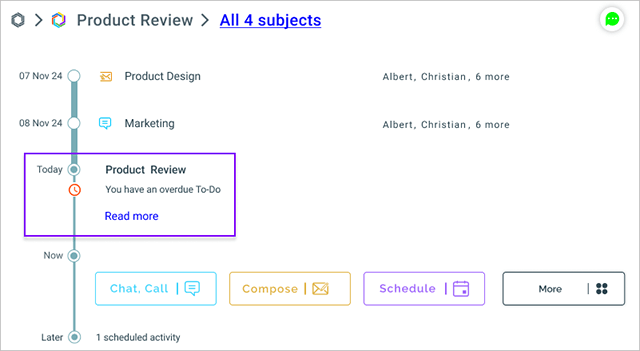
Overdue calendar activities are now shown in the conversation timeline view to improve visibility of pending actions of the conversation
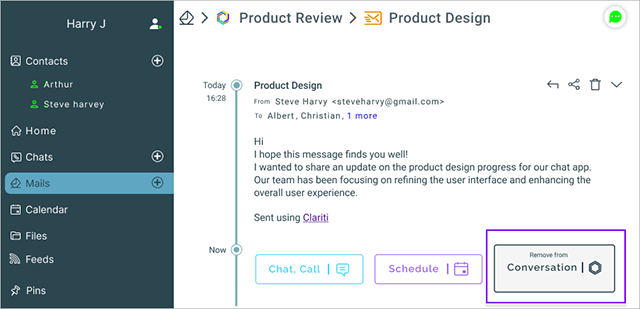
Added a "Remove from Conversation" button in the footer actions of mail/feed if it is already part of a conversation.
An user invited to join chat on Clariti can now verify their mail address using their Google or Microsoft authentication.

Build 20241105
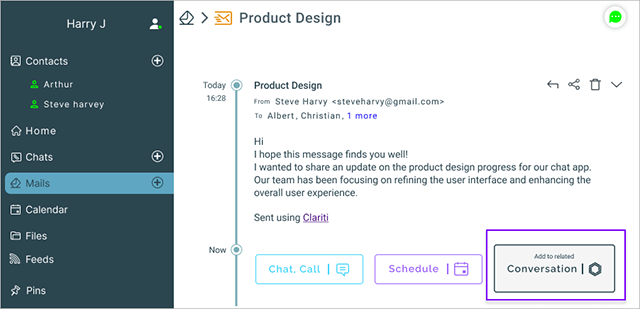
Workflow added in mail & feed to add them to a relevant Conversation
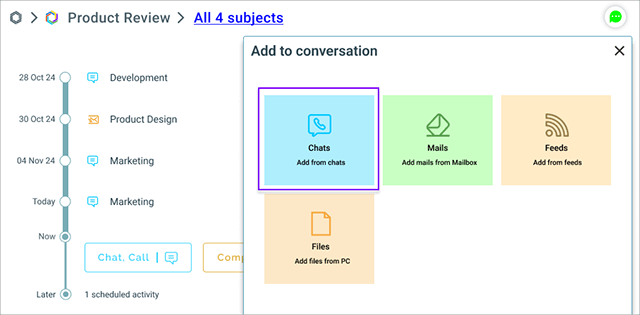
Related chats can be added to a Conversation using 'More' button
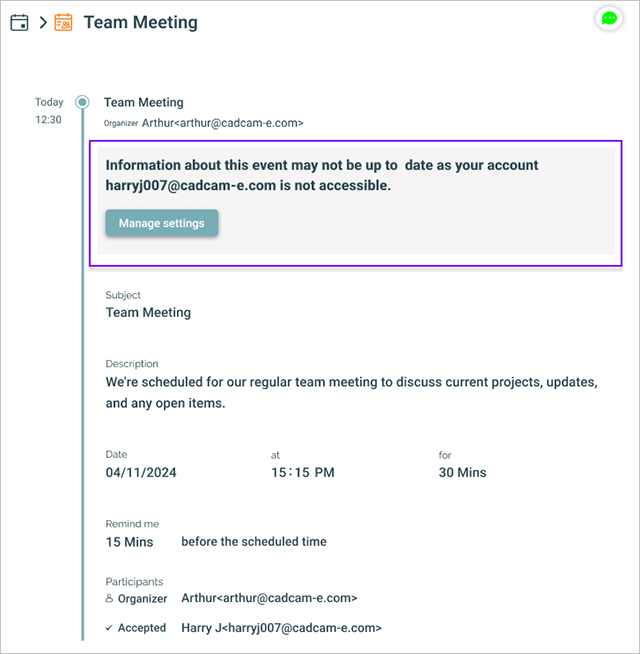
Information is displayed that the event information might not be latest when mail account through which the event was received is not accessible.
Build 20241029
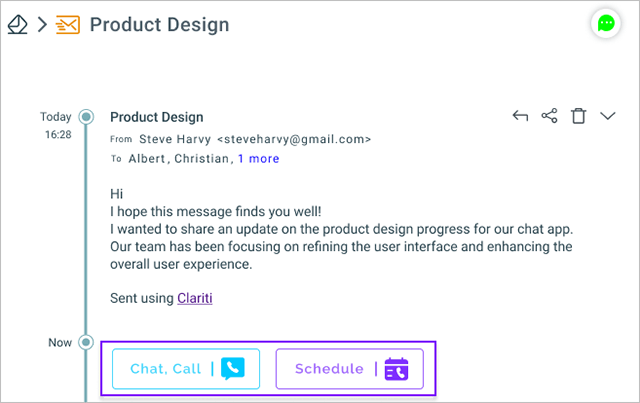
Added explicit buttons for 'Chat, Call' and 'Schedule' operations from a mail or feed in the timeline view.
Build 20241024
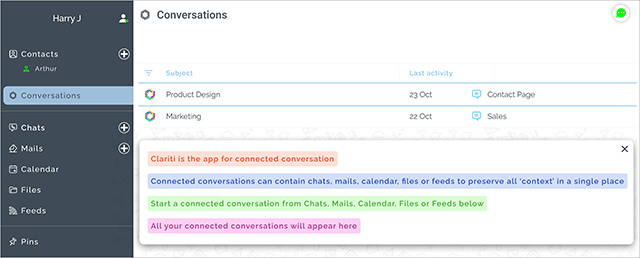
Conversations menu is added and it is now the default landing menu on Signup and Login.
Build 20241022
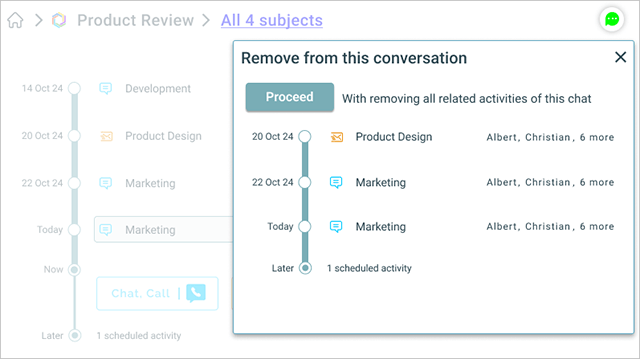
On removing any communication from a conversation, a preview of all the related communications that will also be removed from conversation will be displayed for user confirmation.
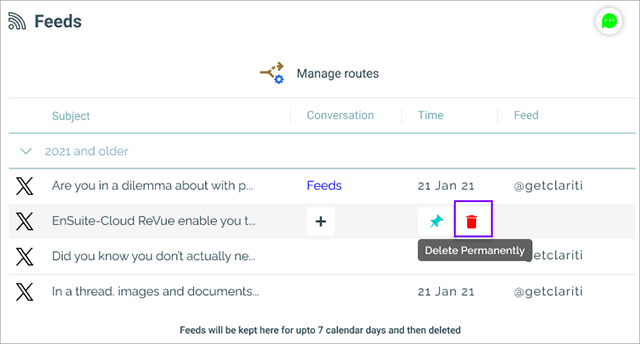
Added support for manually deleting feeds before they are automatically deleted after a default period of seven days.
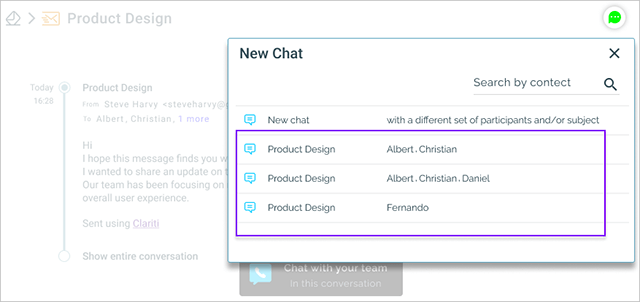
Updated the 'New Chat' overlay to display all the chats initiated from mail. To start chat from a mail quickly, the list also includes few frequently used combinations of subject and participants based on the senders and recipients of the mail.
Build 20241017
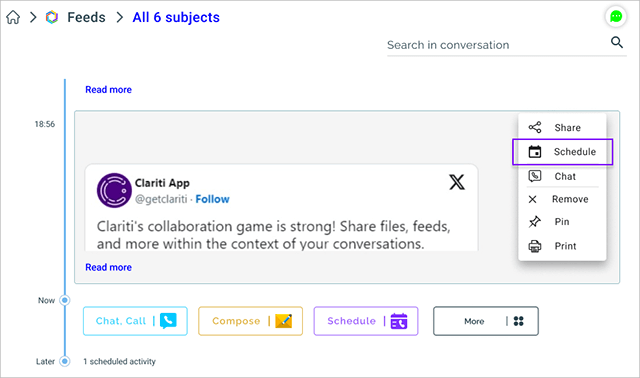
Added support for adding a schedule activity in Calendar with feed items as reference.
Build 20241010
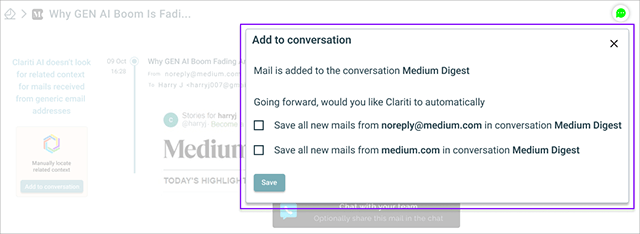
Support for automatically adding generic mails like promotions or notification to conversations. You can map mail address / domain to a selected conversation.
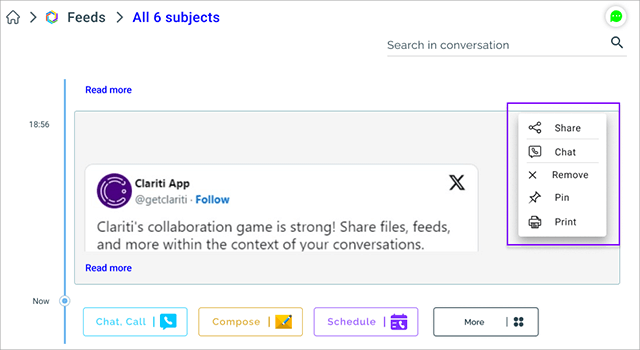
Added functionality to share and chat from a social feed
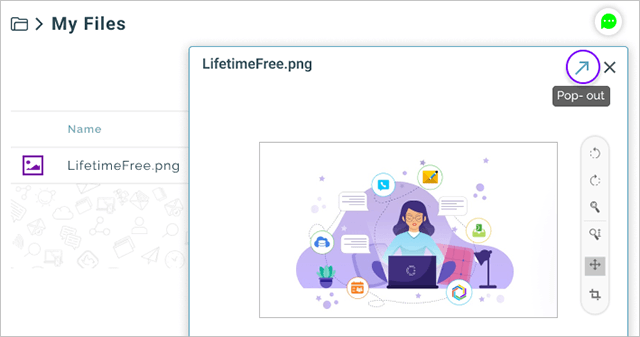
Option to pop out the file viewer from Clariti to a separate browser tab or a separate window in Desktop App
Build 20241008
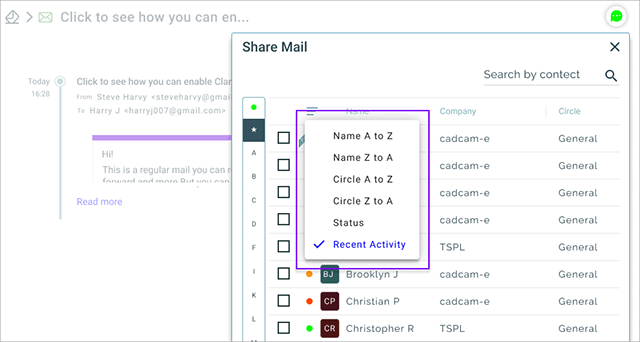
Contacts overlay now has all sort options as like in Contacts menu
Build 20241004
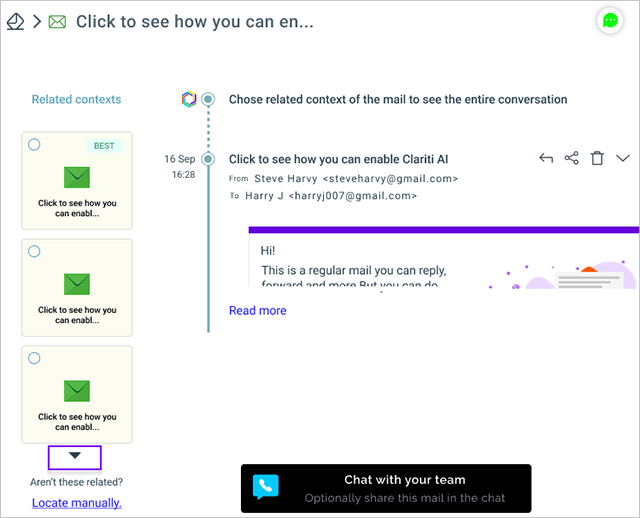
Option to view next best matches found by Clariti AI if the top 3 matches are not related.
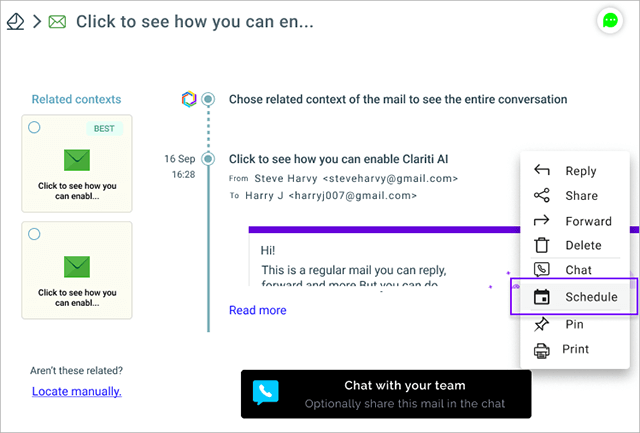
Supported Schedule operation in dropdown for all the mails & chats
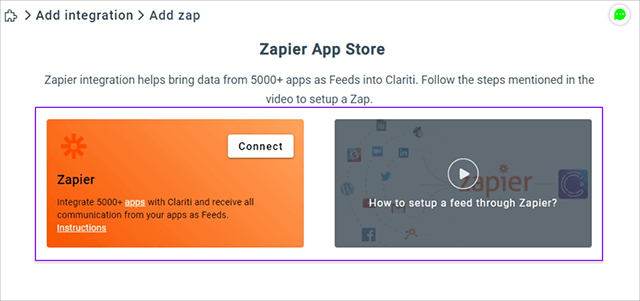
Zapier integrations user interface improved to be consistent with other integrations and also to fit properly in lower resolutions
Build 20241001
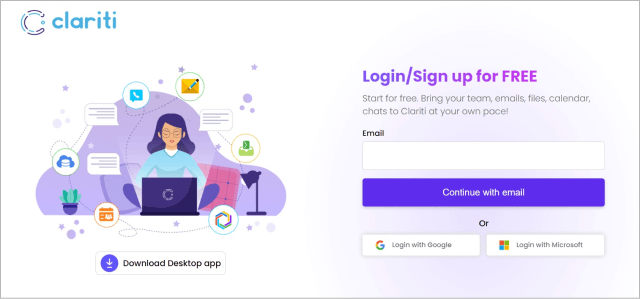
New user interface for login and signup pages
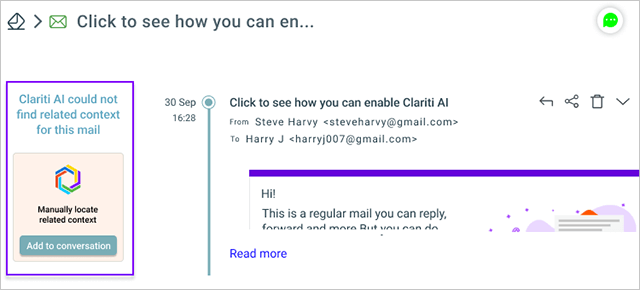
Option to manually locate related context when Clariti AI does not find any match.
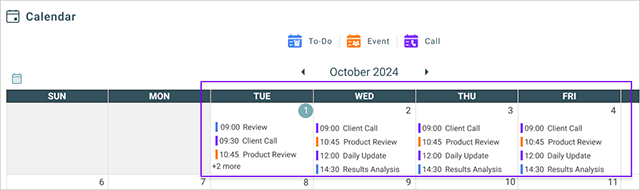
Presentation of monthly, weekly and daily views is improved to display type of scheduled activity.
Build 20240926
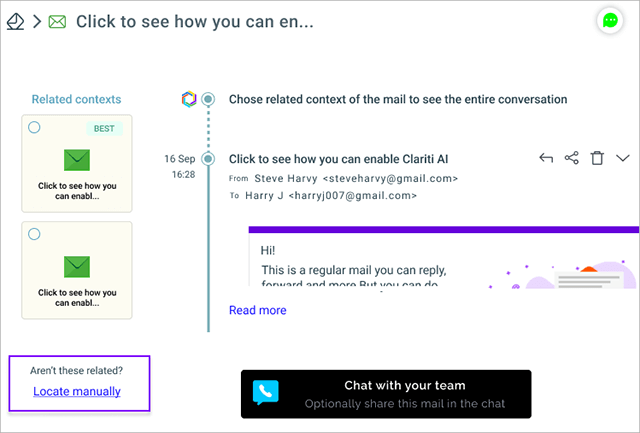
Option provided for user to manually locate the related context when the results of Clariti AI do not match.
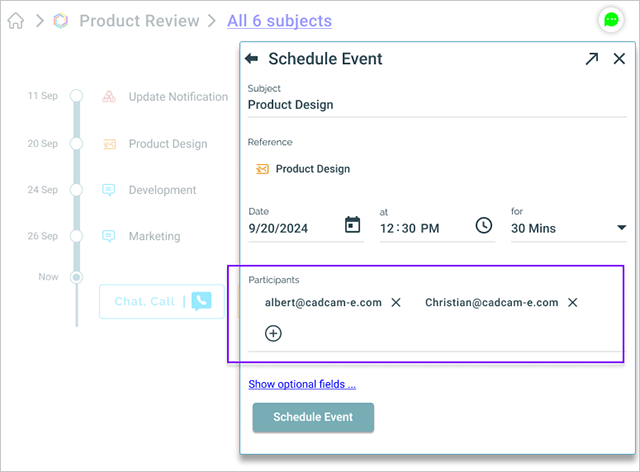
When scheduling an event from a mail, participants of the mail are automatically populated.
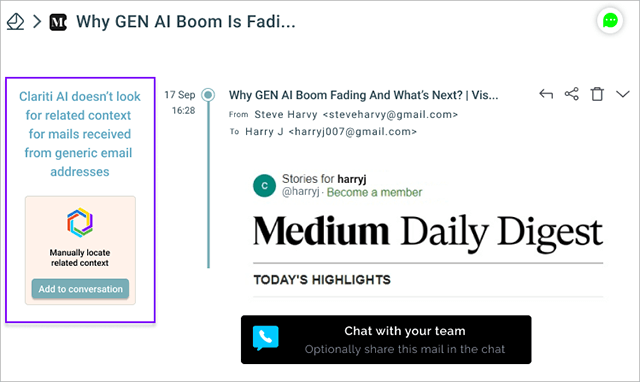
Option provided for user to manually locate the related context for mails from generic mails like promotions.
Build 20240924
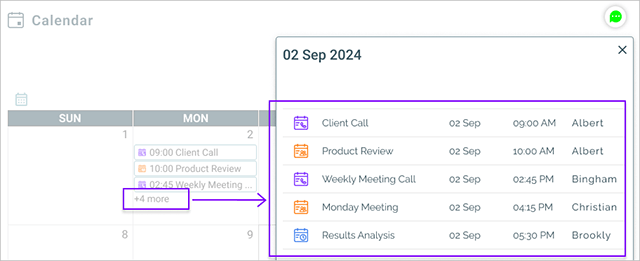
Improved the presentation of display of scheduled events list in calendar views when there are more than the space available to display.
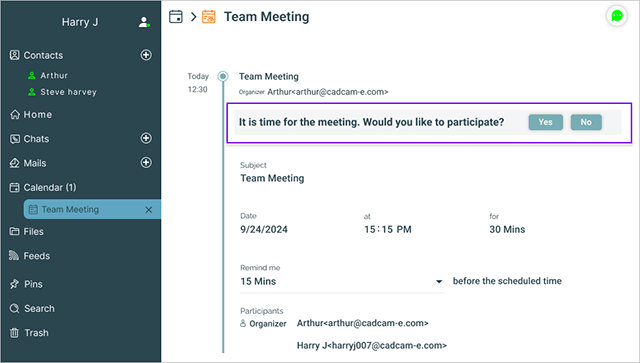
Allowed participant to respond and join the meeting even after the meeting starts
Presentation of confirmation dialogs is redesigned and made consistent
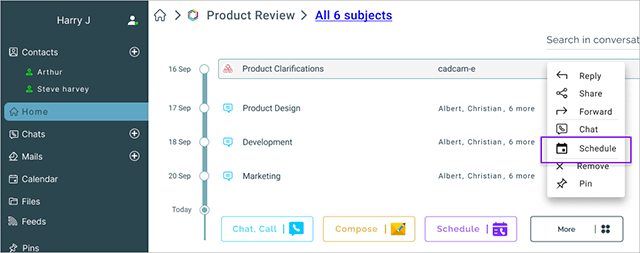
Extended to schedule calendar events option for mail items of a conversation
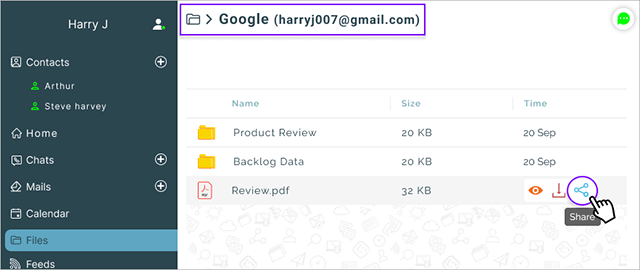
Files from configured cloud storage accounts can be directly shared to chats & mails
Build 20240919
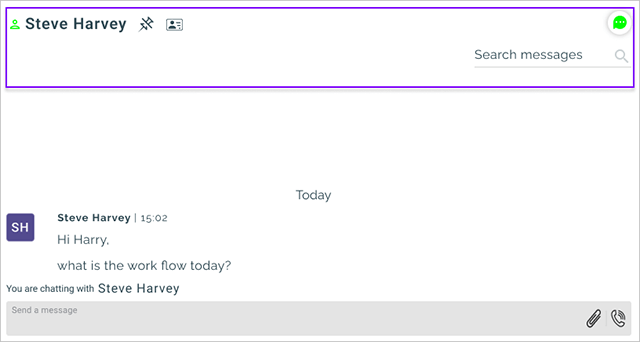
DC header modified to match the arrangement of controls in Conversation.
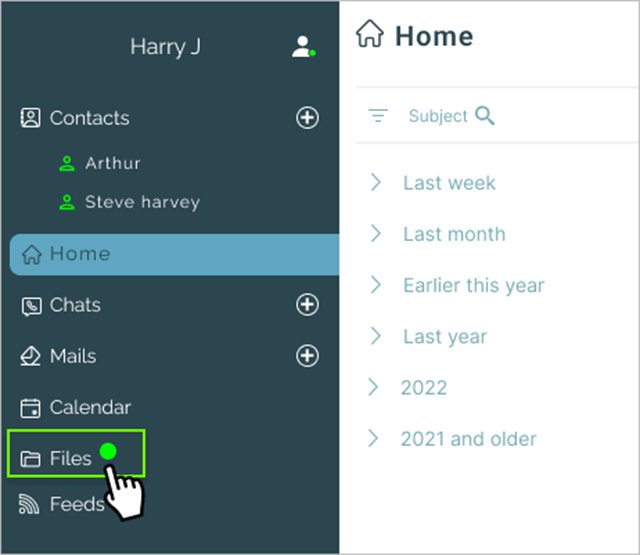
A green indicator appears on Files menu to indicate completion of file upload when user shifts to some other menu.
Build 20240917
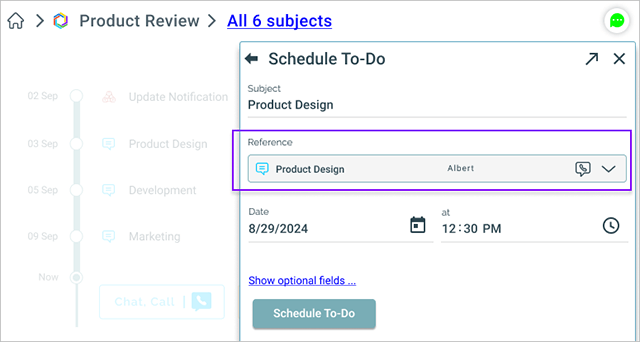
The reference in a scheduled activity can now be clicked to view the details and enabled all actions on the reference.
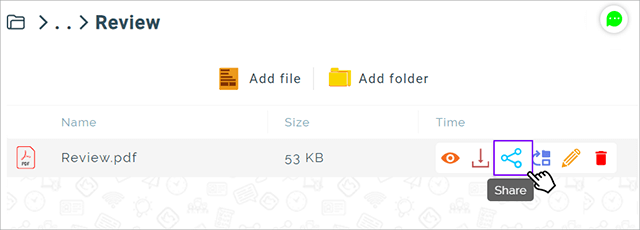
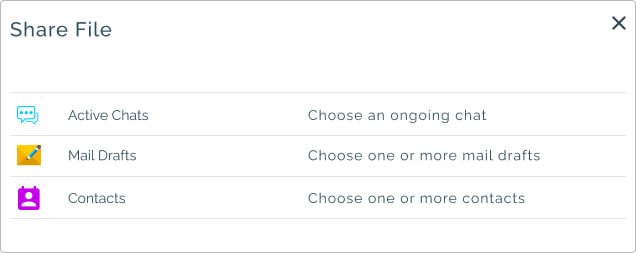
Files in My Files and All Files can be shared to Chats, Mail drafts, and Contacts
Build 20240912
For users who signup with Google accounts, an option is provided for user to be able to download few of their mails to experience Clariti AI.

Images used for Chats, Mails, Feeds, Calendar & Preferences have been replaced with new outline icons
Build 20240910
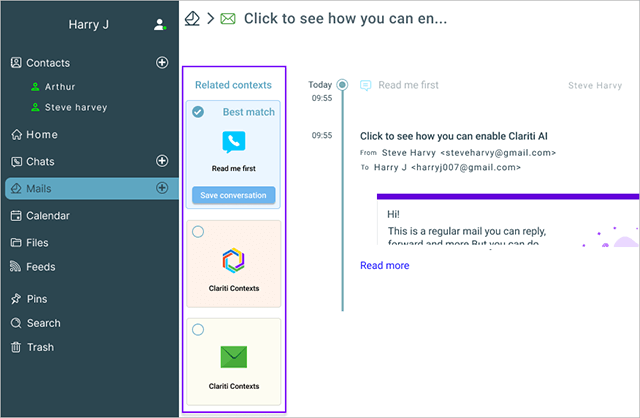
Introducing Clariti's AI to help users easily find all related contexts of a mail or chat, there by making it easy to organize all related communications together in a conversation.
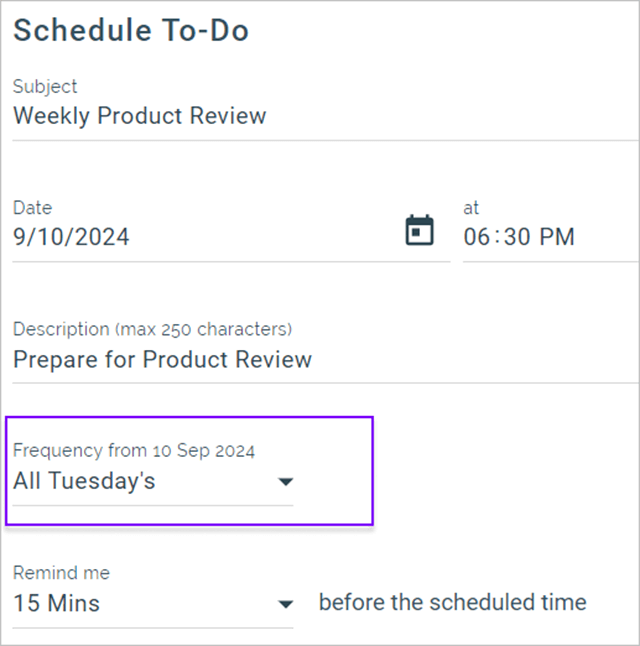
Supported to schedule recurring TODO
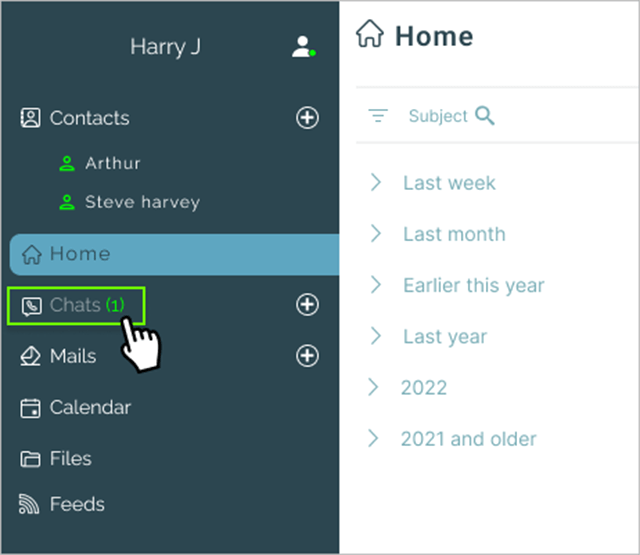
To ensure better visibility of the chats that have happened while user is offline, the unread chat count is rendered in green when users logs in.
Build 20240905
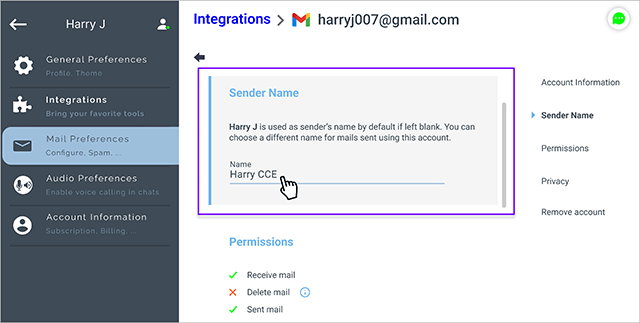
Option to set a name different from Clariti profile name while sending mails. Name can be set individually for each configured mail account.
Build 20240903
Feed added to a conversation can now be removed in cases where it was added accidentally or has to be moved to different conversation
Build 20240829
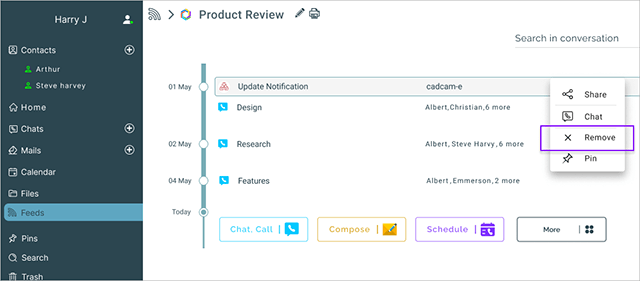
Calender events display is made consistent with display of mails, chats & feeds.
Build 20240827
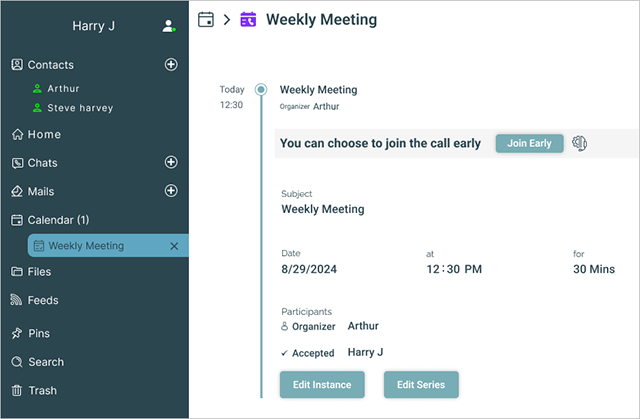
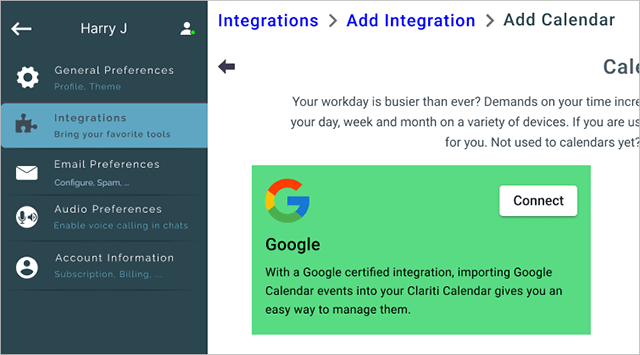
Support to sync calendar events of any Google account to Clariti
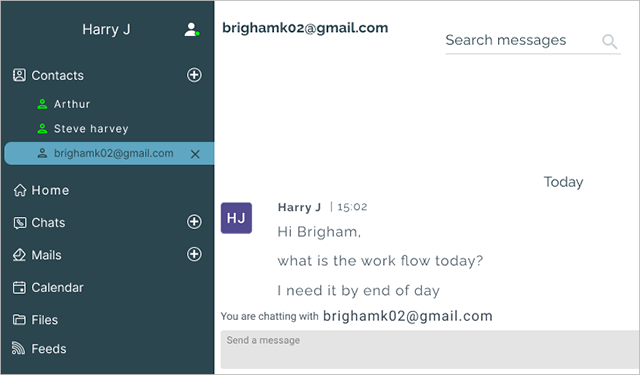
A direct chat can be started with an email contact. Clariti will notify the email contact to join the chat either by signing up to Clariti or just as a guest.
Build 20240822
Unread chats will now require explicit clicks to be read when a conversation is opened. Previously, all unread chats were automatically expanded at once, which led users to miss some chats.
Build 20240820
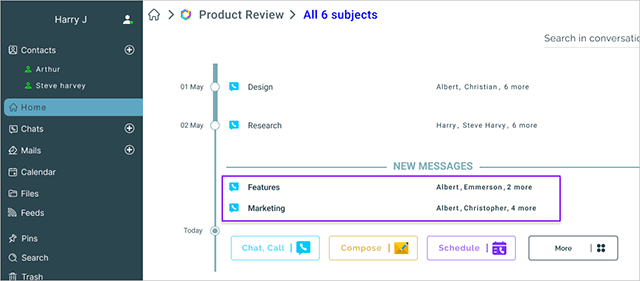
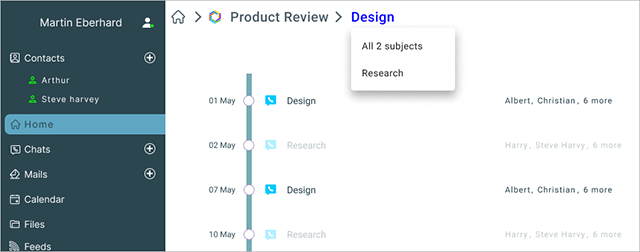
Added option to filter a conversation by subject. When a subject is selected all communication on that subject is highlighted and the rest are dimmed out.
Build 20240816
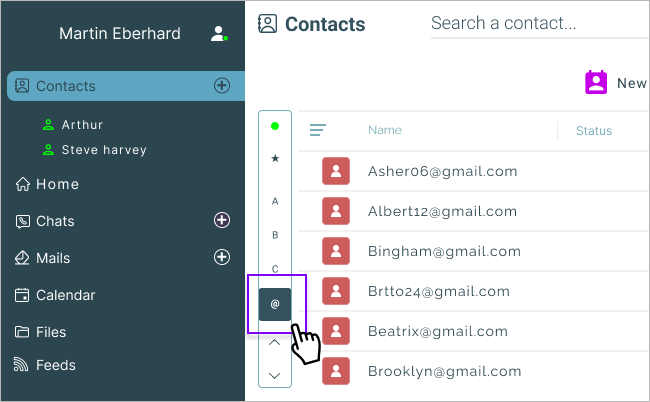
Added '@' character in thumbtack to filter email contacts.
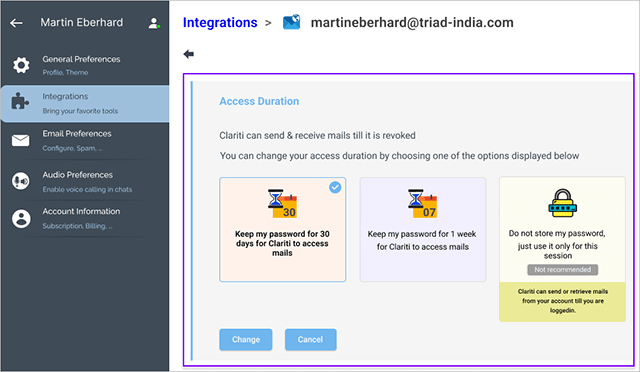
Option to limit mail access duration extended for work email accounts.
Build 20240813
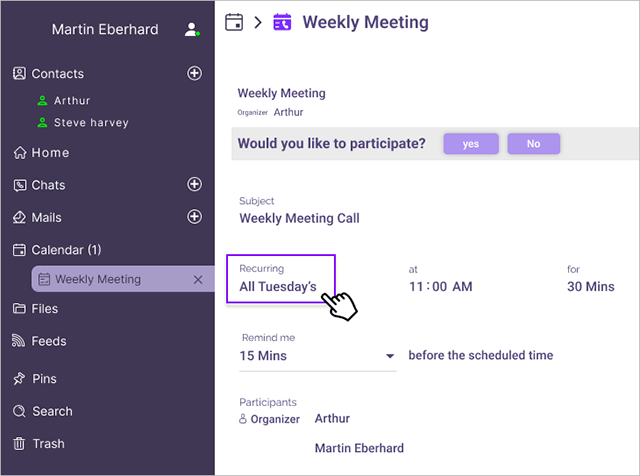
Minor UI changes to distinguish between recurring scheduled call series and individual schedule call instances
Build 20240808
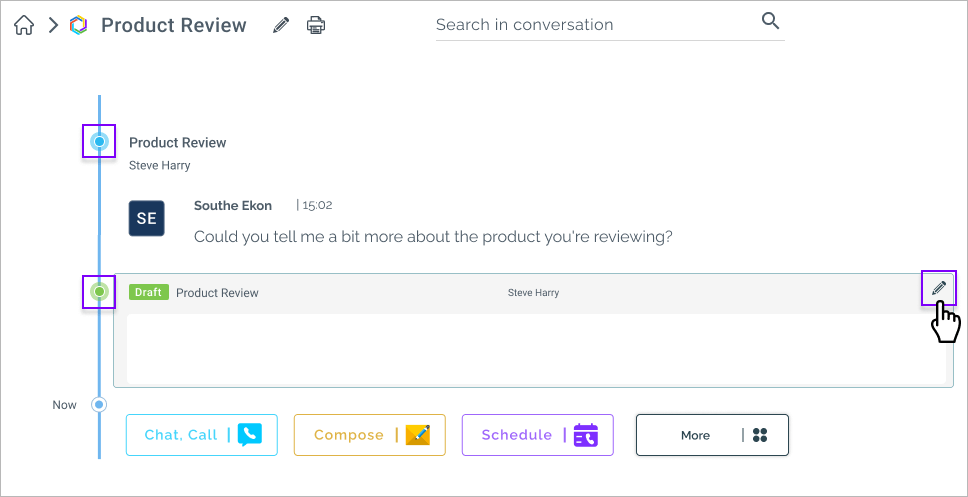
Small improvements in presentation of mail draft & on going chats in the conversation display
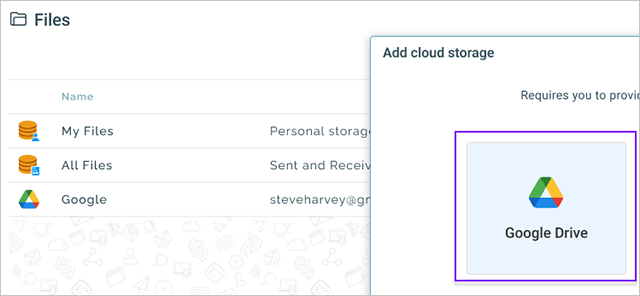
New workflow supported to add Google Drive from Files menu
Participants can now modify their availability of particular instance of a recurring scheduled call.
Build 20240806
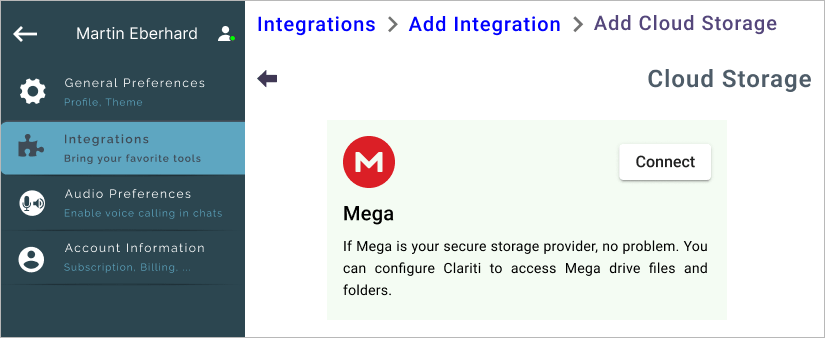
Integration to Mega cloud storage added in Clariti. Now users can access files stored in their Mega accounts directly in Clariti.
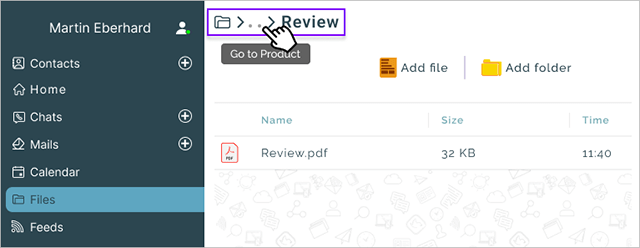
File menu header has been updated to show the current folder and to navigate back to parent folder
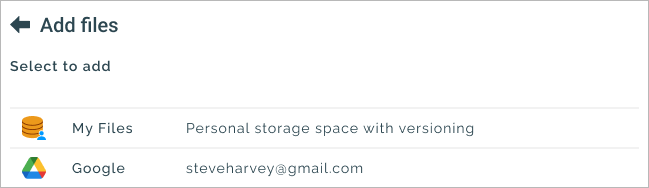
New workflow to add files to a Conversation from My Files & configured Cloud storage accounts
Build 20240801
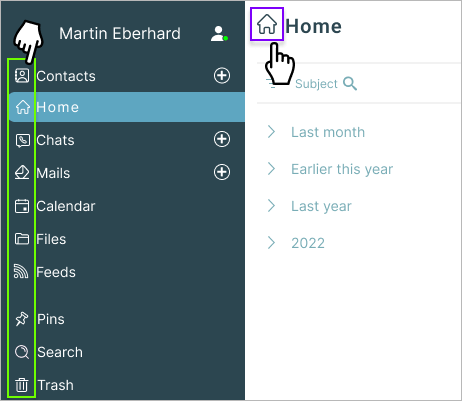
Icons are updated in main menu and in headers of those menu
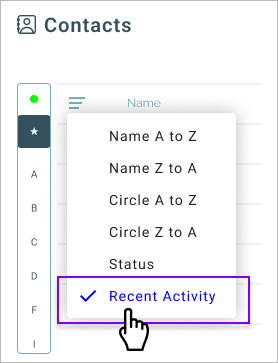
Added new option to order contacts based on latest activity in one on one chat (Direct chat).
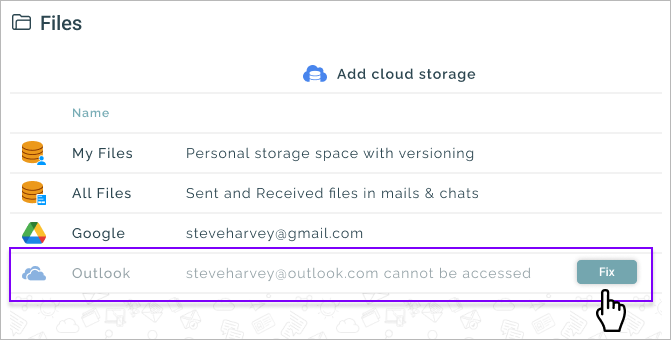
Updated listing of in-active storage accounts to show as 'Inaccessible' and display a button to make it accessible
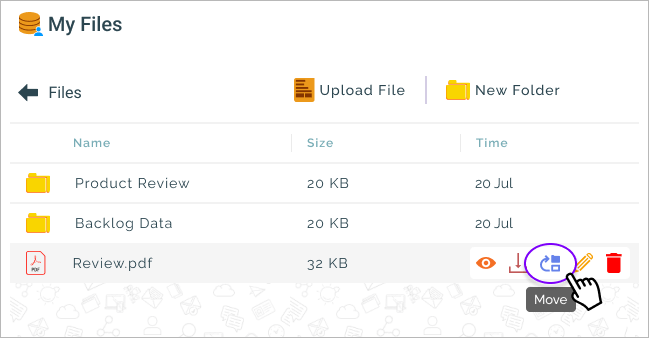
Support to move files in My Files from one folder to another
Build 20240730
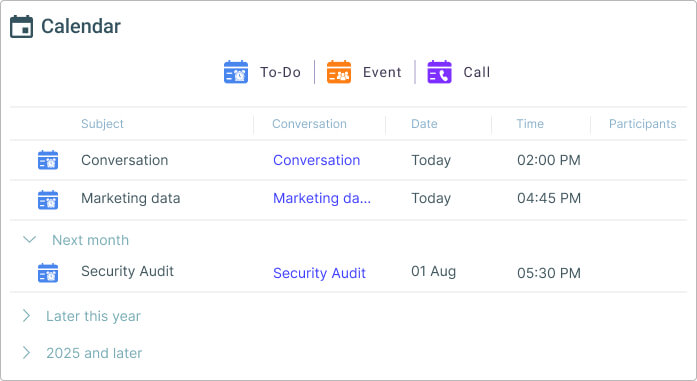
Calendar entries in scheduled and completed list views now display both date & time
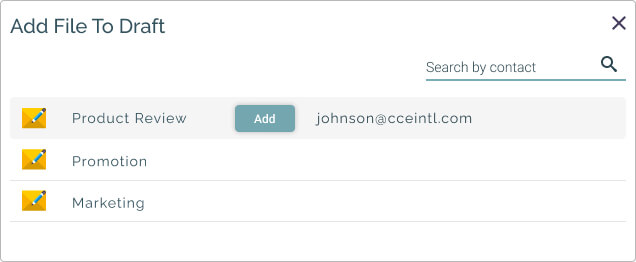
Improved 'Add File To Draft' dialog by replacing the checkbox with a button click for adding files to drafts.
Enhanced 'Share File' dialog to share the files to 'Active Chats', 'Mail Drafts' and 'Contacts'
Build 20240723
Clariti is updated to latest Angular version 18
Build 20240718
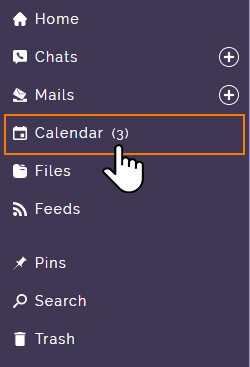
Total count of scheduled and overdue calendar activity is displayed in Calendar menu.
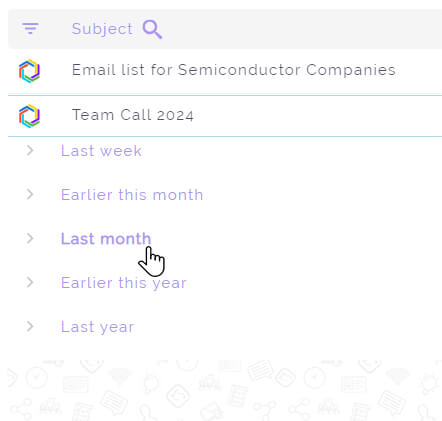
Presentation changes of the table design under different menus and overlays.
Build 20240716
Redesigned user interfaces related to file upload to My Files.
On click of an active menu, the user will be navigated back to the items listing of that menu.
Build 20240711
The tab header design for Home, Chats, Mails, Feeds, Pins, and Search now places the tab icon at the start of the tab name. Clicking the icon navigates to the previous view.
Build 20240709
Files and folders can now be uploaded by dragging and dropping them into the 'Files' tab under the 'My Files' section.
A new workflow has been introduced for forwarding chat messages from direct chats (DC) and group chats (GC).
Build 20240704
The "View History" feature in “My Files” now supports version restoration. You can revert to previous versions. Clicking 'Restore Version' creates a copy of the selected version, making it the current one.
Build 20230316
In scheduled and group calls, even if the organizer leaves, other participants can remain on the call until the last person exits. But in direct calls, the call will end as soon as any one of the participants quits.
Build 20230223
You can now add an email to an existing conversation by simple drag & drop action
You can merge two conversations using drag & drop. The conversation being dragged and dropped is added as a “subject chat” within the original conversation. All items in the merged conversation are arranged chronologically.
You can add a profile picture to your account. Profile pictures are displayed during chat messages for a better user experience.
Build 20230117
When users click on “Contacts”, they will be prompted with new contacts suggestion from
1. Email-only contacts signed up for Clariti
2. New users who signed up from the same domain
Users can choose to send an invite and add them as their contacts. The contact list will be displayed with new and old contacts separated by a separator.
Build 20221115
Users can create and configure Zaps in Clariti to receive notifications from 5,000+ apps. For example, when a new row is added to a Google Sheet or a new lead is created in CRM Software like HubSpot or when a new issue is reported in your GitHub account, you will receive feed notifications in Clariti.
Build 20221101
New users signing up using social logins (Google, Microsoft, Yahoo...) can now use password-based authentication.
Build 20220705
You can now filter contacts based on online status.
Build 20220630
You can now pick and choose discontinuous messages from direct chat history using 'Select Messages' option to use for “Continue this Chat”, “Share & Chat” or “Save & Pin” actions.
Build 20220628
You can now mute/unmute yourself when you are sharing your screen with others.
Build 20220623
You can now integrate Mailchimp with Clariti and receive notifications whenever a user subscribes or unsubscribes from the mailing list.
Build 20220602
You can now integrate GitHub with Clariti and start receiving notifications whenever a new issue or comment is added.
Build 20220527
You can now integrate HubSpot with Clariti and start receiving notifications whenever a new contact or deal is created.
Build 20220510
You can now sort your contact list by name, circle and status. The last sort option will be the default appearance for future logins.
Build 20220325
You can now create a new Workspace in Clariti and perform various operations like chat, mail, call, to-do,
event etc. Clariti’s Workspaces is a natural way for users to organize all their work, no matter the tools
they use.
During onboarding, new users can personalize Clariti by selecting their choice of apps for Messaging, Email,
Storage & Calendar.
On clicking Integrations menu, you will now see a list of integrations you have and an option to add new
integrations.
Clariti Contacts and Email contacts are now merged together and displayed as a single list.
Free Clariti users with one-hour time restriction for voice calls will have a 5-minute countdown before the
call ends.
Build 20220104
You can now “search” within direct chat messages.
You can now schedule the recurring call meetings.
Build 20211230
User interface for “Email Preferences” has been updated with new card-based layout design for better user experience.
“Import Emails” option tab has been newly introduced to import old emails from the already configured email account.
Build 20211216
User interface for direct chat has been updated for better user experience.
Build 20211104
Integrations page has been updated with new UI displaying various integration options for better user experience.
Build 20211014
Imported contacts can now be invited to become as Clariti Contacts for Direct Chat.
Build 20211011
Audio preferences will now be shown in a list style and selected options will be autosaved for better user experience.
All contacts are now classified as
a. Email and Chat Enabled: You can chat and email these contacts. It includes OrbitChat contacts.
b. Email Enabled: You can send only emails.
Build 20211007
You can now add additional participants when an instant hybrid call is in progress.
Build 20210928
Scheduled calls will now have hybrid call features (where you can chat and call at the same time.)
Build 20210916
During group calls you can now...
- Rejoin an ongoing call automatically after network disruption
- Join the call even if you were offline when the call started
- Join the call even if you had declined the group invitation earlier
- Intentionally leave the call and rejoin anytime
Build 20210908
Users can now mute/unmute themselves in both group calls and direct calls.
Build 20210826
You can now initiate audio calls and screen-sharing from any group chat or threaded chat. This was earlier limited only to one-on-one (private) chats.
Build 20210810
You can now chat during a direct call. You will be notified of incoming messages through a message indicator.
During the direct call screen-sharing, you can now enlarge the screen (stretch to fit full size).
Build 20210805
You can now specify an alternative email address to receive email replies instead of the default email address through which the email is sent.
Build 20210729
When you add a new custom domain email account, you can specify the time period for which Clariti can remember the password of the email account viz. only for one session, 30 days or forever.
Build 20210720
When you select multiple messages in a direct chat, 'Continue this chat' option is now available in the dropdown.
Build 20210713
You can now import your old emails from Clariti CDrive itself.
Build 20210629
When you attach files to a direct chat or an email, you will now see a list of TopicFolders, followed by Threads and other files in the CDrive.
Build 20210615
Standalone files in CDrive can now be used for “Share, Chat & Mail” actions.
Build 20210610
Inline images in an email can now be viewed in the browser using Clariti Viewer or downloaded to your local computer.
Build 20210608
Guest users in an OrbitChat session can now exchange files with Clariti users in active chats.
Cloud URLs that are being shared in the direct chat will now be treated as file items instead of text messages.
Build 20210518
You can now make an instant call to other users or schedule conference call on-demand. To use this feature, you need to go to CDrive, click on new call, enter subject for the call and invite other participants.
Mail signature option has been enabled for users to create & manage signatures. To use this feature, you have to click on [...] button in the toolbar of any mail draft and click on signature.
Build 20210504
User interface for “Contacts” has been enhanced with actionable buttons for better user experience.
Build 20210401
We have reimagined the user experience and introduced an easy and intuitive way to organize all your communication using your familiarity of desktop folders. Read more... You can now find all your emails, chats, calls, to-do and files listed in the CDrive. You can create TopicFolders in CDrive to organize your communication by topic by moving related items (email, chat, call, to-do, files...) to named TopicFolders. You can also click "New" in the CDrive masthead to compose a new email, start a chat or call, create a to-do/event or even create a new TopicFolder.
Build 20210309
The following changes were implemented in Clariti for better user experience
You can now delete “email-only” contacts from OrbitChat Tab
‘Copy’ option has been enabled for selected direct chat messages.
You can now insert a hyperlink in the email body using the dropdown arrow next to “Insert Image” icon.
Build 20210209
Under the “Direct” tab of the search results, you can now perform actions like Reply, Share & Chat, Tag with
Subject, Flag, Compose mail... by selecting single or multiple direct chat messages.
Build 20210128
Direct calling will now have two participant boxes for better user experience. The caller will have the
option to start or stop screenshare from his/her box.
“Screen share” option has been moved into the call participant’s box for an intuitive user experience.
Build 20210121
You can now "Flag" or "Share" direct chat conversations. Flagging was earlier limited to subject chats or threaded chats.
Build 20210115
You can now tag (bookmark) any direct message conversation by selecting "Tag with Subject" option.
Build 20210107
User interface for scheduling Calls, To-dos and Events has been enhanced for better user experience.
Build 20201224
You can now share your screen with other participants in both direct and group calls. Participants can maximize or minimize the screen.
Build 20201222
Preferences menu on the left has undergone a makeover for better user experience.
Build 20201217
A new button has been added to the Emails tab to allow users to import older emails from their configured email account.
Build 20201201
“Home” menu has been renamed as “Emails.”
You can now click on the “Chats, Calls” menu to view all your group chats.
“Emails,” “Chats, Calls” and “Calendar” are fixed menus on the left panel.
Plus (+) icon has been added next to “Emails”, “Chats, Calls”, and “Calendar” menus for composing new
emails, starting a subject chat or creating a to-do/event.
You can now create multiple chat drafts by clicking on the plus icon next to “Chat, Calls”.
Build 20201126
You can now schedule a group call by clicking on the “Schedule Call” button on the Home masthead. After you schedule the call, invitees will receive an instant call invitation, which they can accept or reject. On acceptance, your invitees will have an option to join the call. You can also set a reminder to be alerted before the call.
User interface for call notes has been enhanced for better user experience.
Build 20201119
User interface for direct calls has been improved for better user experience.
When you click on any Threaded item in Home, Thread name, group name and a button to view history are displayed in the masthead.
Shared feeds will now be displayed in the “Feeds” tab. You can click on “Find/Create Thread” to add the feed to an existing Thread or create a new Thread.
Build 20201117
Clariti users now have the option to “Enable Desktop Notifications” for the browser app as well as the Progressive Web App (PWA). A band is displayed on the masthead with option to “Ask Later” or “Never Ask”.
Build 20201112
You can now “Compose Mail” from Direct Chat by selecting multiple messages.
Build 20201029
You can now add new files either by clicking on "Add files" from the Files masthead or by drag and drop in the “Files” menu directly.
When you click on any mail id from a direct or group chat message, a new email draft will be opened.
Build 20201020
You can now select multiple messages in direct chat to “Share & Chat” with other contacts.
Through Direct Chat, you can now have audio calls with any Clariti user who is online, by clicking on the “Call” button in the masthead.
You can now add call notes during or after the call has ended and the call details will be stored under the direct chat. By default, call notes will be shared with both participants.
Email drafts are now listed under the “Home” menu on the left panel.
“Chats, Drafts” menu on the left panel has been renamed as "Chats, Calls".
Build 20201015
A new masthead has been added for all new chat from Home or Thread for better user experience.
When you click on the forward button of an email, “Share", "Share & Chat", "Forward Email" options are now shown within that item instead of a popup for better user experience.
Build 20201008
Business card icon is now displayed on the direct chat header for easy access to contact information.
If a contact is offline, then offline message strip is displayed in the direct chat header for better user experience.
Build 20200929
OrbitChat authentication has been added for added security. When you send an OrbitChat invitation, your contact (recipient) must click on the invitation link to receive Read more...a One Time Password (OTP) through email. Upon successful OTP validation, your contact (recipient) will be able to chat with you.
You can now merge an in-progress chat from an unnamed thread. You don’t have to wait till the chat gets over.
Build 20200924
Machine learning suggestions have been implemented for email drafts. Once you enter the subject name, system will suggest a suitable named or unnamed Thread in the masthead.
You can now create multiple To-dos and Events from an item.
“Thread Name” search will now filter the list directly as you type instead of showing suggestions.
When you choose the “Find/Create Threads manually” option to merge an item with an existing Thread, you will be shown the Thread preview to assist in selection of the right thread.
Build 20200922
For a new empty thread, users can now Start chat, Compose mail and Create To-Do directly from the list of named Threads.
When you create a To-do from a Thread, the Thread is displayed as a reference for the To-do
Build 20200917
You can now add an item to a Thread using machine learning suggestions or choose to manually merge using “Find/Create Thread manually” option.
You can now filter by “Thread Group” by simply clicking the respective cell from the list of Threads.
Build 20200915
When you filter Threads by Thread Group from the list of Threads, you can now merge related Threads by dragging and dropping a Thread row over another.
The user interface for machine learning suggestions has been enhanced for better user experience.
Build 20200910
You can now filter files based on storage type by clicking on the “Original Storage” cell from the list of files.
The user interface for creating a new Thread has been enhanced for improved user experience.
If you flag any named Thread, you will see 'Flagged' sash in the masthead.
Build 20200908
When you click on any file under “File Tab” on the left panel, it will take you to respective direct chat or Thread where it was originally shared.
You can now add a “Named Thread” to a “Thread Group” from Thread masthead.
User can now create multiple To-dos from a Thread.
You can now create an event from a Thread.
Build 20200903
You can now view a list of all your files, exchanged in emails or chats, by clicking on “Files” from the left panel.
Build 20200901
You can now edit an existing Thread name and either assign a new Thread name or merge to an existing Thread by selecting from Thread suggestions.
Build 20200825
You can now click on Thread group name in masthead, to will see all the Threads belonging to that Thread group.
When you click on any flagged Thread under Threads tab, the Thread will open under flagged tab on the left panel.
Build 20200820
Machine learning suggestions have been implemented for singleton outgoing chats and emails. Based on these suggestions, you can choose to add the chat or email to an existing “named” or “unnamed” Thread.
Build 20200813
Machine learning suggestions has been extended for chats too.
You can now chat with your contacts from an incoming event invitation email.
“Overdue” and “scheduled” To-dos are now listed under Calendar on the left panel.
Build 20200811
“My Contacts” now lists email addresses of all your Clariti contacts, as well as other non-Clariti contacts you have exchanged emails with, under a separate tab called “Email Address”.
You can now filter items in a Thread based on Contributors or Files shared.
When you click on the To-do reminder alert, Clariti will display the corresponding item in the calendar.
Direct chat user interface has been enhanced with new layout with three different sections (a. Current session messages b. Past history messages c. All chat & email items).
Build 20200806
“Pin/Unpin” operation and participant’s current status (Online, Offline, Busy, etc.) will now be visible in the direct chat header.
In the “List view” of a Thread, you will now see the preceding four items, if available, to prompt you to navigate older items in the thread
Build 20200804
“List view” has been added to navigate items in a Thread. This is in addition to "Item view” and “Quick view” that were introduced earlier.
You can now update or cancel a Calendar event.
Build 20200730
When you start a new chat from a Thread, you will be presented with a list of recent chat participants to choose from.
You can now close in-progress chats directly from the entry under Chats, Drafts. The “End chat” button has been removed from the chat area.
Build 20200728
Thread navigation has been enhanced. You can now use “Print view” to navigate using keyboard control (up & down). Details of all items are visible as you navigate. Read more...Alternatively, users can use “Item view” to view details of current item (n) and navigate to the one prior (n-1) or one later item (n+1) using mouse click(s).
From the list of Threads, you can now perform “Rename”, “Filter” and “Remove” actions for Thread Group(s).
For Threads that are not assigned to a Thread Group, you can now directly add the Thread to an existing Thread Group or create a new one.
You can now “Start new chat” or “Compose mail” with any of the Thread contributors.
Build 20200723
You can now “View” and “Download” any file from the list of files displayed in a Thread.
You can now choose to “pop-out” any Named Thread. The popped-out Thread will be visible under Threads in the left menu till you choose to close it.
The “Thread Group” name, when specified, is displayed on the Thread masthead.
Events can now be created for a date range.
Build 20200721
When you click on any Thread, you can now view the list of all the files in the Thread.
The latest activity of each Thread is now displayed as part of the Threads list view.
Your most recent search will now be remembered in Threads list view.
When an in-progress chat belongs to a “Named” Thread, the Thread name is displayed in the masthead at the top.
When you receive a new email, you now have the option to accept or reject Thread name suggestions.
Build 20200716
By clicking on any flagged Thread, you now have the option to “Start chat”, “Compose mail” or “Create To-do" in that Thread.
Machine learning suggestions for incoming email will now include unnamed Threads also.
From the list of Threads displayed by clicking on “Threads” from the left menu, you can now “Search” based on “Thread Group” name too.
Build 20200714
From the list of Threads displayed by clicking on “Threads” from the left menu, users now have the option to “Search” based on Thread name to locate a specific thread.
For incoming emails, Clariti will now provide possible matches of the related Threads using machine learning algorithm. A user can choose to merge the incoming email with the existing Read more...Thread based on these suggestions or manually assign it to a thread or create a new one.
Events can now be created by clicking on “Calendar” from the left menu or “Create To-Do/Event” icon from “Home”. Created events will be listed in the Calendar along with To-Dos.
Build 20200709
Direct chat tab will display introduction graphics when it is opened for the first time.
When you click on “Threads” in the left menu, all the Threads are now displayed in a tabular column for easy reference. If you click any Thread, you can view all the items inside the Thread. Read more... When you click “All Threads” in the Thread details page, you can go back to the previous screen where all the Threads are displayed in a tabular column.
You can now move a feed to the Home tab by clicking on the “Home” icon.
When you start a new conference chat, the recent chats are displayed in a new user interface that is not only visually pleasing but also provides additional information about the chats.
Build 20200707
When you continue a chat from a completed chat item listed under 'Chats, Drafts', the completed chat will be now be replaced by the in-progress chat item. Read more... Earlier, the in-progress chat item was displayed as a new entry. This has been done to greatly simplify the display of multiple chats and create a better user experience.
Build 20200702
A divider has been added in the “Direct Chat” area to distinguish new messages from old.
When you hover over the menu management icon on the top left, the background is blurred for better user experience.







